Welcome to the World Anvil workflow for video game designers! Whether you lead a game development team in need of a wiki, you're an indie game developer, or you're the writer and lorekeeper for a game, this workflow will show you everything you need to know to get started writing your game on World Anvil.
This is just one path to set up your world for your game! We recommend you use it to get started. But, once you're familiar with the toolset, we encourage you to explore and find your own path! Every game designer and creator, and every game, is different. Take it at your own pace, and use the World Anvil tools you need for your vision.
Contents
Create an account
If you don’t already have an account, follow the steps to create one!
- Navigate to worldanvil.com/register to create your account.
- Enter your email address, choose a username, and type in a password. Click Register.
- Follow the short process to set up your account.
Pro Tip: When creating an account, select the "Worldbuilder" option during the onboarding process. This will enable all worldbuilding features without the extra tools RPG Game Masters or traditional writers need.
Create your world
Now you have an account, create your first world!
On World Anvil, a “world” is your setting (and your setting bible!). It could be anything from a single city (like Night City), to a continent (like Tamriel), to a galaxy far, far away (like Star Wars), or even a whole multiverse (like the Marvel multiverse). As long as it works as a single setting for your games, it’s a world!
Pro Tip: You can also think of a "world" as the whole of your game project on World Anvil, regardless of how expansive it is or how deep its worldbuilding is.
Why create a world?
Follow these steps to create a world:
- Click on the switcher at the top of the right sidebar.
- In the "Worlds" tab, find the "New World " button and click it.
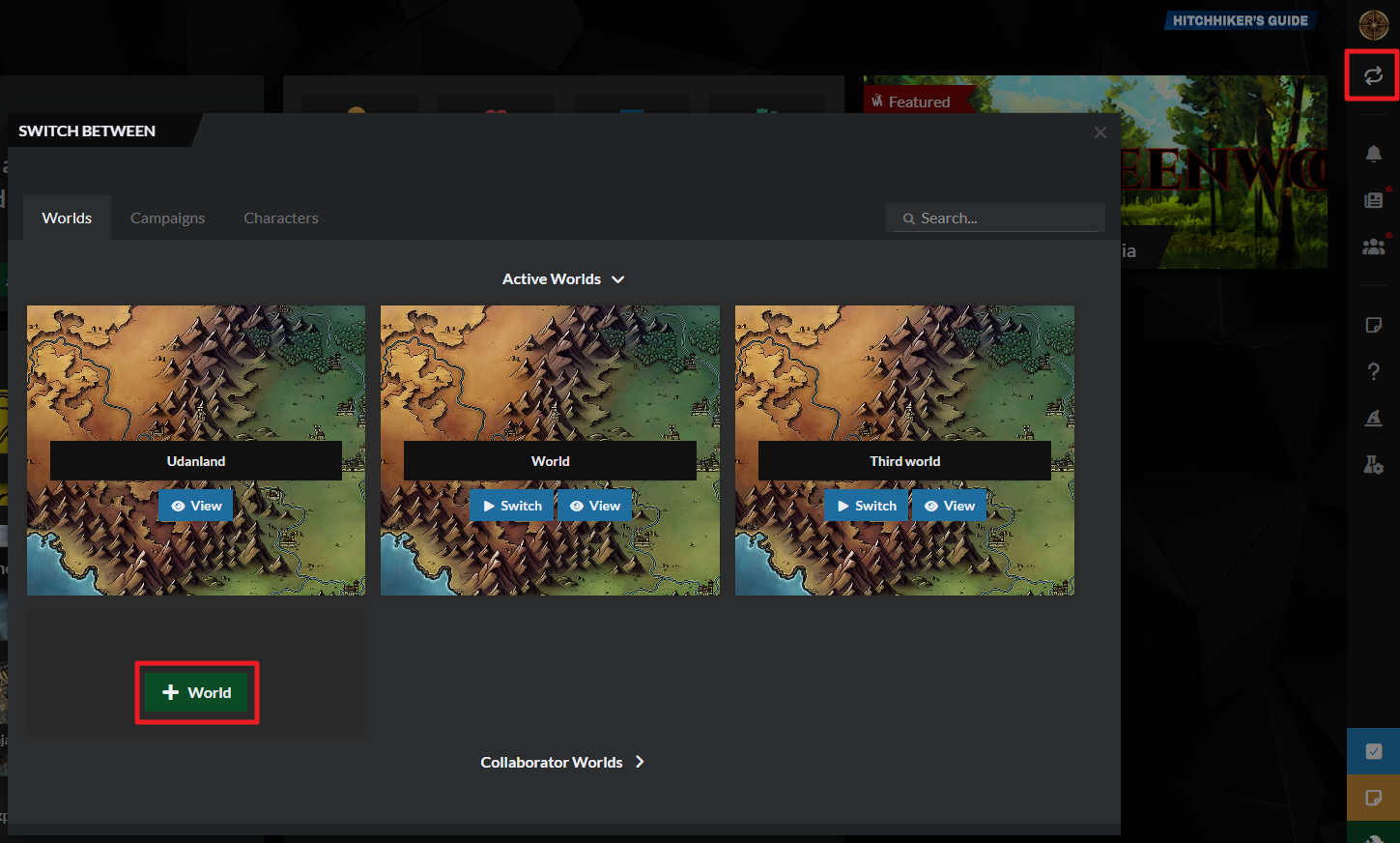
Need more help?
If you don't see an option to create a new world, learn how to enable worldbuilding features.
How to create a world on World Anvil.
1. Create your Game Design Document
The Game Design Document (GDD for short) is the fundamental pillar of your game project—everything about your game will be an extension of this initial document. So, before anything else, create yours! Or, if you're part of an established team, make sure to read it carefully before proceeding.
Start creating your Game Design Document with the Generic Article template (check the Wikipedia article if you don't know what a GDD is). If you're a veteran worldbuilder you might be familiar with the concept of "world meta"—while they have some similarities, they're different things! The GDD concerns the project as a whole, while the meta will be an extension of the GDD specifically designed for worldbuilding. We'll touch on the meta later on.
1.1. Set up your team
If you lead a team, set it up on World Anvil! Depending on your team size and what kind of access they need, you'll want to use different user permissions:
- Edit access: If you need someone to directly edit the world, set them up as a co-author (learn how).
- View access: If you need someone to be able to read the private contents of the world without edit access, set them up as a subscriber (learn how).
Since you'll use World Anvil mostly for the writing portion of the game (rather than, for example, coding or graphic design), make sure you at least add your narrative designers or writers as co-authors. You can send them this workflow to get them started!
2. The Worldbuilding 101 course
If you've never built a world before, we recommend you take our free Worldbuilding 101 course! To access it, log in to World Anvil and click on the wizard hat icon on the right sidebar:
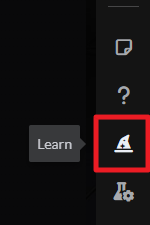
This course will walk you through the first steps building your world. When you finish the course or feel like you want to keep going, you can skip to step 2 of this page!
Use the meta
Another strong option to start worldbuilding your game's setting, especially if you're working with a team, is the Worldbuilding Meta!
On World Anvil, “worldbuilding meta” is your setting’s basic information—like its DNA. It's a place to record the behind-the-scenes stuff your players won't necessarily know about, like themes, core conflict, and inspirations, and it's a great way to keep you on track and motivated long-term. Think of it as a Game Design Document but specifically for the worldbuilding and the story rather than the game in general.
Click the following button to learn more about this, or skip to the next section if you just want to start writing articles!
Why create a Worldbuilding Meta?
The Worldbuilding Meta forms a solid base for your worldbuilding. If you get stuck in your writing or development process, visit it to renew your inspiration and motivation!
If you’re building a new world:
Fill in the meta to start your world on a strong foundation! Establishing these big ideas will help you define what’s unique and compelling about your new world.
If you already have your own world:
Use the meta to refine your concept more clearly! It’s a great diagnostic tool to help you articulate your vision. It can also inspire you to fill in areas you hadn’t thought of before!
To create your world meta:
- Click the gear icon at the bottom of the sidebar, and then the meta icon, as shown below.
- Fill in the tabs and answer the questions, and remember to click save when you’re done.
- Write in short sentences and bullet points (believe me on this one—it’ll be so much quicker to reference later!).
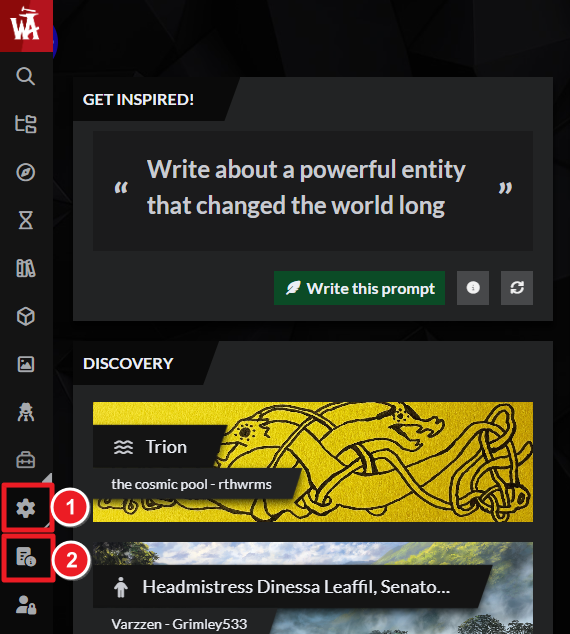
Want more help? Then check out these resources:
How to fill in the Worldbuilding Meta on World Anvil
3. Build the basics of your setting
Now you have the big concept of your setting, you’re ready to start creating your articles!
Articles are the core of your worldbuilding on World Anvil. Think of them as Wikipedia entries. They have structured information about a specific topic. They can be as short or long as you want, and they’re linked to other related articles. World Anvil is specialized for worldbuilding, and so are articles! Different templates include special features like dictionaries (language template), family trees (character template) and diplomacy webs (organization template).
For now, these articles will be for your and your team's reference: the NPCs, places, quests, items and loot-drops in your world. They can contain your art references, mechanics, flavour texts, worldbuilding details and more. Keep them updated as you develop more about your world, so your whole team is on the same page.
When your game releases, you can make some articles public to create a game wiki for your players. (This guide goes through public official game wikis later!).
To create a new article:
- Click the green Create button at the bottom right corner of any page. You’ll see a grid of different article templates:
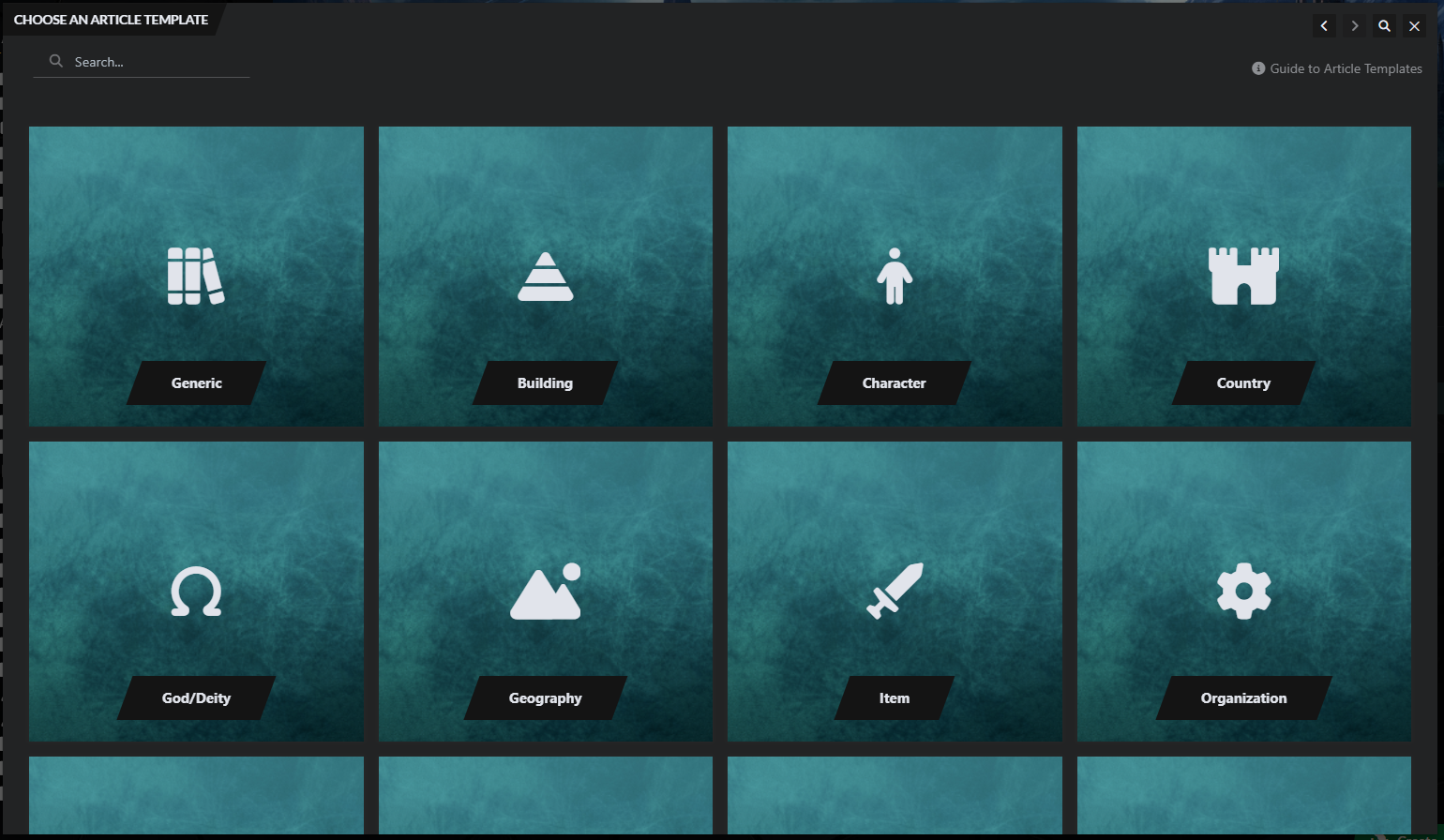
- Choose the article template that best fits your article.
- Write the title of the article and start worldbuilding in the text area!
Need more help?
Learn more about editing articles from these resources:
Lesson 1 of the Beginner Tutorials: Get Started with Articles
How to link articles with the mention system
How to customize your article's layout
Guide: World Anvil Article Editing Interface
What articles do I need to create for my game?
This is very individual, but here’s a method we recommend:
- Make a list of the core elements of your game setting (you can use our todo list!). Re-reading your Meta and your Game Design Document may help. How many articles you need depends on how deep your game's lore is, and how big your game is!
- Then, expand each list item into a brief Article (even just a few sentences) using the worldbuilding templates.
- Expand each concept into a brief Article (even just a few sentences) using the worldbuilding templates.
- Link them together where you can to make navigation easier. Use the autolinker to speed this up!
Once you’ve created these, start thinking from your players’ perspective! What will they interact with, and in what order? If these elements are important enough, create articles for them too.
4. Organize your worldbuilding with categories
Now you’ve created some articles, it’s time to organize them! You can do this with categories.
A category is like a folder that contains articles. Use them to group articles by topic. You can also nest categories to create a tree-like structure for your setting.
To create a category:
- Click the green plus button at the bottom right corner of any page.
- Select category in the list.
- Give the category a name and press Shift+Enter to save it.
Maps, Timelines and More!
If your world has lots of locations or a long history, you might need more than articles to keep track! Here are some more World Anvil tools that may help you in your worldbuilding quest:
Other worldbuilding tools (optional!)
At this point in the workflow, you should have a good handle on your game's setting. Congratulations!
If you want to flesh out your setting more, these tools might be helpful!
- Interactive Maps: upload your game map and make it interactive, with pins, zoom, and other tools. This will help you visualize what the players will also see, and therefore create a more consistent story!
- Timelines: If your game has a deep history, this is a great way to keep it in a visual and interactive way.
- Chronicles (Guild-only): powered-up timelines! Chronicles merge maps and timelines into a single tool, so you can see when and where everything happened! It’s a must if you have complex lore, or you’re tracking changes on the map itself throughout time.
- Family trees (Guild-only): display an interactive family tree of your characters. Really helpful for political intrigue, family drama, and tracking royal or magical lines!
Quick recap!
By now, your world should now have:
- A meta document to keep a solid foundation for your project (as well as the Game Design Document).
- Some articles with information about your world.
- A basic category tree to organize your worldbuilding.
- Maybe a map, timeline or other visual aid!
Now that your setting is ready, it’s time to start plotting the story of the game!
5. Let's get plotting!
Given that writing is just one part of the game development process, it's really important to have a clear plot laid out! Otherwise, you risk having to re-make significant portions of the game later on. At this point, we're still thinking of the general story of the game, rather than specific dialog lines and descriptions. Even if your game isn't story-focused, you might still need a basic plot if there's any sort of narrative progression, social encounters, or any in-world texts.
CRPGs and adventure games tend to have a main plot arc, with player options for different outcomes, and then lots of more self-contained side quests. We recommend you start with your main plot arc! There are two options for plotting this on World Anvil:
Written plot (free)
The Plot template is a specialized article template on World Anvil, with prompts and sections to write your plot structure, which is especially useful for story-heavy games. Create it as you would create any other article.
If you have a complex or long plot, follow these steps:
- Before creating the Plot article, divide your plot into different sections. For example, into three parts if you’re following the Three-Act Structure.
- Create a Master Plot article that will summarize everything. Then, create an additional Plot article for each of the parts you decided in the previous step.
- For each of these plots, open the optional prompts at the bottom, then use the Parent Plot drop-down to select the Master Plot article.
You now have a full plot structure for your story! Of course, each story is different so adapt this to your own story’s needs.
Visual plot (Guild only)
Whiteboards are a blank canvas you can use to create anything, including plots!
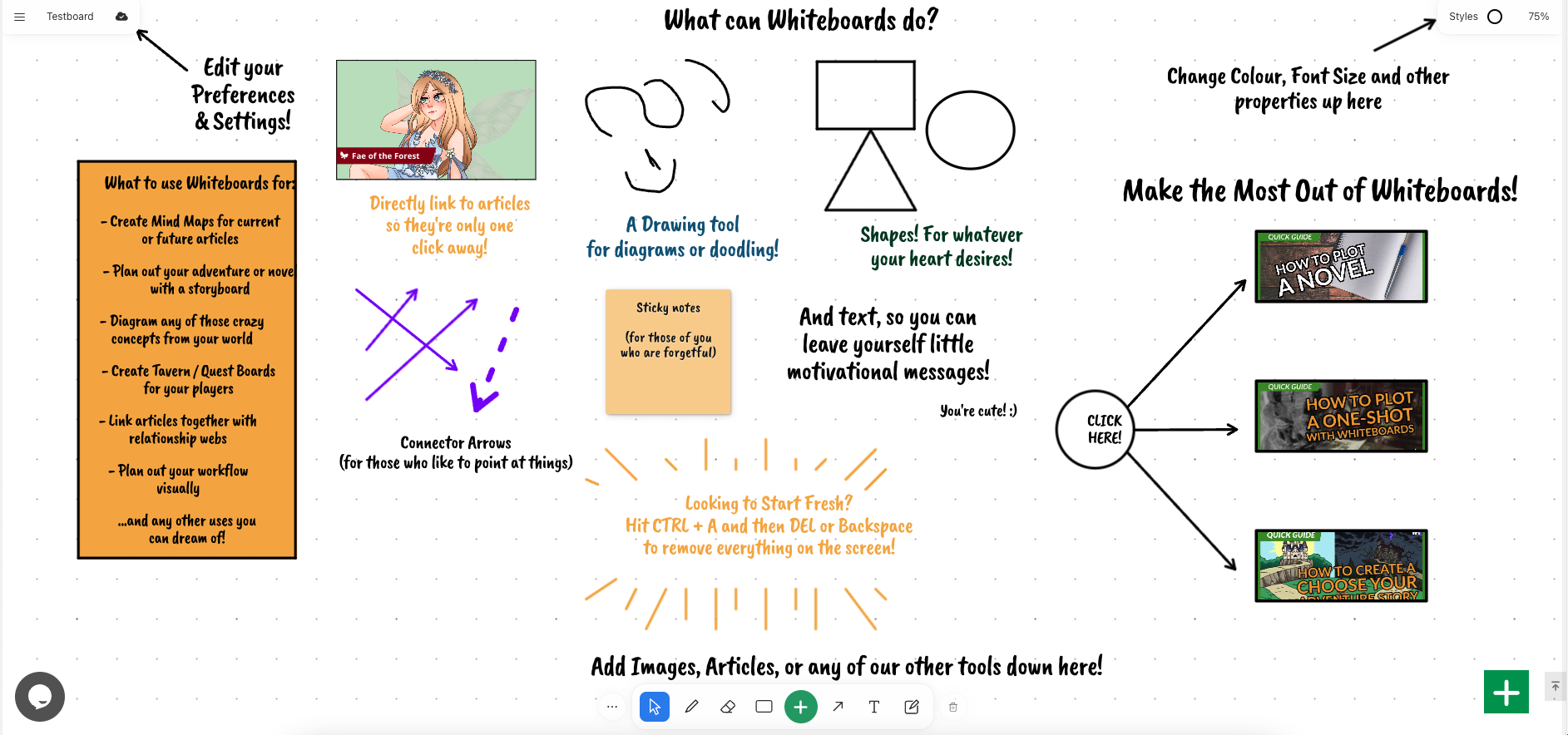
Follow these steps:
- On the left sidebar, expand Advanced Tools and open Whiteboards.
- Create a new Whiteboard and give it your game’s title (you can change it later on).
- Use the drawing tools at the bottom of the screen to create your plot structure. This works great for games with a branching story!
When you finish, you’ll have a full plot structure represented visually! You can check out our plotting on Whiteboards tutorial for more details.
6. Time to write!
As your game project develops, you'll need new plot articles to keep track of your side quests, new NPCs to deliver information, new treasure items, new monster species and more! If your game has collectable in-world writings (like the books in Elder Scrolls), write them out in Prose articles. Make sure you keep your game wiki up to date and accessible for your team; many teams name a dedicated LoreKeeper to keep everything updated. This keeps everyone (writers, developers, designers) on the same page as you get closer to releasing your game!
Visual novel games
If you're creating a Visual Novel, you can use a Manuscript and write your game as if it was a movie.
7. Build a public game wiki
Game wikis are extremely useful resources for your players! A traditional wiki is open for public editing, which means that you wouldn't have as much control over its contents. On World Anvil, however, you can create your own wiki-like site that has exactly the content you need to create the player experience you want.
For a lore-heavy game, a wiki gives players the opportunity to explore the world beyond what they learn in the game. But even if your game doesn't have deep lore, a wiki with support materials and strategy guides will be very helpful to your community.
To do this, you'll want to polish your articles to make them ready for the public. Add visual elements, break them up into paragraphs and sections, and use layout elements like quotes and columns. These public articles can exist in the same world you've been using until now—just use visibility settings to define who can see what.
Community-contributed lore
Another approach is involving your players in the worldbuilding process. Set up a community hub to coordinate this (such as a Discord server), and give select players access to your world as Writers, so they can write directly on World Anvil without being able to edit anything else (check the Guide to co-authors for details). This will make your community much more engaged, as they'll see their creations inside the game, while keeping the story under control.
8. Build a community to support your game release
Before your game launches, you'll need to spread the word and create a community around it to ensure its success! World Anvil offers various features you can use to build a community of readers and fans around your World Anvil world:
- Publish your game wiki (or at least a bit of it)! Having some articles, maps, and character profiles for your players to explore even before the game releases can be very attractive for lore-hungry players. Make sure the world homepage includes any relevant links about the game, such as the games Steam page (so your players can wishlist it), your Discord community, etc.
- Embed your game trailer and other footage using the YouTube embedding options.
- Invite readers to leave a comment! All articles have a comments section, where readers can leave comments (if they have a World Anvil account) and you can reply to them. You can also disable comments if you want, but leaving them active helps build interest in your work!
- Some games have found success with sharing community-created lore in their worlds! Making a work part of the official wiki is a great way to reward dedicated players and build community.
- Send updates of your content to your Discord server with our Discord server integrations. Check out the guide to using Discord with World Anvil for more information. This will help you get your players excited and build a community around the game's narrative.
- Get conversations started with players, beta players, or superfans, by using Discussion Boards to create a forum board in your world. Check out the guide to Discussion Boards for more information.
- Use journal entries and post them globally to share updates about your writing with the community!
- Share your work (respectfully) with the World Anvil community!
- If you have a Patreon or other fanbase, you can give exclusive and access to your world and your early access game builds! Check out our World Anvil for Professionals Workflow for more.
9. Grow and showcase your world with other features
We’ve kept this workflow as lean as possible, but World Anvil has many other features that can be useful for a game dev! Depending on what kind of world you’re creating, and the game you're writing, they might all be useful (or maybe none of them)!
- Diplomacy webs: see the relationships between different factions in your world at a glance. Very useful if you have many different factions in your game.
- Content trees: some kinds of information are better displayed in a tree-like structure, like a hierarchy or an evolutionary tree. Content trees let you do that.
- Calendars: knowing the months and days of your world is always useful, regardless of the kind of game you’re writing.
- Secrets: if you’re sharing parts of your world with your players, you can use secrets to keep some information private or only available to certain people. Check the workflow to keeping secrets for more options to keep content private or hidden.
- Random generators: use our library of random generators to generate names, locations, writing prompts, and more—check them out here. You can create your own custom random generators for your world too, which are great for fan interaction!



