World Anvil has several different text editors. The main two are the Visual Text editor, which is simple and streamlined, and the Advanced Editor ("Euclid"), which is designed for advanced users doing complicated layout and functions.
We highly recommend new users, and those that favor visual editing, to use the Visual Text Editor. It's quick and simple, and removes the need for the BBCode formatting system. If your editor does not look like the screenshots here, you may have your world set to a different editor. Learn how to switch editors on World Anvil here.
This guide walks you through the Visual Text Editor! Here's what you need to know about it!
Contents
Basic Details
The visual text editor is more than just a simple text editor. It is compatible with the rest of World Anvil, allowing you to seamlessly integrate your work and content while writing. Type "@" followed by the name of an article to create an article link—and if the article doesn't exist yet, you'll get an option to create it in the background as a placeholder article!
Text fields with the Visual Editor have this placeholder text letting you know the editor is active:

If you're not sure how to create or edit an article, check the guide to articles.
Get started
While writing in an article, type / to open the commands menu or click on the icon when you mouse over the block line.
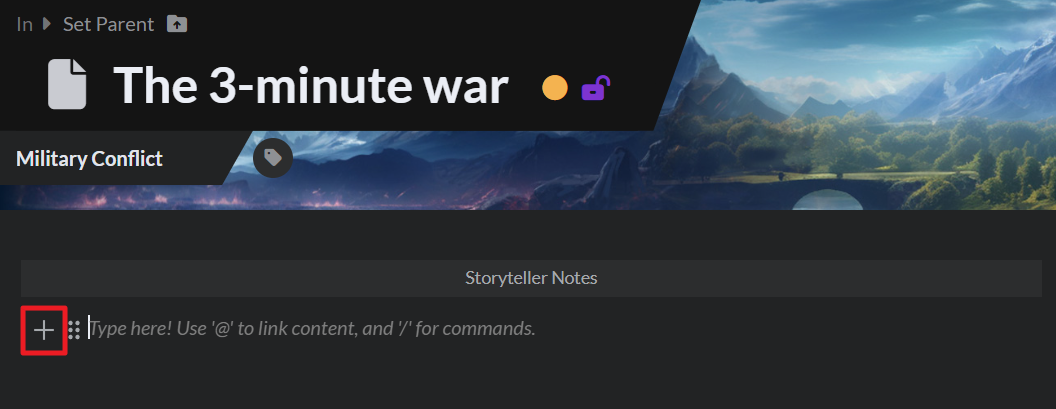
To edit your content further, click on the icon. Depending on the type of block, you will have the options to change the block type, change the color or delete it.
Paragraph / Basic text block
By default, you'll be writing in a paragraph block (i.e. "regular text"). To format your text, highlight it by selecting it and the edit toolbar will appear:

At any point while you're typing you can type a slash to select a different block type (such as a header, an image, and more).
Tip: You can also drag and drop an image from your device directly into the text field to upload it!
Headings

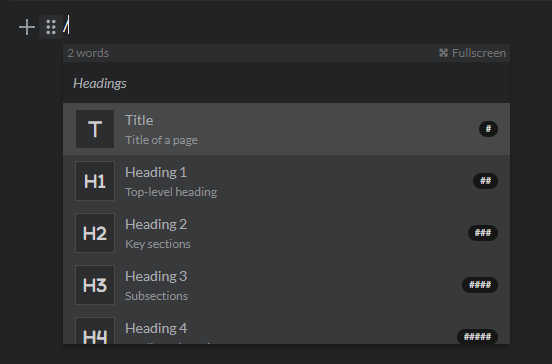
Headings are used for the titles of the subsections in your articles. The descriptions on the commands menu indicate their recommended use. You can also use the keyboard shortcuts that are displayed next to them, if you prefer.
Basic blocks

The basic blocks in the commands menu include the:
- Numbered list. Use it to describe a sequence of steps, or events that must happen in a certain order (you can also use 1. to trigger it).
- Bullet list. Perfect for any kind of unordered list (you can also use - to trigger it).
- Checklist. Ideal for any to-do items! Tick the box to mark it as done.
- Horizontal line. Use this to create seperated sections in your writing (you can also use --- to trigger it).
- Article table of contents. Automatically inserts an interactive table of contents based on the headers you've added to your article. Perfect for easier navigation through your content!
Advanced commands
- Autolinker. This command runs the Autolinker, a process that scans the text of your article, suggests words that may link to other articles in your world, and adds links to them! You can replace all, or choose exactly what you want to link where, then click "save and exit" to complete.
- If you click on the article link in edit mode, you can see a popup preview of that article.
- Mention system. You can also use the mention system to add a mention immediately while writing. Type '@' and then the first three letters of the article you want to add and link to. Select it from the list and that's it!
- Fullscreen. Select the fullscreen command or type Ctrl+alt+F to write and format your text in fullscreen mode.
- Table. The table command will create a table with rows and columns. Mouse over the rows to add more or delete a row. Similarly mouse over the columns to add more or delete them.
- Select the text inside the table to format it further!
- Aloud. Use this command to display text that should be read aloud. This is mainly used in RPGs! You can use Shift+Enter to create new lines.
- Quote. Use this command to add a quote as well as the author of the quote. Break up long articles with quotes to add flavor.
- Guild-only Spoiler. Use this command to hide a spoiler section behind a button. If the article is public it will be visble to everyone. You can use Shift+Enter to create new lines.
- Key Value. Use this command to add a property and its value (e.g. Species: dragon). This mimics the way article sidebar prompts look like. The recommended place to use Key Value is in the side bar sections of your article.
- Dice Roller. Use this command to add a button that rolls dice! This supports regular RPG dice rolls (polyhedral dice), and also percentage dice, exploding dice, fudge dice and more.
- For additional special dice commands, check out this guide.


Block links
On World Anvil there are multiple features you can use to organize and display your content. To embed any of the blocks listed underneath follow these steps:
- Type a slash (/) followed by the type of block and select it from the list (e.g. /secret).
- A search panel like this will appear within the article. Use it to find the content by name (for example, typing the name of the secret):

- Click on the search result you want to add to the article and it will be inserted.
These are the block types you can embed in an article:
- Article block: this command is used to display a block link to an article.
- Guild-only Category block: this command is used to display a block link to a category.
- Master Manuscript: this command is used to display a block link to a manuscript.
- Guild-only Secret block: this command is used to display a block link to a secret.
- World block: this command is used to display a block link to a world.
- Master Bloodline: use this command to add a bloodline block.
- Guild-only Calendar: use this command to add a calendar block.
- Master Diplomacy web: use this command to add a diplomacy web block.
- Master Family tree: use this command to add a family tree block.
- Map: use this command to add a map block.
- Grandmaster Content tree: use this command to add a content tree block.
- Stat block: use this command to add a stat block.
- Master Interactive table: use this command to add an interactive table block.
Media
Images, videos, soundtracks; you can add all of these media blocks using the slash menu:
- Image: use this command to add an image. If you have already uploaded your image on World Anvil, type at least three letters of its title, paste its ID or enter its URL. If not, you can simply drag and drop the image directly into your text from your computer.
- Once you add your image, you can resize it to your liking!
- Image block: use this command to add an image along with its title and artist. You can add that information to your images on the Images page. The process is the same as the image command.
- Guild-only Carousel: a carousel is a gallery of images. Use this command to add one of your galleries from your image galleries as a carousel. Type in the first three letters of its title and select it.
- Spotify embed: use this command to add a spotify track or playlist. Enter the URL.
- Youtube embed: use this command to add a youtube video. Enter the URL.
Visual Editor on timelines
The Visual Text Editor in Timelines has fewer commands than in articles.
You can use:
- From the headings
- Title
- Heading 1
- Heading 2
- Heading 3
- From the basic blocks commands, you can use the:
- Numbered list
- Bullet list
- Horizontal line
- From the advanced commands, you can use the:
- Autolinker
- Table
- From the media commands, you can use the:
- Image



