The Articles & World Manager lets you manage and edit all categories and articles in your world, organize them, and even edit most world settings. To get started, click the Articles & World Manager on the left sidebar.
Contents
Interface overview
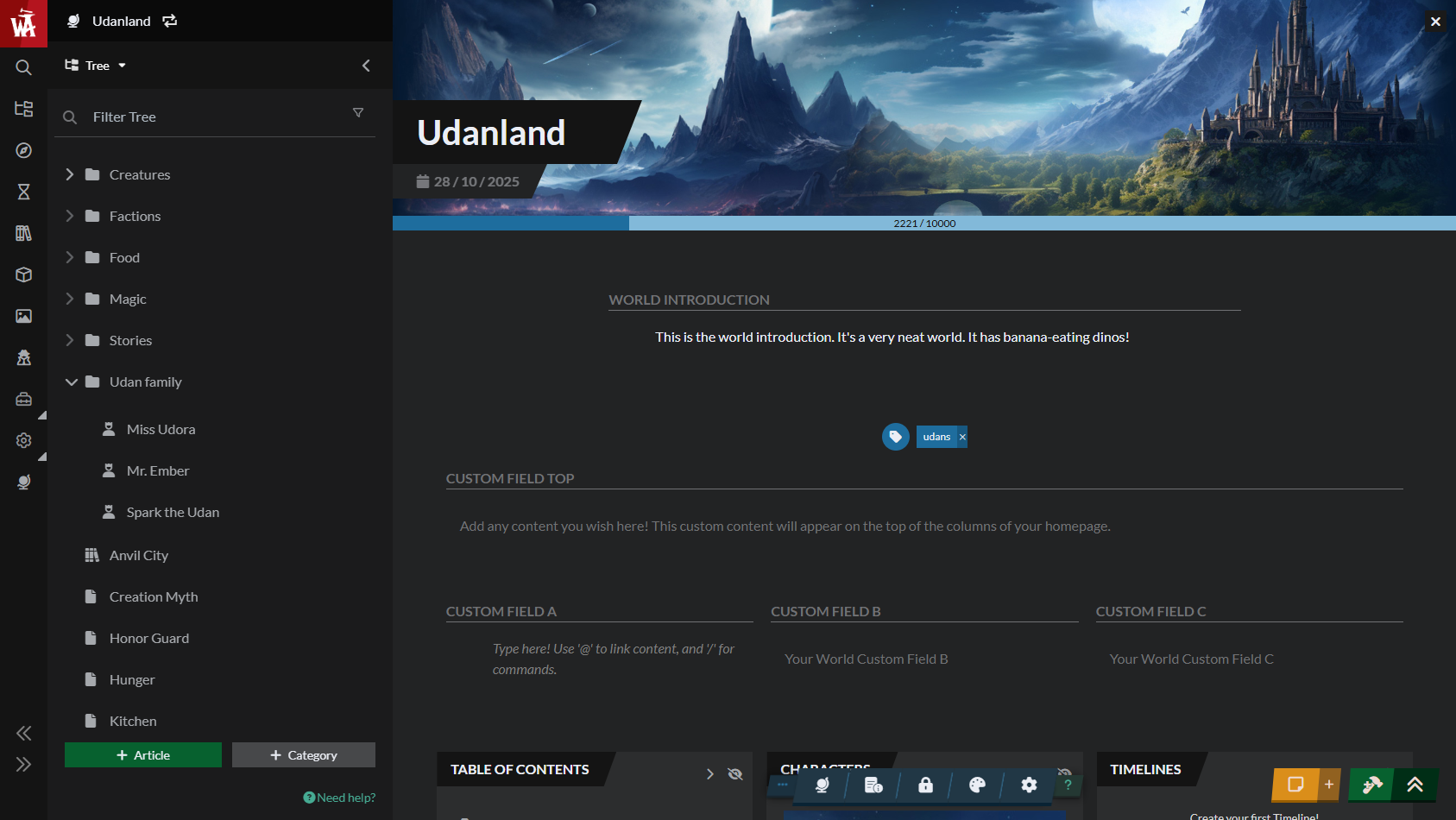
The interface is divided in two parts: the left and central panels. On the left, you have a list of all categories and articles in your world, while the central panel is where you'll be able to edit your world, your articles, and your categories. Additionally, at the bottom of the central area, there's always a toolbar that holds various options depending on what's selected.
Pro-tip: If you have a lot of articles on the left panel, you can have a more compact view! Mouse over the world name at the top, click on the ellipsis menu, and enable compact mode.
Homepage customization and world settings
The first time you open the Articles & World Manager, the central panel will show your world's homepage in edit mode. From here you can edit your world's name, description, the content that shows up on the homepage and more. The bottom toolbar will give access to your world settings. You can open this interface to edit your world Homepage by clicking your world's name at the top of the left panel.
Check the guide to world configuration for more information, and how to customize your homepage for details on this.
Full-page article editor
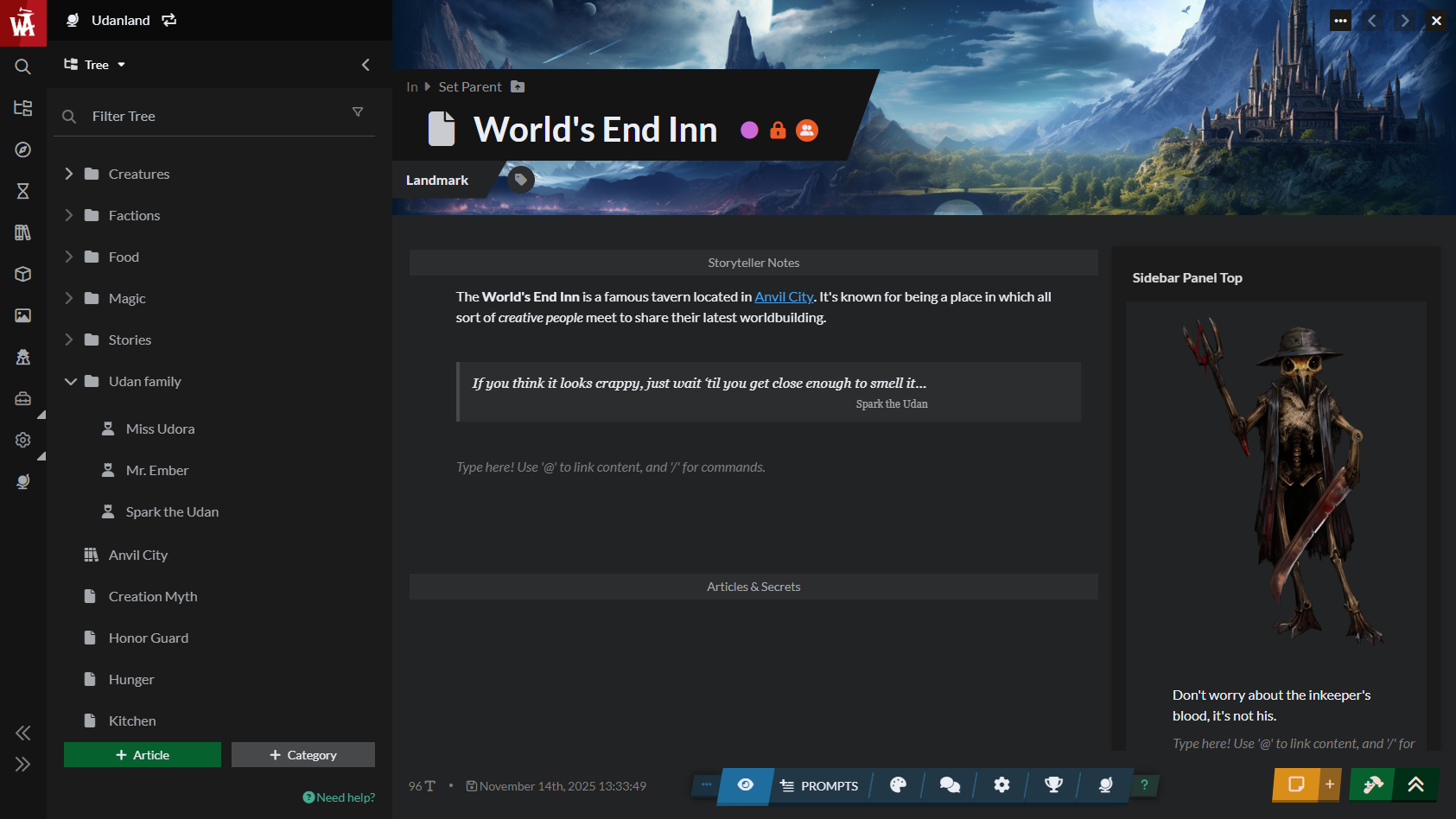
When you click on an article or category on the left panel, you'll be able to edit its contents and settings in the central panel. Check the guide to editing articles and guide to categories respectively for more information. Editing articles in this interface has some major advantages:
- Search overlay: When you press Ctrl+K in your keyboard, the search results will include an extra Open in Modal icon. Click this to view or edit the article without closing the other one. Then, you can click outside of the modal to quickly go back to the previous article.
- Long-press to quick edit: When viewing an article in this interface, or when editing it with the Visual Editor, you can click and hold any link to another article. This will immediately open that article in a modal so you can quickly read or edit it without closing the previous one.
- Notebook access: If you have pinned your notebook, you can click the notebook button to open it over your articles. The Create button for articles will also open overlaid on the article, so you can quickly create articles while working on another one.
If you work with a smaller screen or simply want a truly full-page article edit experience, click the chevron at the top of the left panel to collapse it.
Managing articles in a category
When you click on a category, the central panel will let you edit its contents. If you click the "Article Management" tab at the top, you'll see the list of articles in the category with detailed metadata:
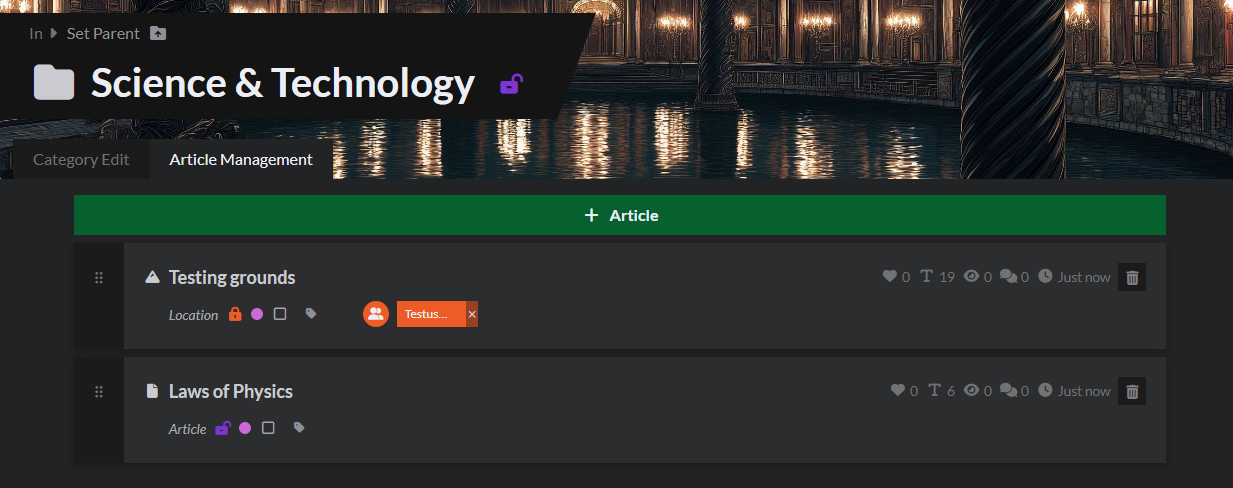
Clicking on an article title will open it for editing, but you can also quickly toggle their visibility status, as well as reorder them within the category with the drag handle.
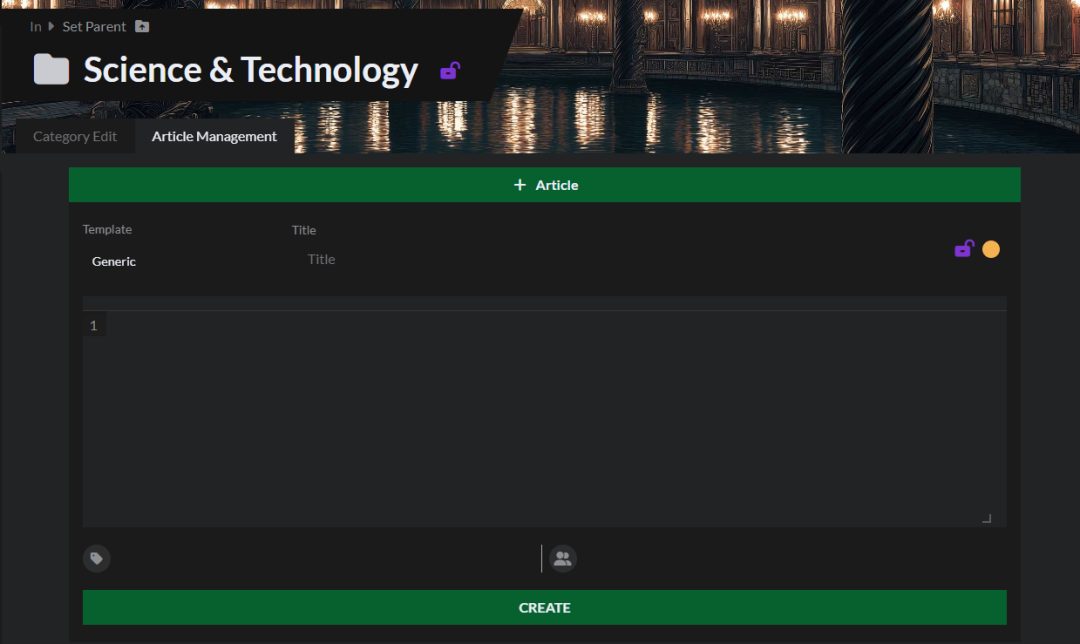
The Article Management view also lets you create articles without leaving the category page. Articles created this way are automatically added to the category you have open:
Category & articles list
By default, the left panel is in Tree mode, which means it will show all articles and their respective categories (with the world name at the top). You can drag and drop any articles and categories to sort them into categories. Note that, in order to drag an article, you need to click and hold the article/category for a split second before moving it.
When you mouse over a category, you can click the folder plus icon to create a sub category. Similarly, the plus button will create an article under that category. Finally, the ellipsis contains additional options, such as copying the embed code, opening them in view mode, and deleting them.

Options for articles are very similar: the ellipsis button has the same options (copy embed codes, opening in view mode, deleting, etc), and the plus button will create a child article. Check how to set up parent articles for details.

In both cases, the arrow icon will let you edit the category or article in a new tab (you can also do so with a middle click or Ctrl+click on the category/article name).
You can always create new unsorted categories and articles with the two buttons at the bottom of the left panel.
Article information at a glance
At the top of the left panel, mouse over the world name and click on the ellipsis button. There, you can click on Toggle State Indicators. With this enabled, a number of indicators will appear next to each article:
- A closed padlock indicates a private article, while an open padlock indicates a public article.
- A yellow circle indicates a draft, while purple circle indicates a published article.
- An empty checkbox indicats a WIP article, while a checkmark indicates a Done article. There is no functional difference between a WIP and a Done article, they're just for your personal reference.
Clicking on any of these indicators will toggle it to the opposite state. For example, clicking the private indicator will make the article public. For more information about private and public articles, as well as drafts and published articles, check this page.
Filtering and view modes
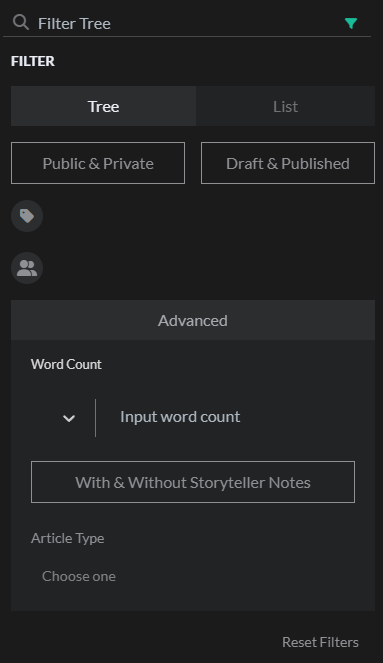
If you click the Tree header at the top of the left panel, you'll see a list of view modes for that panel. Each of these modes will reload the list as described (for example, selecting "Uncategorized articles" will only list articles that are not in a category).
There is also a search bar that you can use to highlight articles with certain keywords in the title. The filter icon in the search field lets you apply advanced filtering options. Here are some tips to get started with the filters:
- Tree vs List: Selecting "List" will display all articles in a plain list, without their categories. This is equivalent to clicking the panel header and selecting "List".
- Toggle options: The options in a box (such as "Public & Private") are toggles and will display the articles that meet the displayed condition. If you click any of them, their label will change. For example, clicking the "Public & Private" toggle once will switch it to "Private", then to "Public", and then back to "Public & Private".
- Advanced: There are some additional advanced filters, including a word count filter. The dropdown on the right has three options: = (equal), < (less than), and > (more than). These options compare the wordcount from each article with the number you type to the right, and display the ones that meet the conditions.
In Tree view, filters won't remove articles from the list—instead, articles that don't match the filters will be greyed out. On the other hand, in the List view, filters will remove the articles from the list so you only see the ones that match the filter. Some filters, such as filters articles under a specific category, are only available in List mode.
Viewing your world as other users
If you use subscribers in your world, you can view your world tree as if you were a specific subscriber. This will grey out all articles they can't see, which is a greaty way to check who can see what!



