Your world homepage is like the door to your worldbuilding. Most people will being exploring your world from the homepage, so it's important that it looks good and has a clear layout! Here's how to access the world customization options:
- Open the Articles & World Manager on the left sidebar.
- Click on your world name at the top of the left section.
This will open your world's Homepage in edit mode. Here's everything you can change!
Contents
Basic options
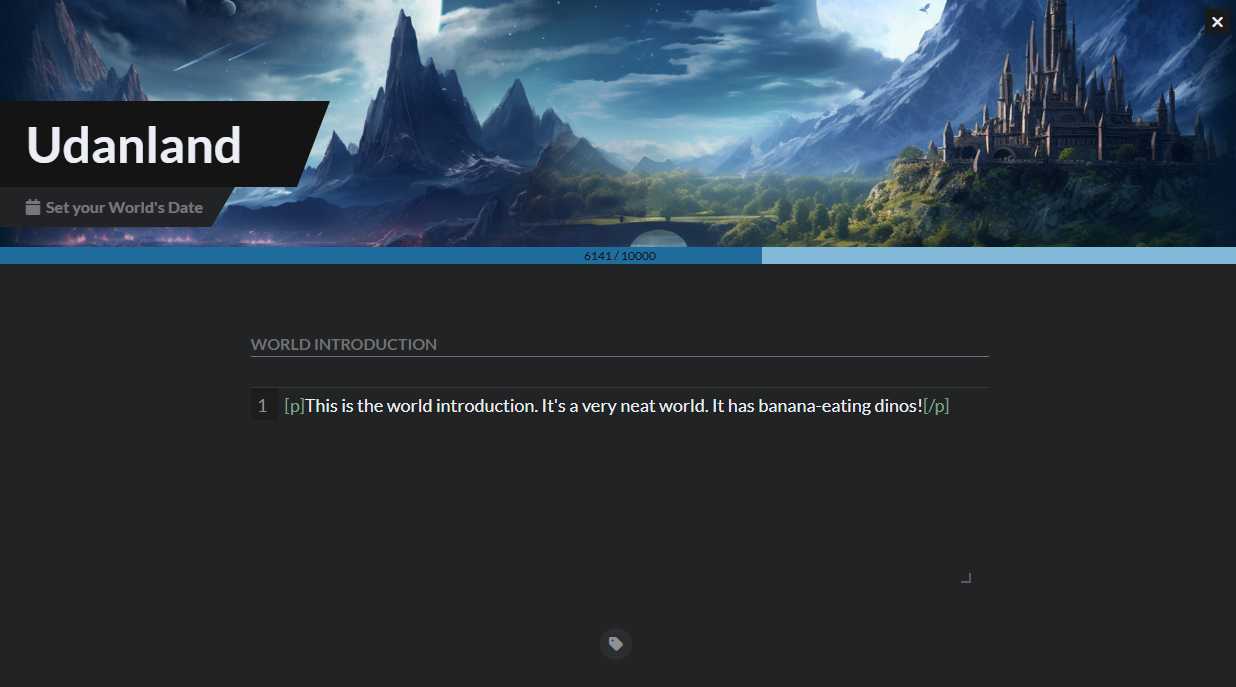
At the top of the Homepage, you have the following options available:
- World cover: Click on the header image to select or upload a new one. In view mode, this is displayed above the world name.
- World name: Click on it to change it. World names must be at least 3 characters long and can't contain (parenthesis) nor [brackets].
- Current date: Click it to set up the current date (more information here). You can leave it empty if it's not relevant to your worldbuilding.
- Word count goal: This is a goal you can set by clicking on it and editing the number. The goal is not displayed in view mode, and can be disabled entirely by clicking the goal, then selecting "Disable".
- World introduction: This field accepts full text formatting and will appear in your Homepage after the title. This is a great space to write your world pitch; check how to write an elevator pitch for some advice!
- Tags: Add tags to your world so others can find it more easily.
Custom content
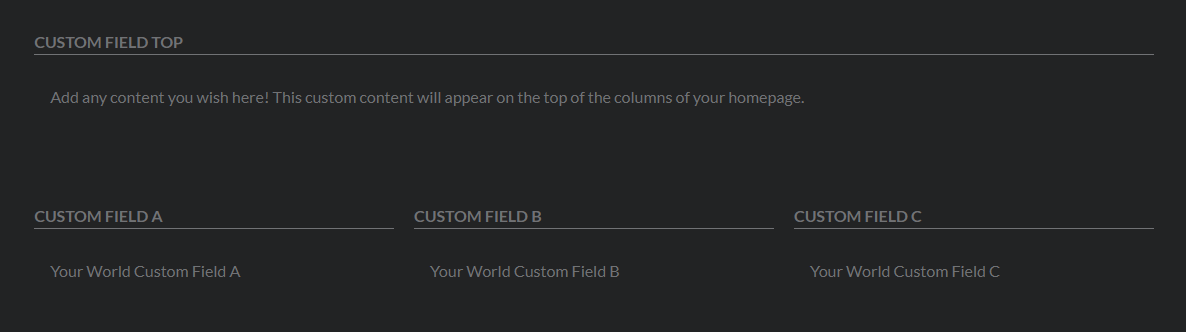
With these fields, you can create a three-column layout with even more information to be displayed in your Homepage! As with the world introduction, these fields support all usual formatting options.
Available to the Master subscription tier and above. Upgrade here.
For Masters of the Guild, the Custom Field Top field appears before the columns. But, unlike the world introduction, spans the full width of the homepage rather than being a narrower column. This will give you more freedom to create custom layout with BBCode and even custom CSS containers.
Homepage widgets
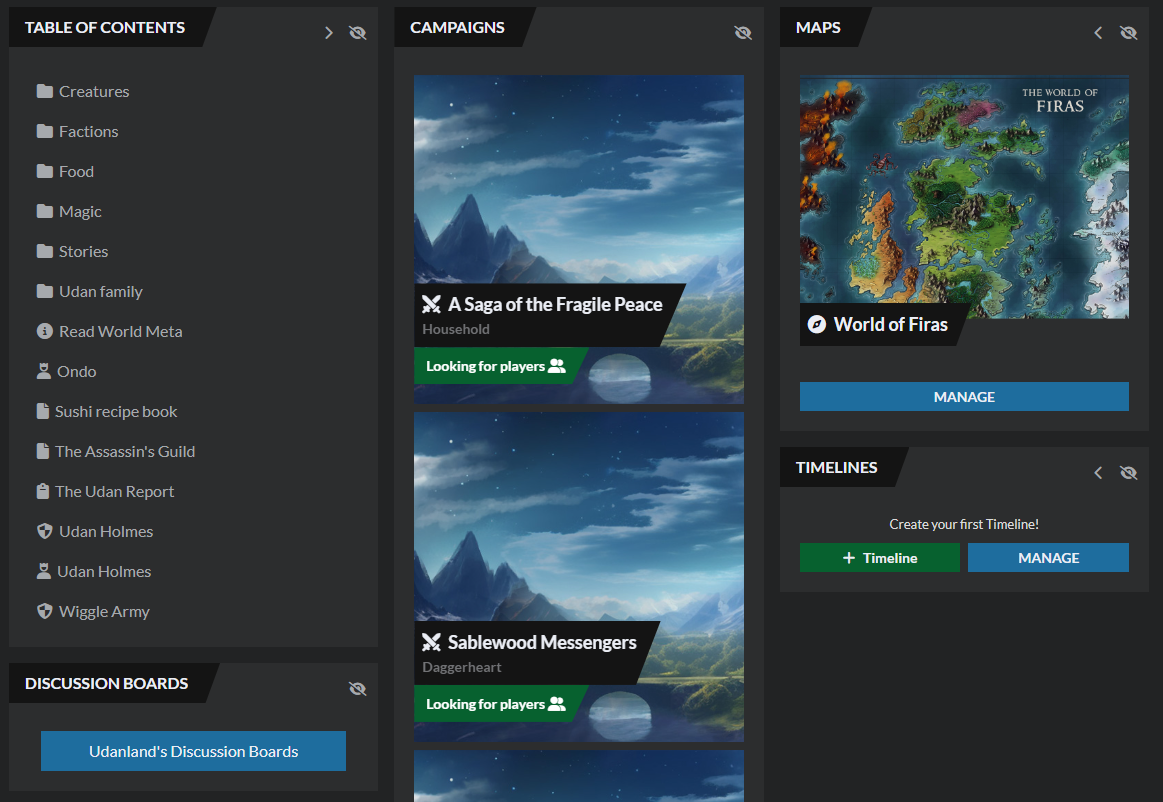
The Homepage has a number of widgets that display content from your world. Click on them to go to the edit page for the clicked element.
Additionally, each widget has an eye icon—click it to hide the widget from the Homepage. If you change your mind later, you can re-enable widgets from world configuration: click the gear icon in the bottom toolbar.
Finally, some widgets have chevron icons. Click on them to move them to a different column.
Other options
There are some additional options related to the Homepage not directly present here:
Subtitle & Credits
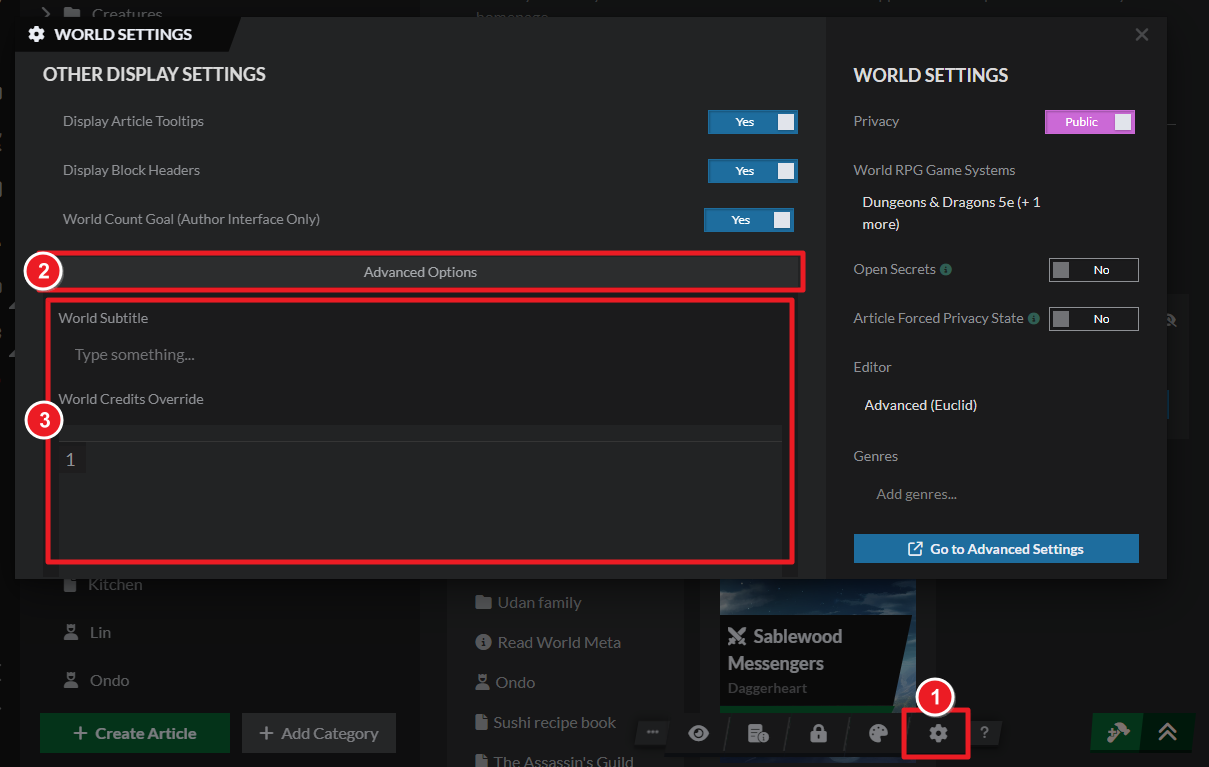
These are text fields that, if used, appear under the world title. Here's how to edit them:
- Click on the gear icon to access world settings.
- Scroll down and click on "Advanced Options".
- Fill out the subtitle and the credits as appropriate.
SEO: optimize your world for Google
Available to the Sage subscription tier and above. Upgrade here.
In the SEO tab, you can set up an SEO-friendly page title and description. This is useful if you're using your world for professional purposes or simply want your world to be easier to find on Google or other search engines.
The world configuration modal includes many other settings for the world as a whole. Check out the guide to world configuration for details.



