Available to all Guild subscription tiers. Upgrade here.
Articles have various controls that let you choose who can see them. The basic one is the difference between the Draft/Published states and the Public/Private states.
What's the difference between Published and Public articles?
For Anvilites in the free tier, published articles are visible to everyone. However, Guild members have additional control: articles can be Published and Private at the same time. Here's what this means:
| Draft | Published | |
|---|---|---|
Private |
No one but you (and co-authors) can see the article. | Only you can see this, but you can give access to specific World Anvil users. |
Public |
No one but you (and co-authors) can see the article. | Anyone on the internet can see the article. |
In other words, Drafts are never visible to other people, but Published articles have varying degrees of access depending on how you set it up.
How change article states
You can quickly check and change article states in the Articles Manager:
- Open the Article Manager from the left sidebar.
- At the top left of the screen, next to the world name, click on the ellipsis menu.
- Click on Toggle State Indicators.
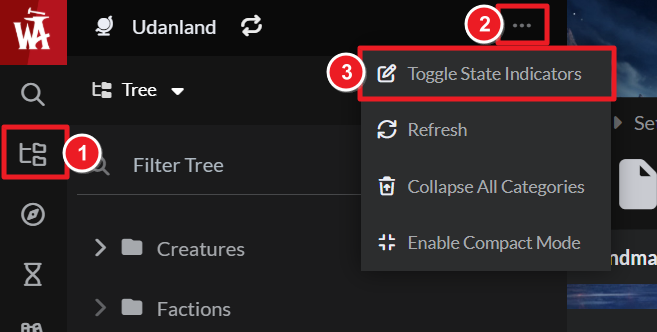
The icons for each state will appear next to each article. Click on them to toggle between them (i.e. clicking on Draft will turn it Published). You can also open the article for editing and find these icons next to the article title. Check the guide to the article manager for details.
How to set up subscribers
With subscribers, you can set a private article so that other Anvilites you choose can also view it. Here's a quick run-down on how to do so:
- Create a subscriber group (learn how).
- Edit an article and look for the padlock icon next to the article title. If it's in the open position, click it to make the article private.
- Then, next to the closed padlock, click on the Subscribers icon to choose the subscriber group.
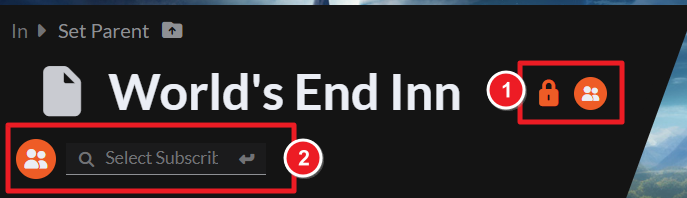
All users added to that group will be able to see the article. To learn more about giving access to private articles, check the Guide to Subscribers, or the Workflow for keeping secrets for a more general view of all secret-keeping options on World Anvil.