Last update: January 1st, 2025
In this final lesson of the Get Started Wizard series, I’m going to get you started with Secrets and Subscriber Groups on World Anvil. This will allow you to choose exactly who sees which secret information.
You can keep things private on the level of a whole article, timeline or map. But you can also hide secret information inside public articles, timelines, maps, etc, which only your chosen few can see!
There are loads of clever ways to use Secrets and Subscribers, for example:
Authors
Dividing secrets by which book they appear in (e.g. Book 1, Book 2, etc) to prevent spoilers for your readers. You can also use secrets to designate which characters are aware of which secret knowledge!
GMs
Showing each player in your campaign different (and even conflicting!) information, depending on their background and knowledge. Secrets are also a good way to add statblocks in your articles so your players can’t see them, but you can!
Professionals
Deliver privileged Patreon or Kickstarter backer rewards to your supporters using secrets and subscriber groups. Or use them to manage access for your Creative Team, and show freelancers only the parts of the setting they need to see. (You can also remove access once they’ve finished their work, to remove the danger of IP leaks!)
You’ll need a guild membership of any tier to access secrets and subscriber groups, the features discussed in this final lesson.
What are secrets?
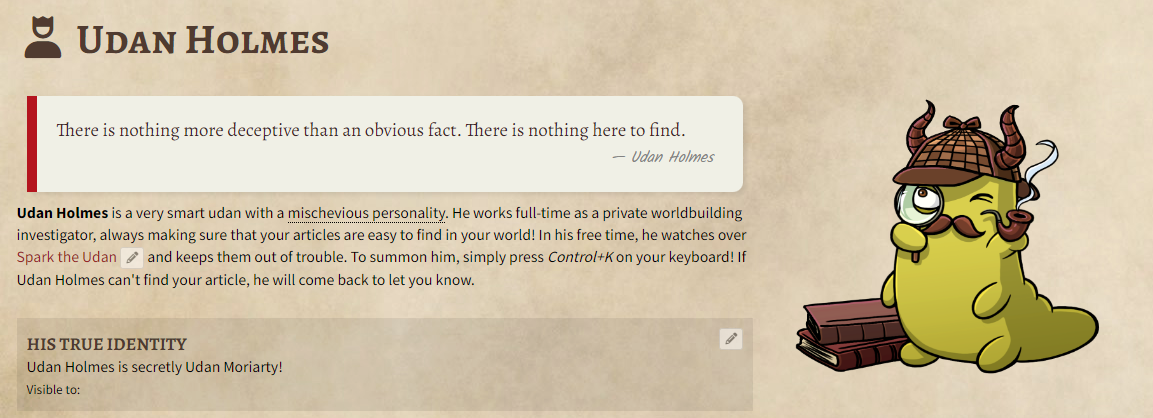
Secrets are containers or blocks of information. They allow you to easily inject private information into otherwise public articles (and other content!). Here’s how a secret looks when it’s embedded in an article… but you can ONLY see it if you have access! In the image below, the box titled "His True Identity" is the embedded secret.
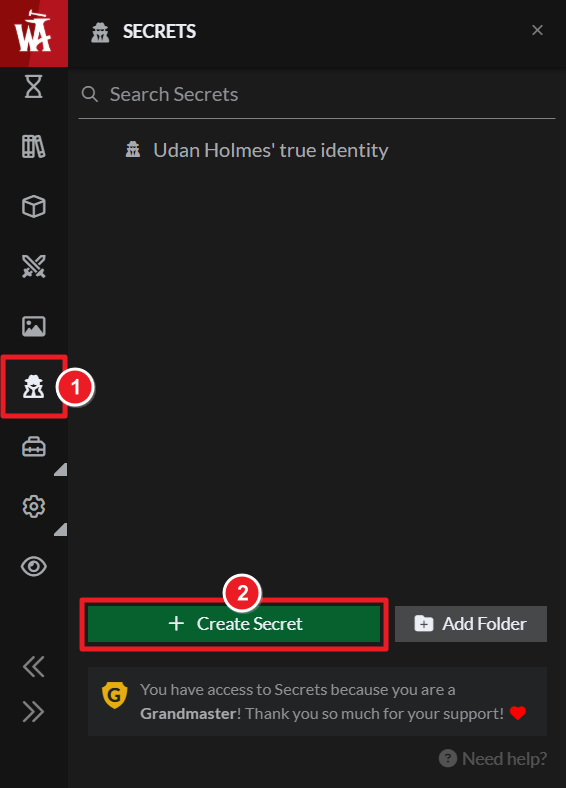
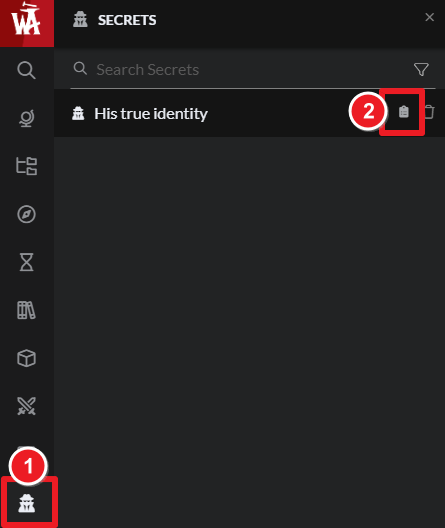
As with the timelines and maps, Secrets can be found on the left menu. Clicking secrets triggers a slide-out menu, where you can search and manage your preexisting secrets. If you don’t yet have a secret, you’ll see a small animation showing you more about secrets.
Assignment 1: Create your first secret
Let’s start by creating your first secret.
- Click the Secret icon on the left menu to trigger the Secrets slide-out menu.
- At the bottom of the slide-out menu, click the green +Secret button to create a secret.
- A box similar to an article will appear, but it will say “Create Secret” at the top left. Give your secret a title, and it will autosave.
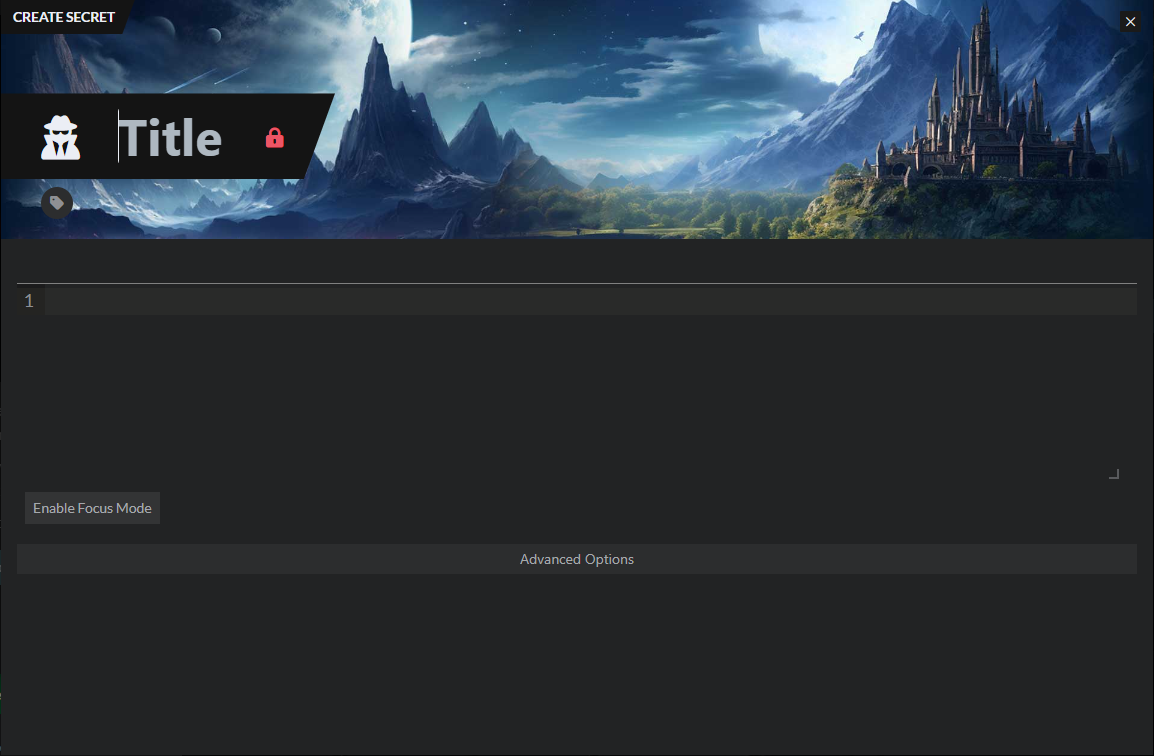
- Now write about your secret! It might be a secret technology, the unknown origin of an important species, or an ancient secret kept by the gods. Use the slash menu for all the usual options: from tables and dice rolls to embedding your other World Anvil content, like images, stat blocks, family trees, and maps.
Adding secrets to your articles
Once your secret is created, you can add it wherever you like, and as many times as you like! This process is called “embedding” and it’s super simple.
Assignment 2: Embed your secret
- Open an article you’d like to add your secret to. You can use Ctrl+K or click the Search button on the left menu bar to find an article.
- In your article, type /secret, and click “Secret Block” (or browse through the /Slash Menu until you find it).
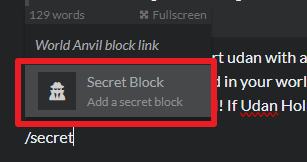
- Type the first 3 letters of your secret’s title to search your secrets, and click on the title of the one you want to embed. It will now appear in your article!
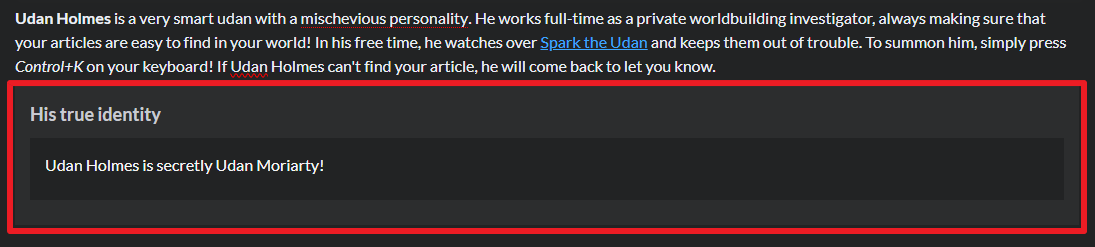
- Feel free to experiment with the other ways to add secrets (below!)
There are other ways to add secrets too:
- Create while writing an article: To create a secret directly from your article, type /secret and click “Secret Block”. Instead of searching for the title of an existing secret, click the green + button at the right side of the block. Then just create your secret as normal by adding a title and content! When you close the secret, you’ll see it embedded in your article.

- Copy the code from the slide-menu: Click Secrets on the left menu to trigger the slide-menu, then mouse over a secret and click the “copy BBcode” icon. Paste (ctrl+v) the code into your article and your secret will appear.
Public vs private secrets
By default, your secrets are private. But you can reveal a secret by opening it, clicking the padlock next to the title, then clicking the privacy slider from private to public. This is useful for living worlds where secrets become public knowledge (or at least, known to the audience!) through the actions of our heroes.
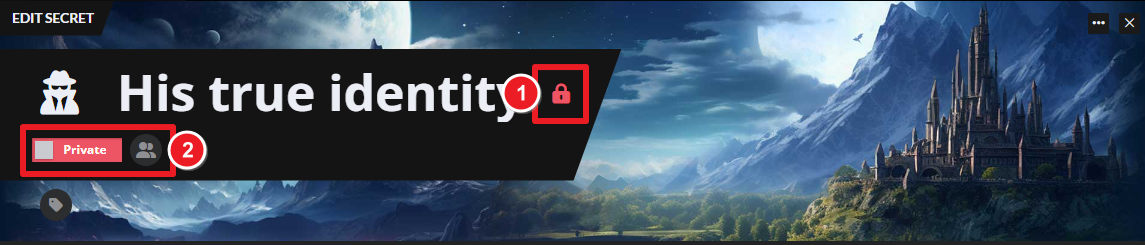
You’ll notice that when your secret is private it has a grey “group” icon next to the privacy slider. That’s also true of articles and all other content on World Anvil. Clicking this icon allows you to add the secret to a subscriber group, so SOME other people can see it, but it’s not fully public for everyone.
What is a subscriber group, and how do you set one up?
But what’s a subscriber group? Well, imagine you could designate a group of special people—like your RPG players, your beta readers, or your super fans—who could read exclusive content in your world that other people can’t see. That’s exactly what Subscriber Groups do.
Assignment 3: Create your first subscriber group
In this assignment, you’ll create your first subscriber group.
- On the left menu bar, click Settings, then Subscribers and Authors. This opens the Access Rights Management interface.
- Click on the second tab, “Subscriber groups”. Locate the right column, where it says “Create a new Subscribers Group”.
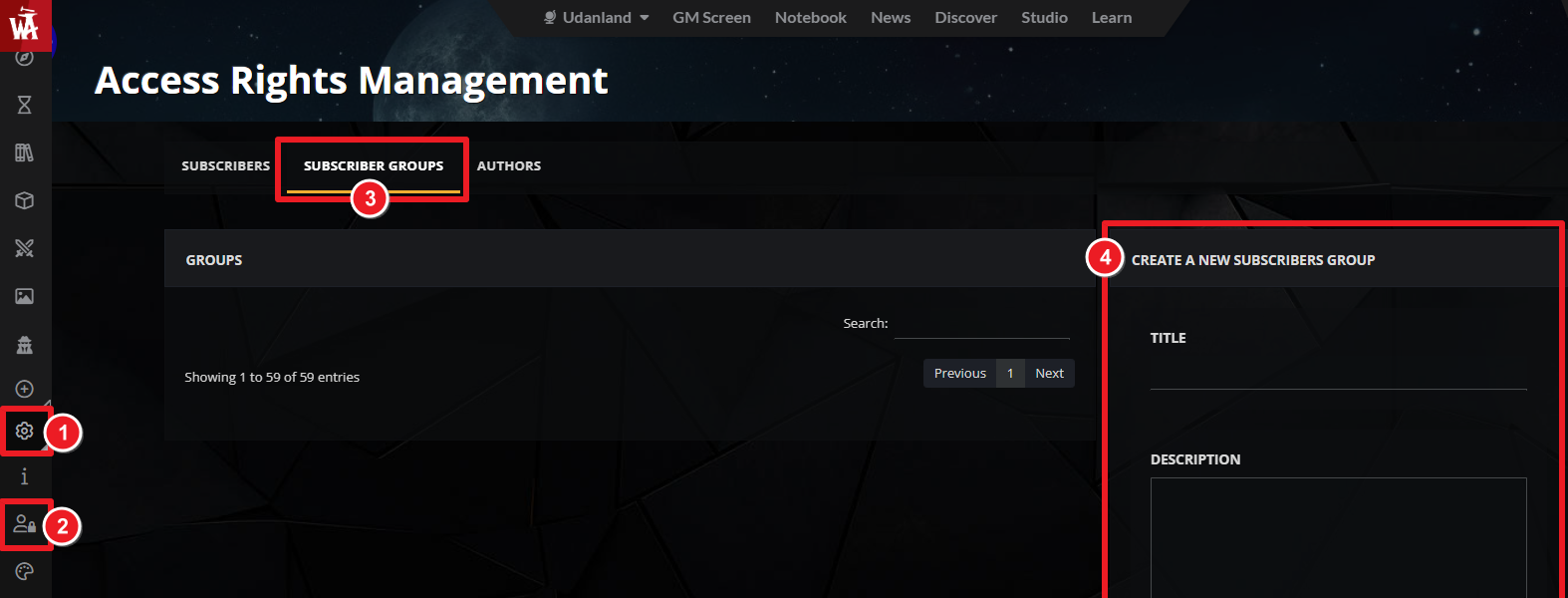
- Add a Title to your group of special people (and a description if you want).
- Scroll down to the bottom and click “Create Group”.
Good job! You’ve now created your first subscriber group!
Assignment 4: Add your first subscribers
In this assignment you’ll add subscribers - like your beta readers, friends, fans or RPG players, to your new subscriber group!
Just a note: your subscribers must have a free World Anvil account (and be logged in!) to see the exclusive content. Otherwise, the website won’t know it’s them!
- Click the “Subscribers” tab of the Access Rights Management interface. On the right hand column of the page, locate “Add Subscriber to Group(s)” section.
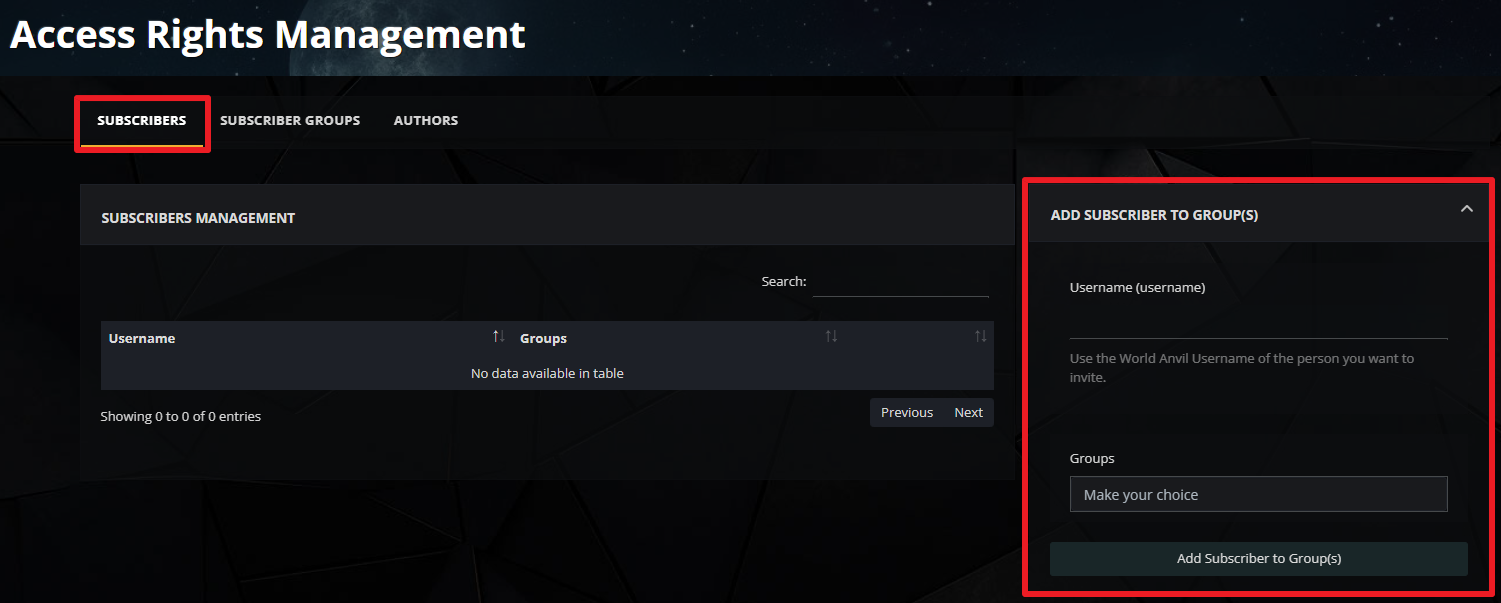
- Add the World Anvil username of the person you want in your subscriber group.
- Under “Groups” choose which groups they should have access to.
- Click “Add subscriber to group”. Congratulations! You’ve now added your first subscriber to your world!
How do I add content to my subscriber groups?
On World Anvil, pretty much anything can be added to a subscriber group.
You can add subscriber-only access on a World Level, so only your subscribers can see the world home page of your private world, and the public or subscriber-only content inside it.
You can give your subscribers access to whole articles, timelines or maps which no one else can see. Just put the content private, then select the subscriber group(s) you choose to share it with.
Or you can give subscriber-only access to private things in public content. For example, they could see private map pins & layers in a public map. Or private events in a public timeline. And (this is where Secrets come in!) you can give them access to Secrets in an otherwise public article.
Every time you want to add content (a secret, a map pin, an article, etc) that only your special group of people can see, simply 1) make it private, then 2) select that Subscriber Group. Only those people will be able to see it! It’s that simple.
Interesting ways to use secrets & subscriber groups
A few interesting ways to use secrets and subscriber groups include:
- Creating secret lore, locations and events only visible to elves, wizards, aliens or GMs in your RPG setting
- Creating conflicting points of view between vampires and werewolves (or similar warring factions), by sharing different information with different people
- Hiding spoilers of a novel series for Book 1, Book 2, and so on. (Self-assigned subscriber groups are good for this, so your readers can self-select what they see - see below for more!)
- Sharing exclusive backer secrets, or even whole cut scenes and content, with your Patreon or Kickstarter supporters. (Professional-tier accounts have mass-add options for subscribers to make this quicker!)
Advanced subscriber features
You can do a lot of VERY COOL THINGS with subscribers and secrets. To get a taste, here are some of the more advanced subscriber group features:
- Self-Assigned subscriber groups: you can set up your world so users can self-assign their subscriber groups! This is great for creating “vampires vs. werewolves” or “alliance vs. horde” factions in the community of your world. Learn how here.
- Add subscribers by email: adding a bunch of subscribers at once, e.g. for your Patreon or Kickstarter reward tiers? You can add them by email! Learn how here.
- Add subscribers by access code: you can send out access codes, then your subscribers can add themselves to the right tier! This is great if you’re selling access to your world, or for sending access codes to backers who haven’t yet created a World Anvil account. Learn how here.
For even more information check out the Feature Guide to Subscribers.
Pro-tip: If you’re interested in using Subscriber groups professionally, go check out our Professional Workflow, which goes through monetizing subscriber groups in more detail.
Coauthors, Collaboration, and setting up a Creative Team
Oh, and one more thing! If you want to collaborate on your World Anvil world with other people (or even a whole creative team!) you can add coauthors from the Coauthor tab of the Access Rights Management interface. Just add their World Anvil username and decide what level of access you want to give them. There’s a guide for Coauthors here.
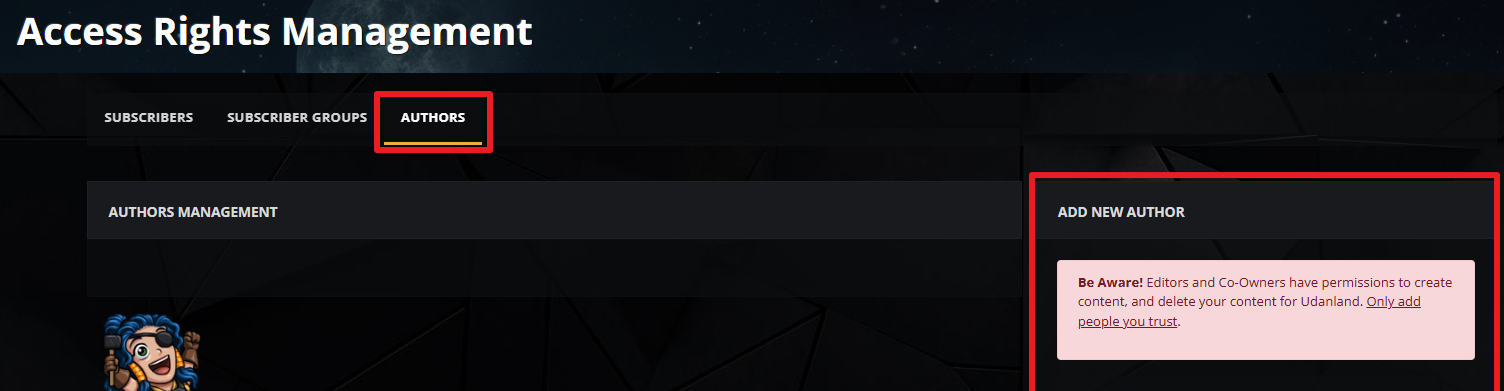
Just be aware of who you add! Editors and Co-Owners have permissions to create content AND DELETE content in your world. Only add people you implicitly trust with your intellectual property.
And with that, you’ve completed the Get Started Wizard for World Anvil’s core features!
Congratulations! You’re a World Anvil Adept!
By completing these 6 lessons, you’re now adept at the basics of World Anvil—articles, timelines, maps, secrets and more! And your world is taking good shape too.
So, what should you do next?
- Not sure what to worldbuild next? Take our "How to Start Worldbuilding" Course! In the top bar of the website, click Courses then choose "How to Start Worldbuilding".
- Continue exploring the World Anvil platform by following one of our workflows
- Get worldbuilding inspiration with our worldbuilding advice videos
- Focus your worldbuilding vision with the World Anvil worldbuilding meta! Click Settings then Meta to find it!
Now, you know what to do: grab your hammer, and go worldbuild!



