Available to the Master subscription tier and above. Upgrade here.
With variables, you can have all of the BBCode you need for an icon in a single tag. Since FontAwesome and RPG-Awesome used IDs to select icons, it's often more practical to put frequent icons in variables so you don't have to memorize the exact ID every time:
- In the left sidebar, select Advanced Tools and then Variables to open the variables side menu.
- If you don't have one yet, create a new collection (using the + Collection button). You can call it "Icons".
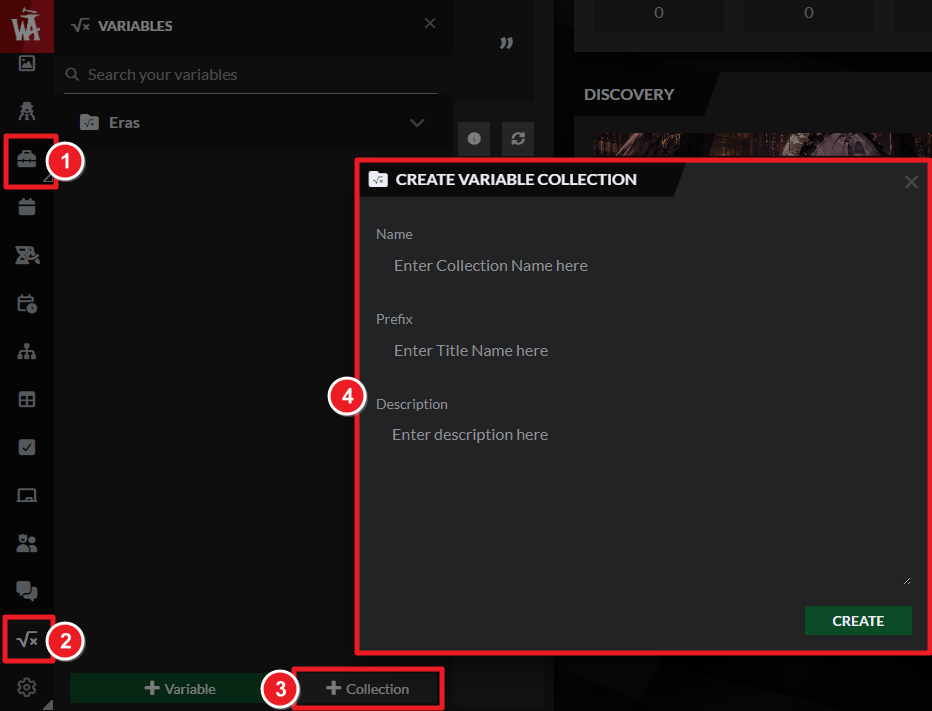
- Create a new variable in this collection with these values:
- Key: a word to identify your icon. Make sure it's something you can remember!
- Type: Select "Rendered Fragment".
- Value: Insert the full BBCode needed to render the icon you want. Check how to use icons for details.
- Once the variable is created, click the copy button next to it and paste it in an article using the Advanced Editor.
While editing an article, you can also type a square bracket [ followed by the variable key to find it!
For more tips, check our tips for using variables. For help with variables, check the guide to variables.



