Available to all Guild subscription tiers. Upgrade here.
The Notebook has a powerful search with filters that let you quickly find exactly what you're looking for! To access the filters, click on the filter icon in the search bar.
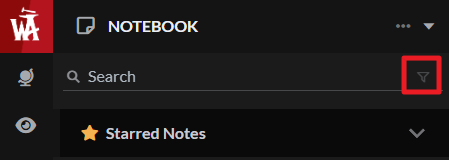
These are the options:
- Show matching Titles: This will search in the note titles (enabled by default).
- Show matching Tags: This will search in the note tags, which you can set by editing a note and using the tag button under the title. This is enabled by default.
- Show matching Metadata: Metadata fields are customizable snippets of quick data that you can set. Learn more about metadata. This is disabled by default.
- Show matching Content: This searches in the note's content itself, and is disabled by default.
The default filters should work well for more cases, but here's a couple of tips!
- Keep Content search disabled (unless you need it): If the search includes the content, you will get a lot of "noise" in the results, especially if you're searching a common word!
- Using the metadata: If you use the Notebook for various note types (e.g. brainstorm, journaling, planning, etc) you can use a metadata field to set the type. Then, if you search for "journal" and select Metadata results, you'll get all journaling notes! More information about note metadata.
- Be precise: Especially if you have a very large Notebook, avoid clutter in the search results by selecting the exact type of result you want.
For more information and help with the Notebook, check the guide.



