Available to all Guild subscription tiers. Upgrade here.
In the Notebook, matadata are little text fields you can use to display quick data about the note, as well as for searching and filtering purposes. Here's how to get started!
How to create metadata fields
- Create or edit a note.
- In the top right area of the writing space, click the metadata icon.

- The Note Metadata modal will open. Click on + Add Key/Value. If you have already created any metadata fields before, their keys and values will show up as suggestions here, to help you stay consistent with your metadata.
- Fill in the text fields and click the button to confirm!
Use the key for the type of data (e.g. "Date"), and the value for the data itself (e.g. "2nd October 2025").
In the metadata modal, you can also change the order in which metadata fields appear (use the drag handles) or delete them (with the delete button).
Metadata in search
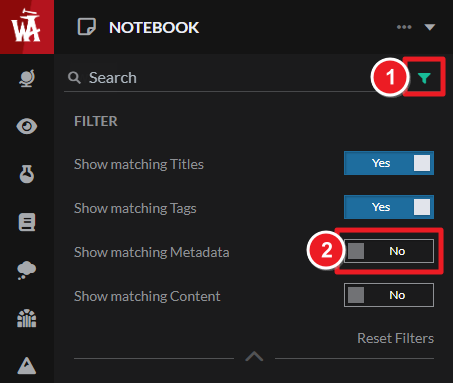
When searching for a note, click on the filter icon in the search bar. There, you can enable "show matching metadata". If this option is toggled on, it will also look for your search terms in the metadata. More information about notebook search.
For more information and help with the notebook, check the guide.



