Available to all Guild subscription tiers. Upgrade here.
Galleries are collections of related images you can display together in articles. Here's how to create one!
- Open the Image Manager from the left sidebar.
- At the top right, click on Galleries.
- Click on New Gallery, and give the gallery a name.
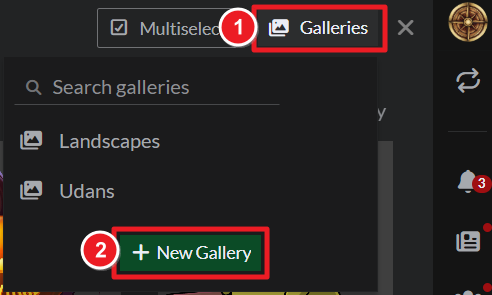
You can now start adding images to your gallery! Here's how:
- Mouse over an image and click on the ellipsis button.
- Click on Add to Gallery.
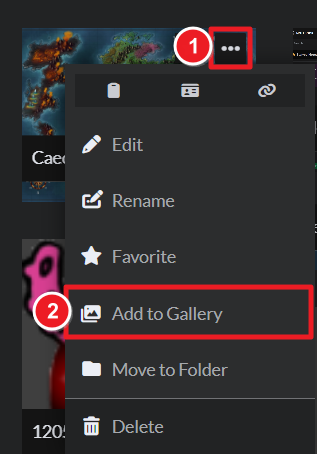
- Select the gallery (or galleries) you want to add it to, and click the Assign button to confirm.
You can now embed your gallery as a carousel! For more information and help with images, see the Guide to Images.



