Last update: May 19th, 2026
Welcome to lesson 2 of the Get Started Wizard Guide. In this lesson, I’ll take you on a quick tour of the World Anvil UI!
Your account-wide tools are on the right!
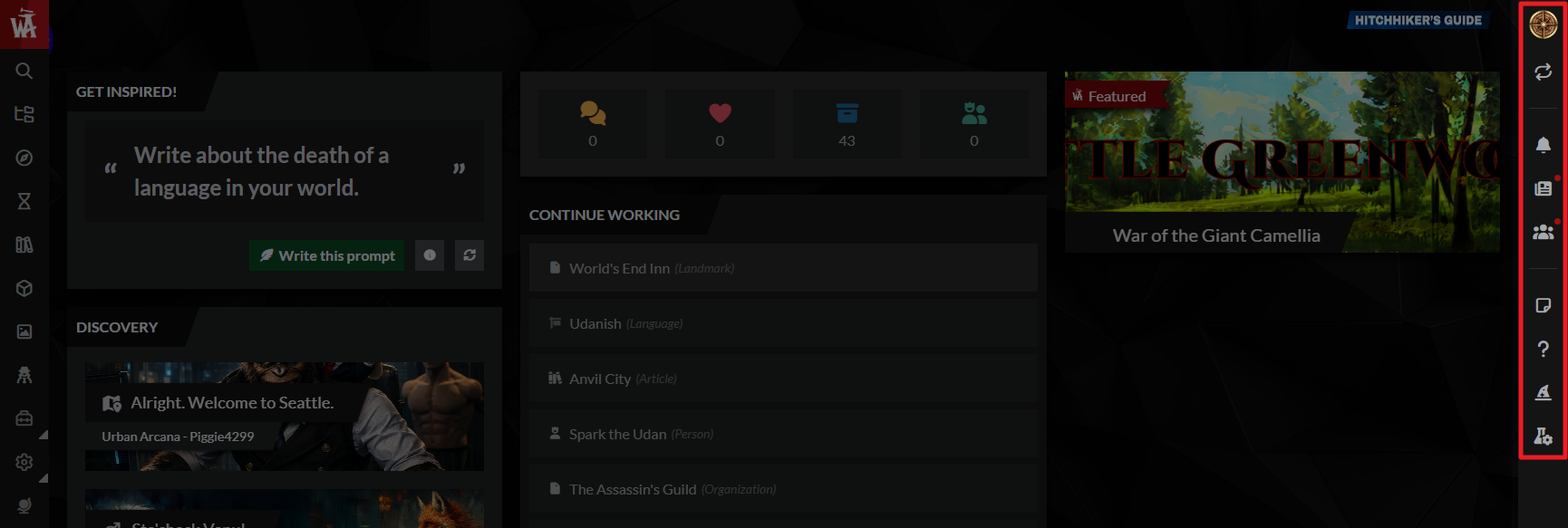
On the right of your screen you'll see the right sidebar. This contains your account-wide tools and useful links.
Profile picture
Click your profile picture to Manage your Account Settings, adjust your Features & Interface, edit your Author Profile, toggle Light/Dark mode, and a bunch of other options too.
World Switcher
At the top, you’ll see the switcher icon. Click it to switch between your worlds, campaigns, and RPG characters, or to create a new one.
Notifications
If people are commenting on your work, or creators you’re following post updates, you’ll see those here.
News
Learn about new World Anvil features and updates, educational resources, or online events here. If there are new items, you’ll see a red spot next to News.
Community
This is a portal to other worlds, novels, and stories published on World Anvil, including award-winning worldbuilding.
- Under Updates, see the community’s latest posts and recommended articles.
- Under Discover, browse community worlds to see examples of other people’s World Anvil worlds, and read novels published on World Anvil.
- Community also links to the RPG statblock libraries: use community stat blocks in your own world, or share your stat blocks with the community.
Notebook
Your account-wide Notebook is great for organizing your thoughts or creating material that you’ll use across different worlds. Check the guide to the notebook for more details.
Help Center
On our help center, you can Send us Feedback, Report Bugs, Suggest Features, and Email Us for help. There are also links to our Community-run spaces: Discord, Facebook, Reddit and more.
Learn
A handy link to our help guides and documentation!
Studio
Only for Grandmaster tier members and above, the Studio contains advanced tools like Custom Article Templates, Custom Map Pins, and more.
Assignment 1: Find example worlds to help you build your vision
- Click Community on the right sidebar.
- Go to the Discovery tab and select Worlds.
- Explore the featured worlds at the top, or browse by genre underneath to find something relevant to your interests.
- If you find a world or creator that’s inspiring, click the “follow” button on the world home page! Seeing examples of how other users have created and organized their worlds can help you get a vision for how you want to set up your own World Anvil world.
Your worldbuilding tools are on the Left menu bar

Now let’s explore the Left menu bar of the UI.
At the top is the WA monogram. Click it to return to your dashboard from wherever you are on the site.
At the bottom are double chevrons. Click them to expand, collapse, and close the left sidebar.
Everything else on this sidebar is about your currently active world (or RPG character)—it’s where you can access your content, tools and settings for your world (or RPG character).
You can Search, explore your World Dashboard, and get an overview of your world’s content: your Articles, Maps, Timelines, Manuscripts & Campaigns, Images, and other worldbuilding content.
Most of the worldbuilding tools have slide-out menus. You can review your content from these, and you’ll find the help guide linked at the bottom, where it says “Need help?”. To create something new from a slide-out menu, press the green Create Button.
Assignment 2: Exploring the slide out menus
- Click Maps to see an example of the slide-out menu!
- Locate the “Need help?” link at the bottom right. That takes you to the feature guide for maps!
- Click the X at the top right to close the slide-out menu.
- Locate the double chevrons at the bottom of the left menu.
- Experiment with expanding, collapsing, and closing the sidebar menu. If your screen is wide enough, you can leave the sidebar menu expanded while you’re getting familiar with World Anvil!
Accounts and feature management—how to get more toys!
When you first set up your World Anvil account, you picked a path: Author, Game Master, Worldbuilder or Player. That defines how your account looks to start with.
For example, Game masters see RPG statblocks on the left menu by default, and Writers see Manuscripts, our novel writing software.
But, maybe you want to mix and match your features? Perhaps you write novels AND you run campaigns! At any time, you can adjust which features are active on your interface.
Assignment 3: Review which features you have active!
- Click your profile picture at the top right corner, and select Features from the menu.
![Features user menu].png](https://wa-cdn.nyc3.cdn.digitaloceanspaces.com/user-data/production/7231ff98-fb1d-4cad-a342-e6a890ee3c88/uploads/images/7d0a3e01266d69a2e5df4c8e800d0f5e.png "Features user menu].png")
- Review which features you have active! From this page you can toggle:
- RPG features
- Writer features
- NSFW Content
- Accessibility Features
- Community Features
- AND sign up for our monthly email newsletter! (You should do that, by the way, it’s awesome!)
- Click the World Anvil logo at the top left to go back to the dashboard.
World Anvil has lots of features… but only use what you need!
World Anvil is a robust worldbuilding toolset with many tools and features: if you need it, the chances are we have it!
But remember—you don’t need to use every single feature in every single project! I have worlds with ten timelines, and some without any. Some worlds might need lots of maps, and others none at all. The tools are there to serve you and your creativity, not the other way around.
To explore each of the core tools in turn, and learn World Anvil step-by-step, without getting overwhelmed, keep following this Get Started Guide series!
Introducing Presentation Mode
By now, you know all the important stuff about the edit UI. So let’s talk briefly about how your world looks to other people!
The editing side of your World Anvil world —which is what we’ve explored so far—is where you’ll write and worldbuild. But your world (and all the content inside it) also has a presentation mode, the place that your readers and players will see.
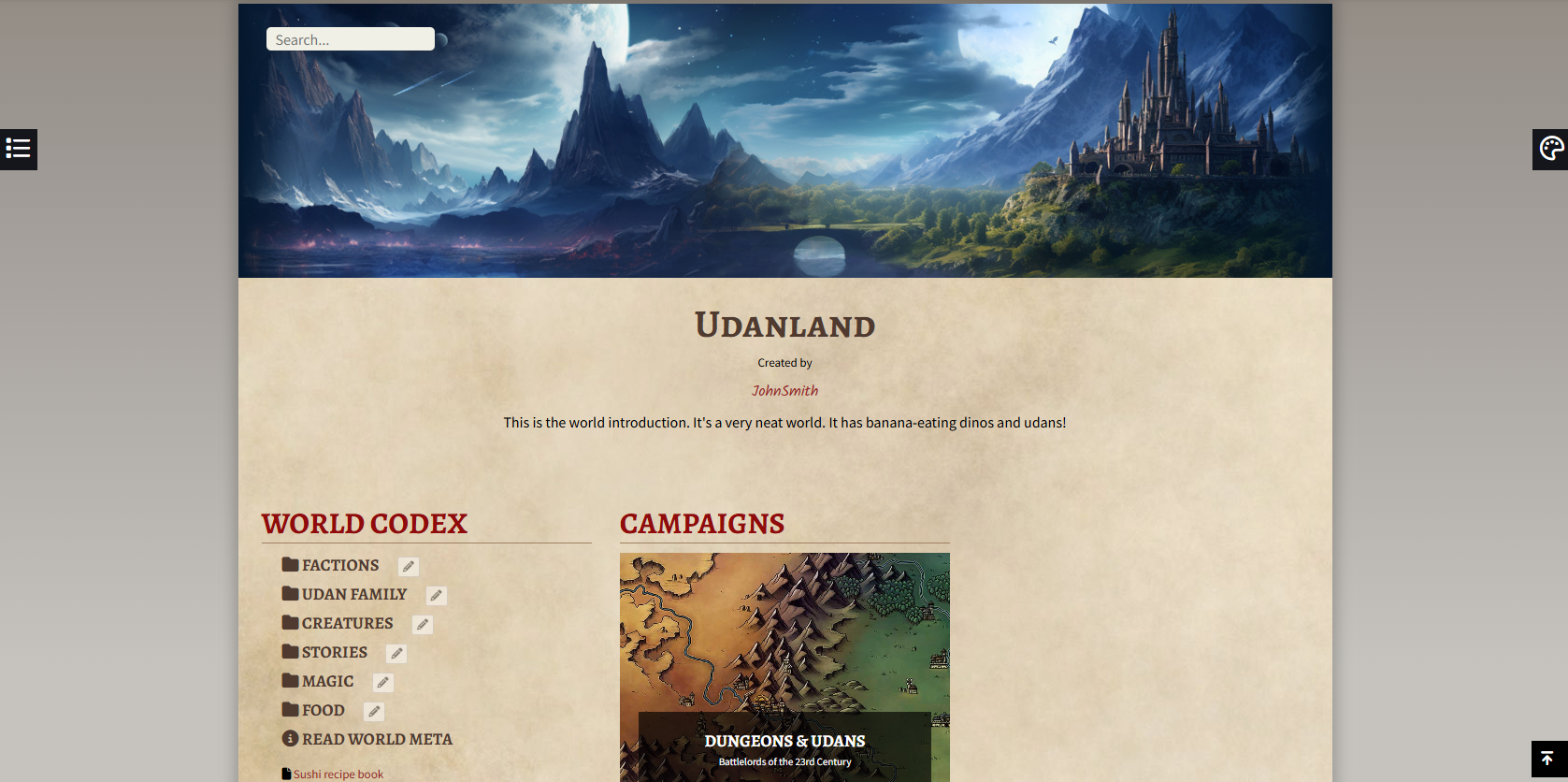
Assignment 4: See your world as others see it
- Click the eye button at the bottom of the left menu bar. This will open the presentation mode of your world, which is how others see it!
- Take some time to explore how your categories and articles look to other people. If you have a lot of draft articles, there might not be much to see just yet, but don’t worry about that.
- When you’re done exploring, click the logo in the top left to return to your dashboard.
Coming up next
In the next lesson, we’ll talk about customizing the way your world looks to others, and how to share your work or hide it!
But for now, congratulations! You’re one step closer to mastering World Anvil. You can find the next lesson of the Get Started Guide here, or see the whole course on the Get Started Wizard widget at the bottom right.
Now, grab your hammer and go worldbuild!



