Last update: January 1st, 2025
Welcome to lesson 3 of the Get Started guide. As you learned last time, your world has a presentation mode, which is what it looks like to other people. In this lesson, we’re going to focus on customizing your world’s presentation mode, and sharing your world with other people.
Your world’s description—an elevator pitch for your setting
Your world's description is important. After all, it’s a new reader's first impression, like an elevator pitch. It’s good to briefly explain your world's genre, interesting magic or technology, and what's going on in your world right now.
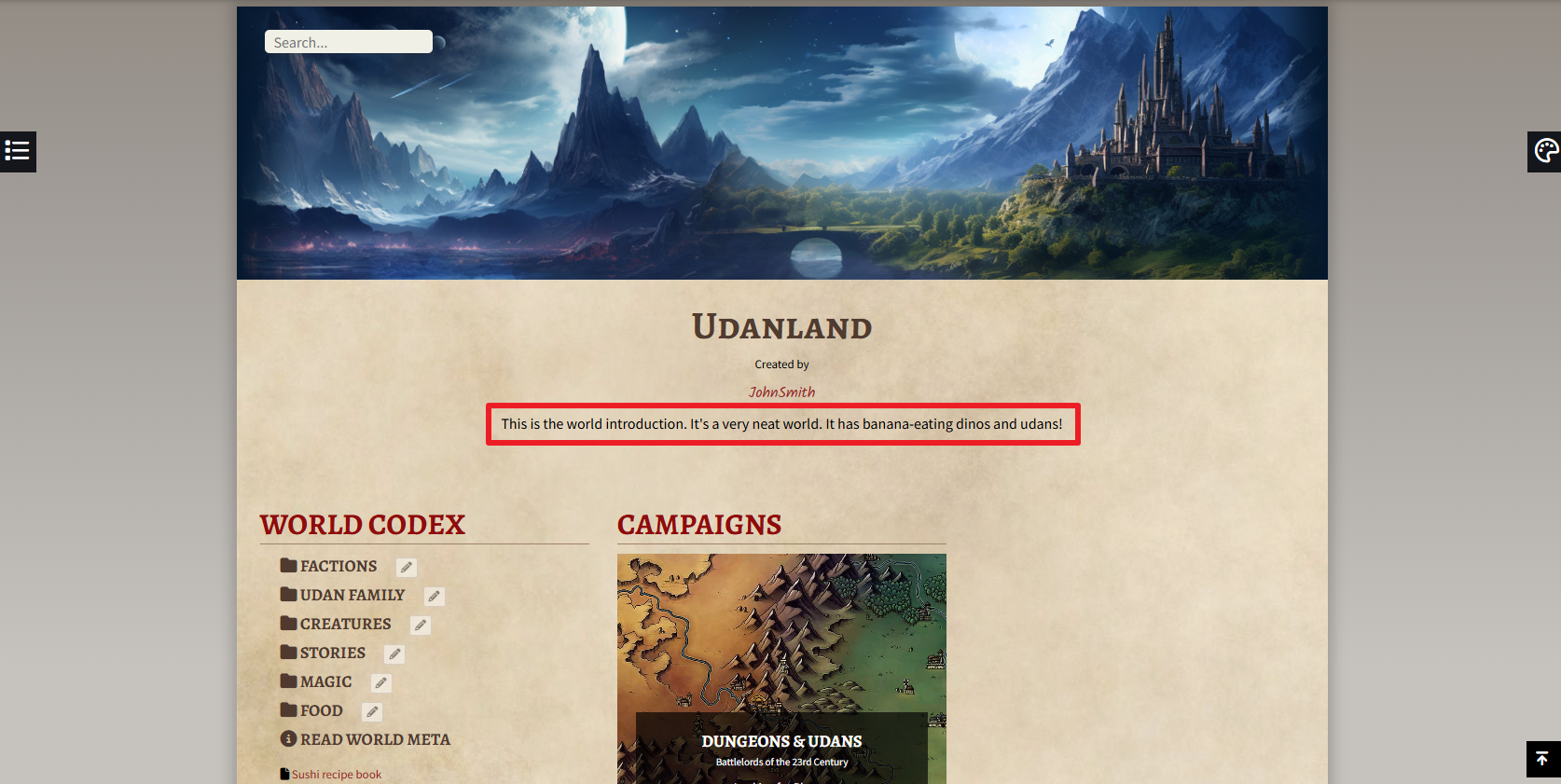
Assignment 1: Edit your world’s title and description
- Click the eye icon on the left menu bar to review your world’s homepage in presentation mode. Locate your world’s title and description at the top of the homepage.
- Now it’s time to edit your world’s title and description! Click on the World Anvil logo on the top left to leave the presentation mode and enter the edit mode.
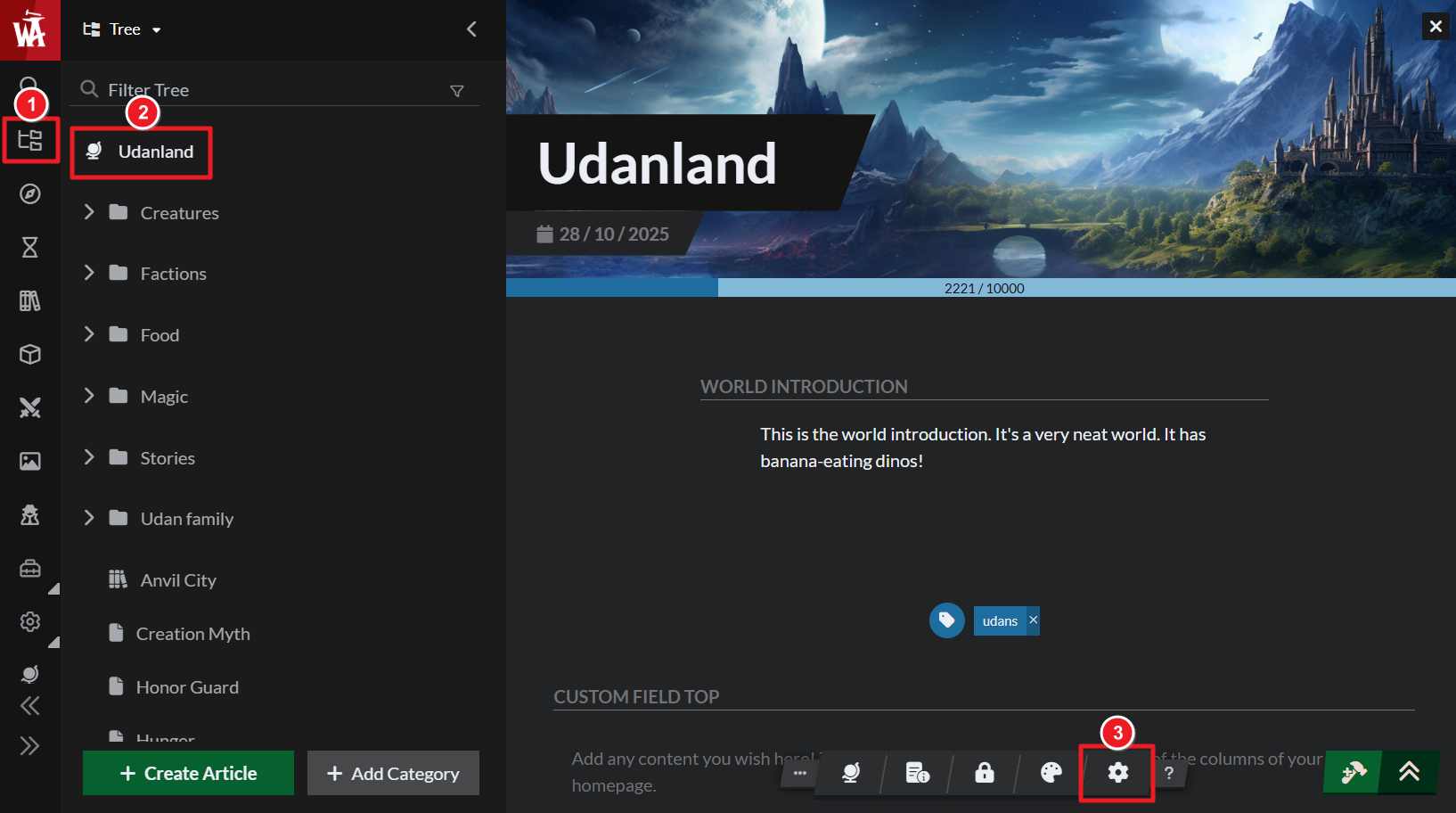
- On the left menu, click Articles & World Manager, then click the name of the world at the top left.
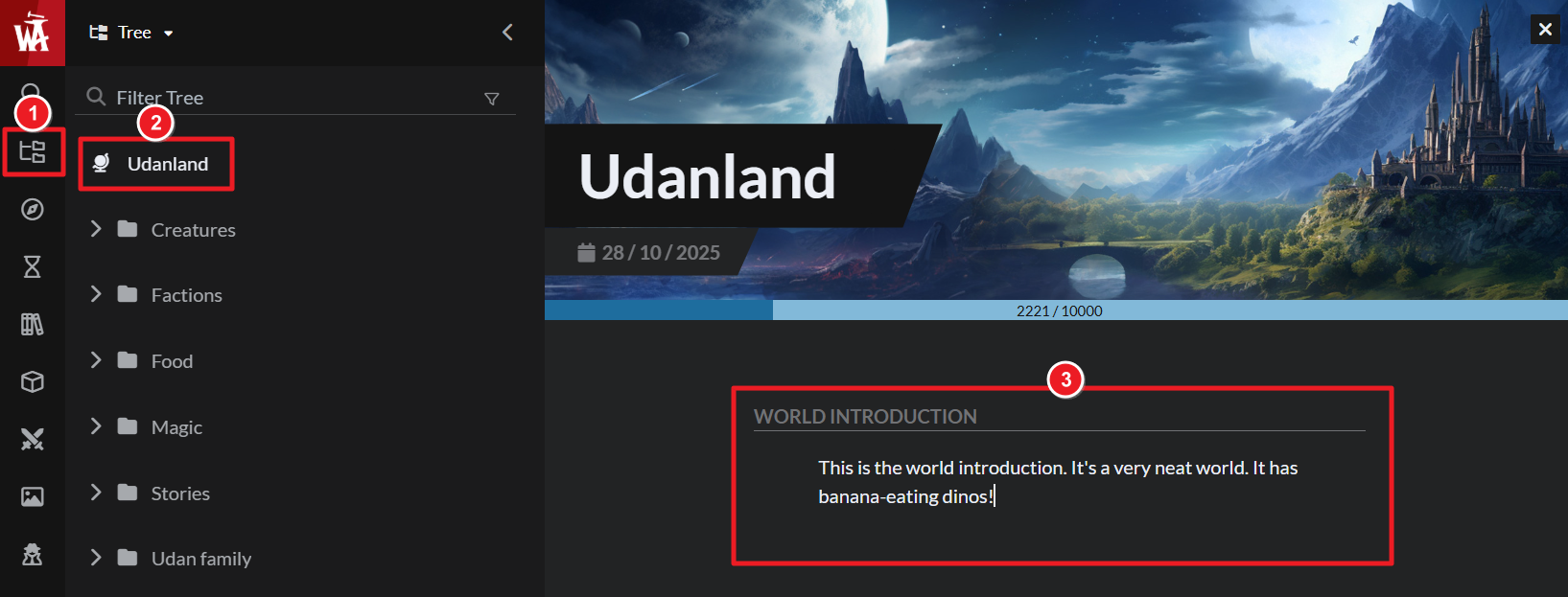
- Edit your title and world’s description! If you're not sure what to write, just add a few details as a tagline for now, e.g. "An epic fantasy world of high magic, ancient lore, and dragons!"
Pro-tip: To craft a superior elevator pitch for your world, check out blog and video Guide to Writing World Elevator Pitches.
Styling your world
Your world has a cover image that shows up on the homepage. Of course, you can change this to whatever you want!
Assignment 2: Changing your World’s Cover Image
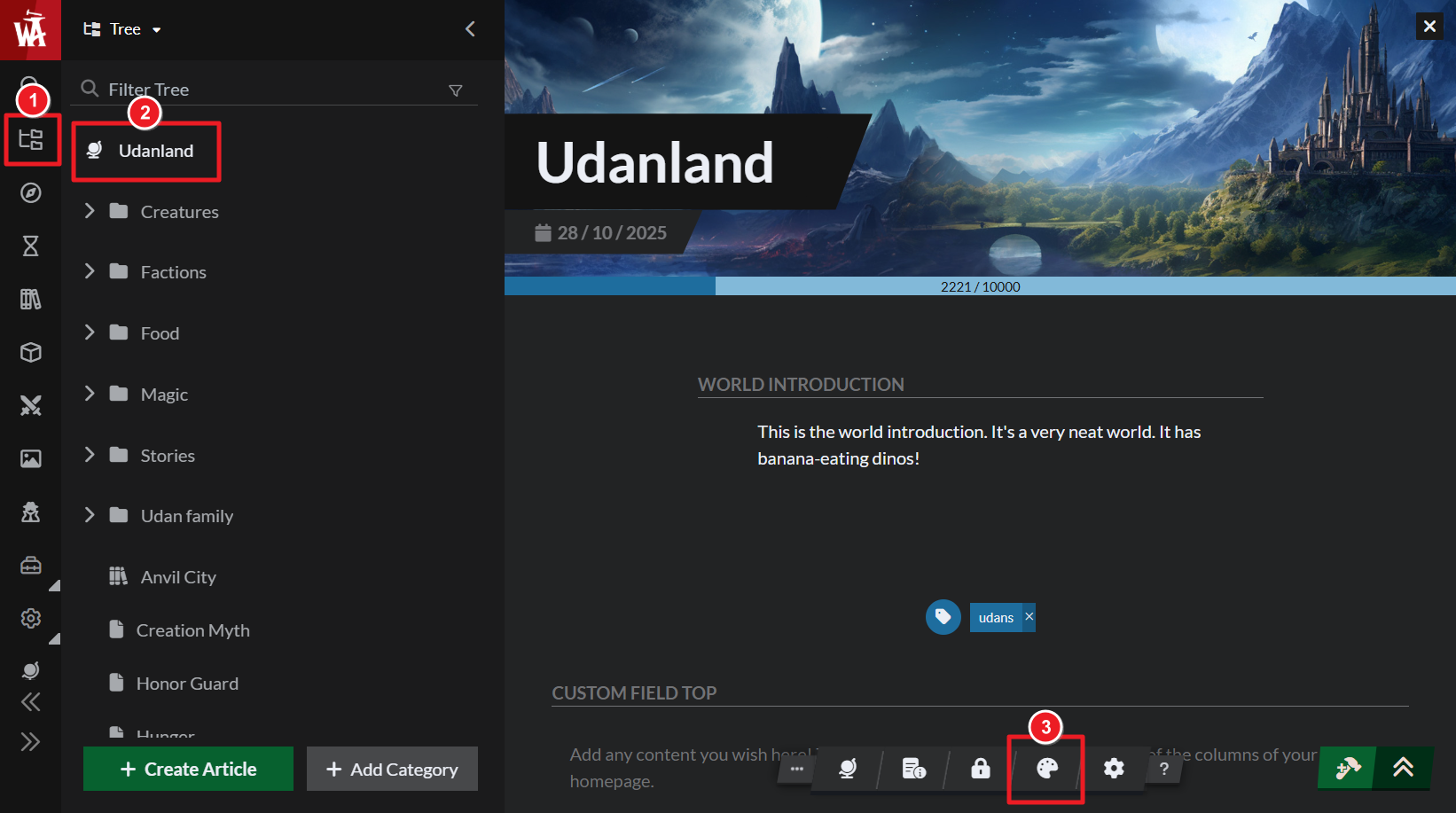
- On the left menu, click Articles & World Manager, then click the name of the world at the top left.
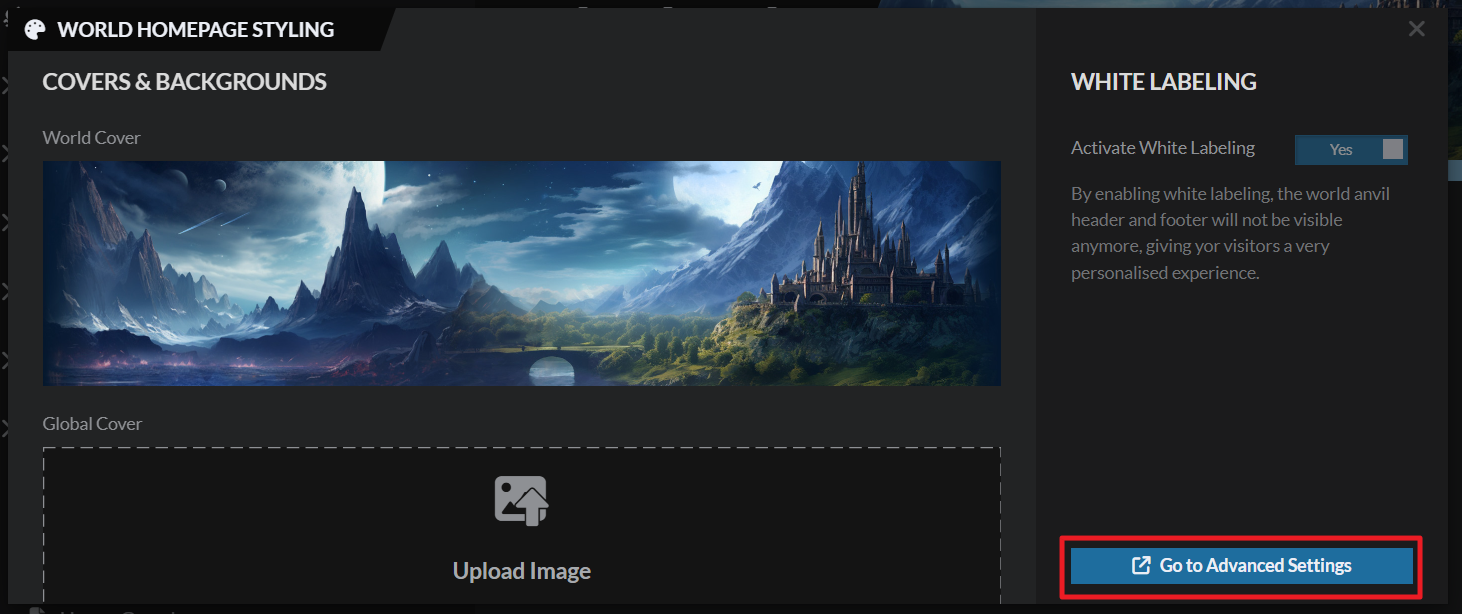
- In the bottom toolbar, click the art palette icon to open Styling settings.
- Drag and drop an image into the World Cover section, or click on it to select an already uploaded image.
Customizing your Global Cover and Page Background
While you’re still on the World Styling page, let’s talk about your Global Cover and Page Background.
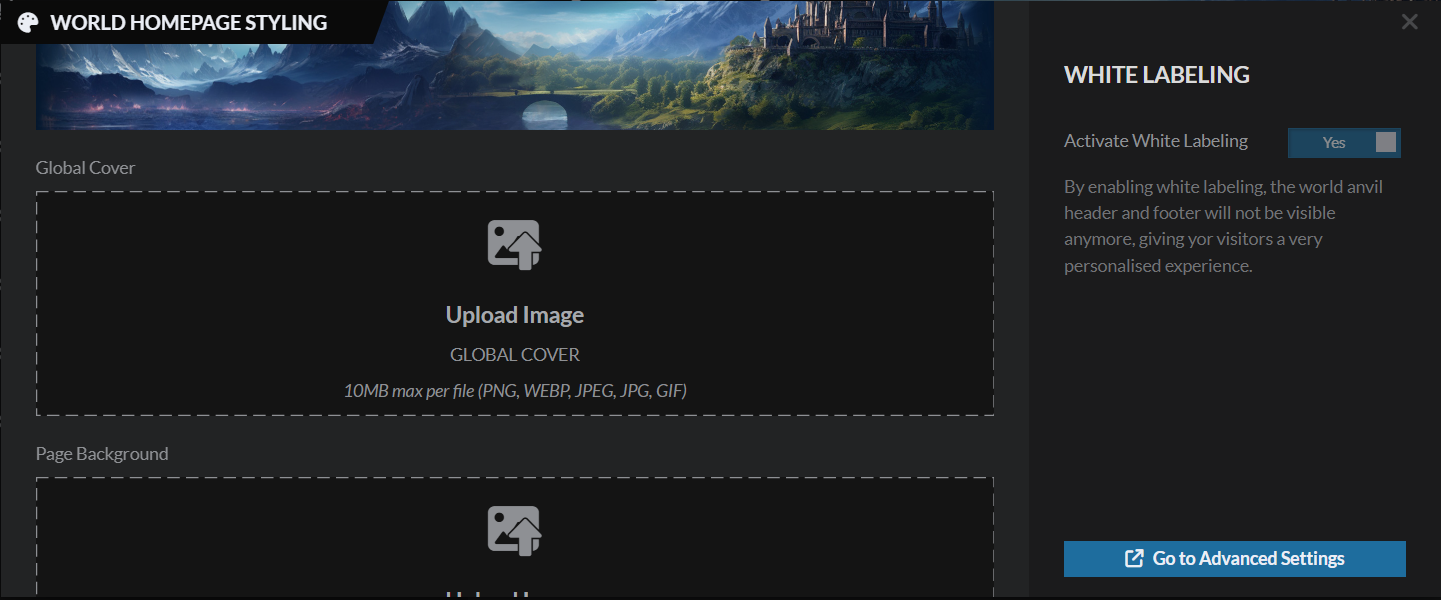
The Global Cover is your default article cover image. If you haven’t chosen a specific cover for an article, this is what will appear.
And the Page Background is an image that shows up behind your articles, as the background image. Your page background will be paneled, so tiled texture images work very nicely here.
You can change both of these images in the same way as the world cover image.
Pro-Tip: To check the effect of your Global Cover and Page Background, open one of your articles in presentation mode! Find the article in search (Ctrl+K), mouse over, then click the globe (“view in world”) icon to see your article in presentation mode.
World Themes
While we’re talking about customizing your world, let’s discuss Themes. These are like “skins” that alter your world’s color palette, fonts, and default images (unless you’ve uploaded your own). We have Scifi and Fantasy themes, Steampunk and Cyberpunk themes, and some more neutral ones.
Theme options are available from advanced styling settings, which you can access from this button:
To change your world’s theme, select your chosen theme from the dropdown, then press save. This page shows you what all the themes look like!
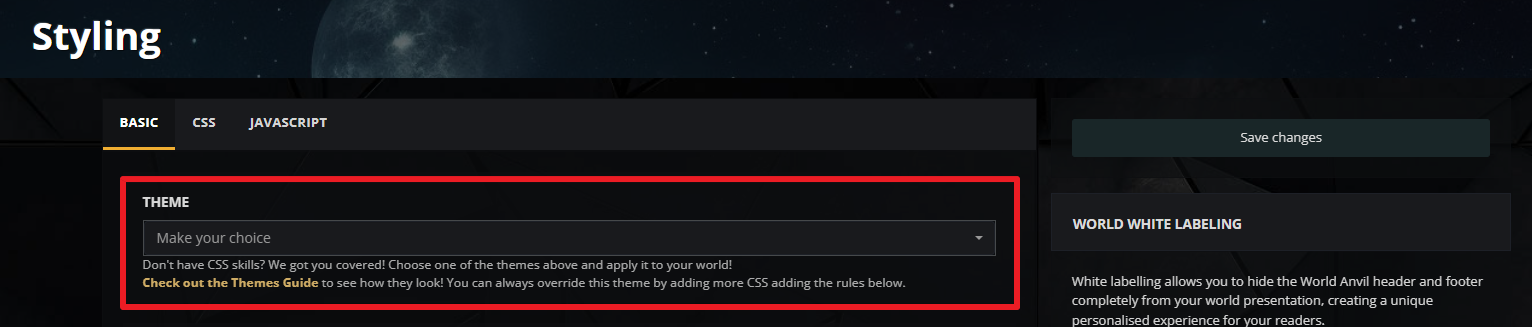
If you know CSS, you can further style your world from this page too.
Your World’s Table of Contents
In presentation mode, your world’s homepage has a table of contents. This is the list of categories and articles that make up your world.
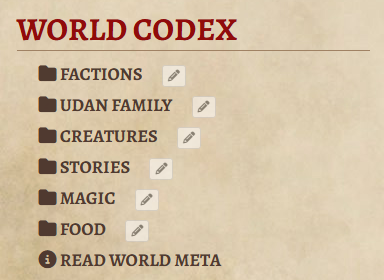
It’s the same as your Article Tree in the Articles and Categories interface. To edit your table of contents on your Presentation mode homepage, just reorganize your categories in the Articles and Categories interface.
Pro-tip: Not seeing much on your table of contents? Draft articles (i.e. not published) won’t be visible from presentation mode!
Sharing your public world and articles
Sharing your world is a good way to get feedback and make your worldbuilding stronger.
If your world is public, you can just share the homepage URL from presentation mode with your readers, players, or fans! The same is true of your articles, maps, timelines and everything else. (Just a note that edit mode urls won’t be accessible to other people.)
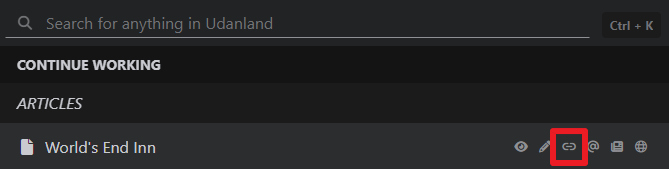
You can also grab the presentation mode URL from Search.
- Type Ctrl+K (or click the search icon on the left menu) to bring up Search.
- Mouse over an entry.
- Locate the link icon (Copy URL on mouseover).
Pro-tip: If you’re sharing a presentation mode article with someone and they’re seeing an error message, the chances are your article is a draft (as in, not published) or private.
Making your whole world private
As you already know, you can make your articles private by clicking the privacy slider next to the title in edit mode.
But you can also make your whole world private! To do this:
- On the left menu, click Articles & World Manager, then click the name of the world at the top left.
- In the bottom toolbar, click the gear icon to open world settings.
- On the top right of world settings, use the Privacy toggle.
A private world is only visible to you (and your chosen coauthors and readers). Once your world is set to private, no one else will be able to see any of the content inside it—even if that content is marked as public.
Advanced Privacy and Subscribers come later
In a later lesson, we’ll go through ways to add private sections to your public articles, maps, timelines, and more.
I’ll also show you how to give access to that exclusive information for your players, readers, patreon supporters and whoever else you want!
Pro-tip: If you want to skip ahead and learn more about this now, read our Secrets Workflow and our Professional Workflow.
Otherwise click here to go to the next lesson, where we’ll get started with creating Timelines in your world.
Now, grab your hammer, and go worldbuild!



