Last update: January 1st, 2025
Timelines are so useful for explaining the history of your regions, organizations, cities, and more! In this lesson, you’ll get started with World Anvil’s Timelines, walk through the interface, and create your first Historical Events and Eras!
You can find Timelines on the left menu bar. Click on Timelines to trigger the Timelines slide-menu, where you can review and manage the list of timelines in your active world. If you don’t yet have a timeline, you’ll see a small animation of what timelines can do instead!
Assignment 1: Create your first timeline
To create a new timeline:
- On the left menu bar, click the Timelines icon. The slide-menu will appear.
- At the bottom of the slide menu, click the green +Timeline button. A small popup will appear in the bottom right of your screen.
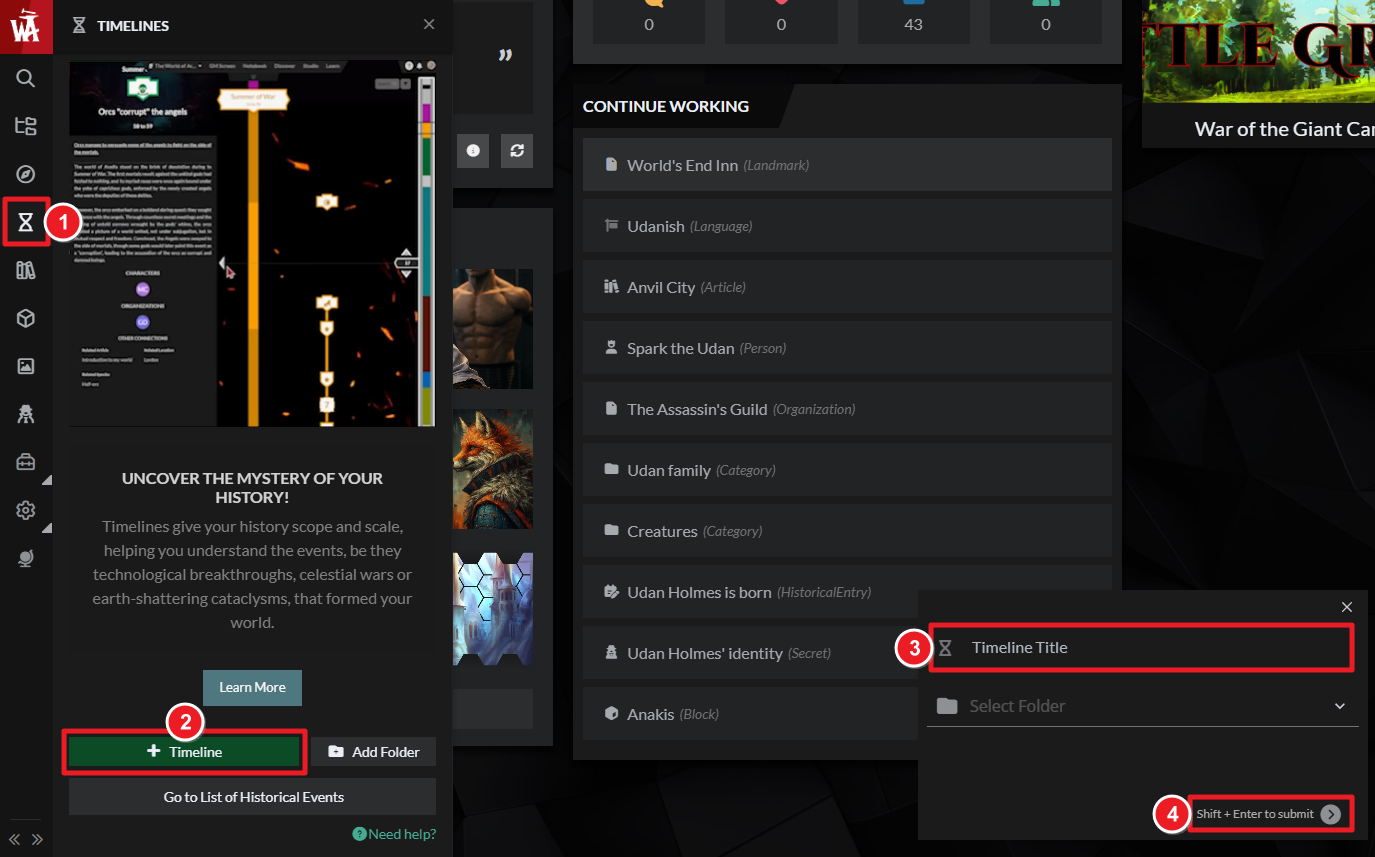
- Type your timeline’s title, then use Shift+Enter (or click the arrow) to create your Timeline. Your new timeline will automatically open so you can start working.
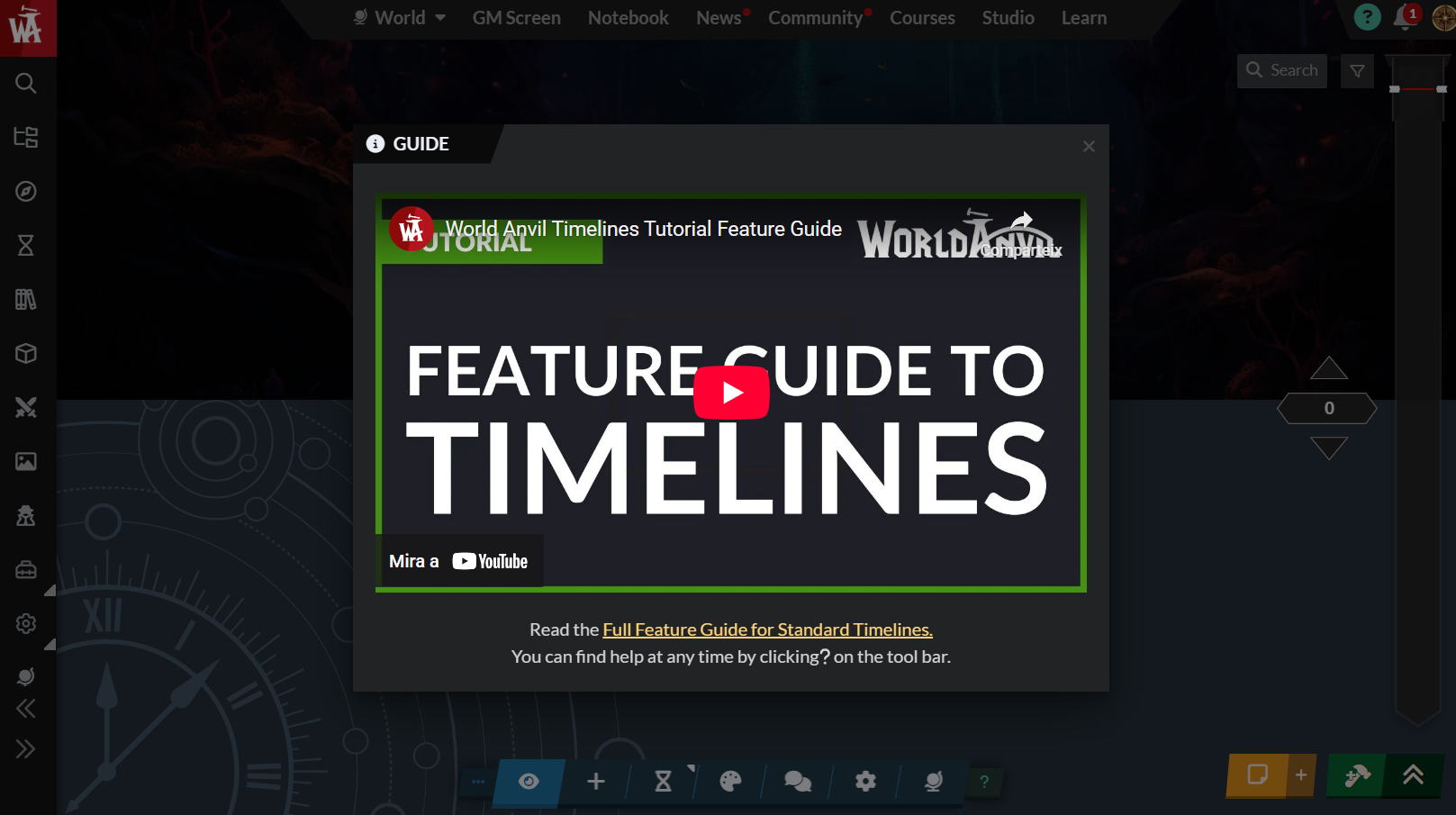
The first time you create a timeline, the full feature guide video will pop up. That will walk you through the whole feature in detail! If you’re continuing with this lesson, just close it for now. You can find the video in the full help guide, whenever you need it.
Timeline UI walkthrough
Let’s start by going over the timelines interface. At the top centre of the UI you’ll find:
- Title: top and centre of the interface. Just click to edit it.
- Description: Just beneath the title. Click “edit description” to add or edit the details.
When you scroll down on your timeline, the header area will collapse to give the timeline itself more space.

At the bottom centre of the Timelines UI is your tool bar. Use this to create historical events, eras, style your timeline and more! The Timelines help guide is linked on the button, so you can find and reference it at any time.

Historical Events on Timelines
Historical events are used to describe what happens in your world, and when!
Pro-tip: Timelines actually have TWO different display modes! Timescale displays events in scale, with many columns so you can show simultaneous events. List Mode is a simple list display of your historical events, one after the other. You can toggle between those modes in settings from the toolbar. This lesson focuses on Timescale mode.
Assignment 2: Create a historical event
To create a historical event:
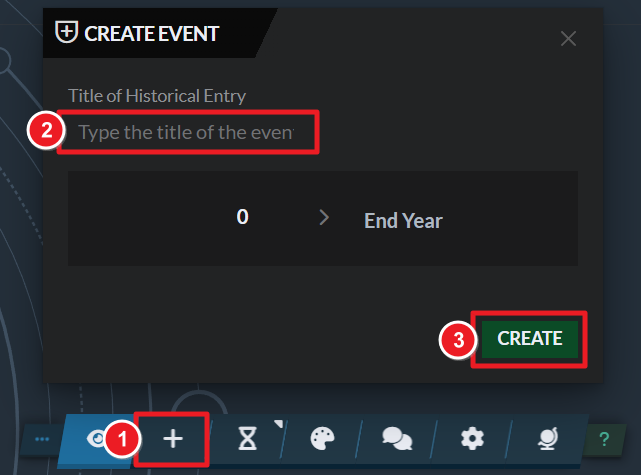
- Click the + button on the toolbar and add a title.
- If you want, adjust the Start Year and End Year. Don’t worry too much about the exact dates yet! Just create something to get started.
- Click Create.
When your historical event is created, two things will happen.
- A new event pin will appear on the timeline ribbon, and…
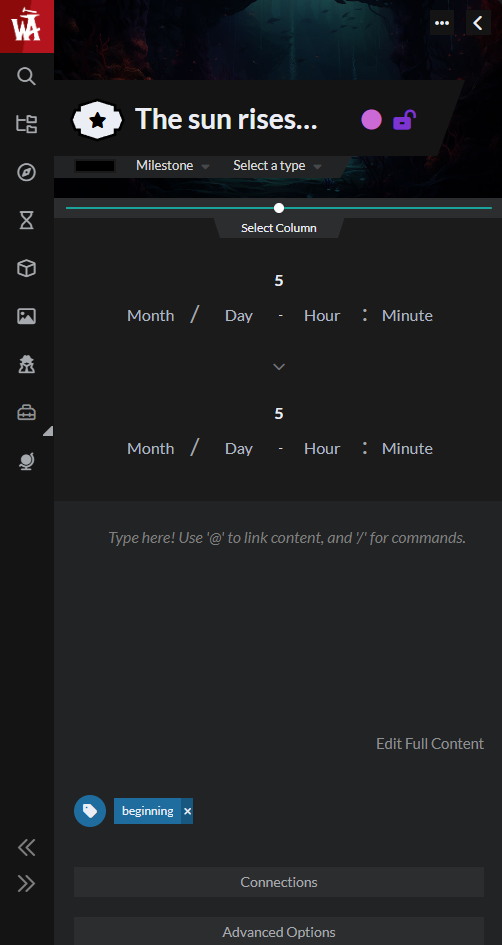
- A side panel will slide open from the left. This contains more details you can edit for your Historical Event!
In the side panel:
- Click the title to edit it.
- Beneath the title is the “select column” slider. Experiment with dragging it a few points to the right. This will move your event to a different column on the timeline.
- Adjust the start and end date if you like. If you add an end date that extends into the next year (or more), your event will have a duration line extending down from the event pin.
- Beneath the date section, add a short description, explaining what happened during the event.
- Beneath the description, experiment with changing the Event Type and Importance. This changes the icon and badge shape of your event pin! You can also toggle the color and privacy of your event here.
- Click “Connections”. If you have any articles related to your event, link them into your event here. (Only the relevant template types will show up in the dropdown lists.)
Congratulations! You’ve created and edited your first historical event!
Pro-tip: Historical Events are entities in your world, and can appear on multiple timelines. Read this guide on how to set this up.
Creating eras: organizing time in your world
Now let’s talk about eras. Eras are organizational structures of your timeline. They create bands of time that can be helpful when conceptualizing the larger history of your setting. Let’s start by creating a simple era, so you can see what they do.
Assignment 3: Create a simple Era
To create an era:
- Click the hourglass button on the tool bar
- Add a title, and the dates your era starts and finishes.
- Then click Create.
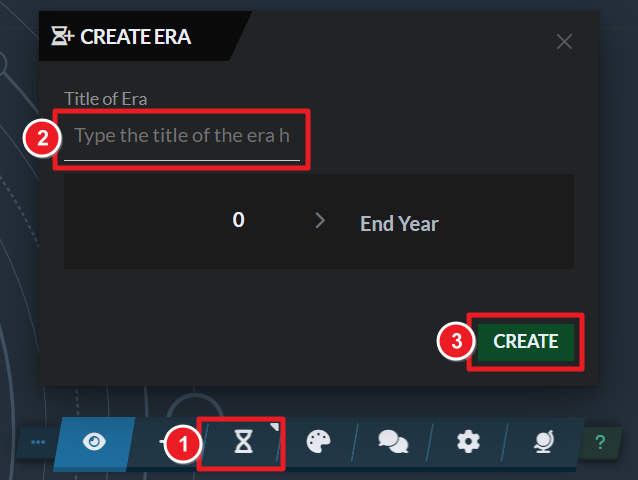
As with Historical Events, when you create an era:
- it will appear on the Timeline, and…
- the left hand edit panel will slide out, so you can toggle and refine the settings.
Now, to continue:
- In the edit panel of your era, write a short description.
- Experiment with toggling the default color.
- On the right of your timeline, you can see your era as a block of color on the mini-map. Click and drag to reposition your viewer on the mini map. When your timeline gets longer, this will be a great way to navigate it! The arrows jump you between historical events, useful if there are large gaps in your timeline.
Managing time and eras in your setting
So, how should you start organizing your history and time as a worldbuilder? I recommend you either:
- start with your current era and work backwards as you need to, or
- start with a major past event—like a cataclysm or a regime change—and work forwards.
I don’t recommend starting your timeline at the very beginning of time unless it’s very important to your setting, or you're very committed to building your history!
Pro-tip: If in doubt, pick a date (any date) for your “current present day” and build backwards! The nice thing about time is that it stretches infinitely backwards and forwards, so you have… uh, time to play with!
The following are some common ways to organize eras and history in a setting. Do what makes sense for your world, and focus on what’s important in your setting!
Creating Tolkien-Style Ages
Some authors, like Tolkien, have many eras in their world: the First Age, the Second Age, and so on. Each of these would be an era on a World Anvil Timeline. Tolkien uses era-defining events to indicate the end of an age: e.g. the Second Age ended with the War of the Last Alliance and the defeat of Sauron.
Pro-tip: For Era-changing events, use the “Milestone/Era Changing” importance level on an Event. (You’ll still need to create a new era.)
Regnal Years to count time
Some cultures use Regnal Years. That means they begin a new era every time a new King (or Queen, or other Monarch) comes to the throne. For example, “The Reign of Ramesses” might be its own era, starting when he was crowned, and ending when he died. Other cultures might use one Era for each dynasty that rules, like the “Tudor Era”, or the “Shang Dynasty Era”. Systems like this often restart the year count to 1 at the beginning of a new era, and refer to events as being, for example, “in the first year of the reign of Ramesses”.
Pro-tip: To set this up, go to your Era’s Advanced Options, and change “Count Offset” to “Restart your dates from 1 (or 0)”. Now, when you create Historical Events in this era, you’ll see the new “date number”, showing as “corresponds to” under the default date. You can scroll the mouse wheel to reposition your event before you create it, so the dates are what you want them to be!
BCE & CE-style eras
At its most basic level, our modern western calendar only really uses 2 eras—BCE (Before Common Era) and CE (Common Era). In our calendar, BCE counts backwards ending at 0, and CE counts forwards from Zero. To recreate this on World Anvil, create a timeline with two basic eras: one that counts backwards to 0, and one that counts forwards from 0.
Pro-tip: To set up Inverted dates (like BCE) for your era, go to your era’s advanced options: then click the Invert BCE Dates slide to toggle this. You can also use this for “reverse dating” with regard to a major event, e.g. “39 years BEFORE the cataclysm”.
Cultural (or Technological) Eras
All well and good. But as well as BCE and CE in our world, we also have the Renaissance era, the Age of Sail, the Industrial era! Aren’t they eras too? Setting up a BCE/CE-style era system is great when you’re dealing with timescales on the level of millennia, but it might not be the most practical for your setting.
Cultural (or technological) eras may be a better fit for your setting, and make more sense for the span of time you’ll be dealing with. Depending on how fast your cultures or technologies evolve, this may mean an era change every 20-200 years.
View mode
Once you’ve created a few historical events and an era or two, you’ll have a great timeline that you—and your readers and players—can browse through! Now it’s time to see your timeline as others see it. Unlike articles, timelines are very similar between edit and presentation mode.
Assignment 4: See your timeline as others do!
To see your timeline in view mode:
- Click the Eye button on the toolbar to view your timeline. You’ll see the options on the toolbar change in View mode.

- Experiment by clicking on your historical events and eras. The left slide panel will display the details and linked articles.
- Click Edit on the toolbar to return to edit mode.
And that’s all you need to get started with timelines! To get inspired for building more historical events, check out our inspirational guide for different kinds of historical events you could create in your world.
Click here for the next lesson in the Get Started series, or find the full list on the Get Started Wizard at the bottom right of your interface.
Now grab your hammer, and go worldbuild!



