Icons are a great way to identify different kinds of content at a glance. When creating a new article, an icon corresponding to the article's template will be automatically added to the left of the title. For example, this is a language article:
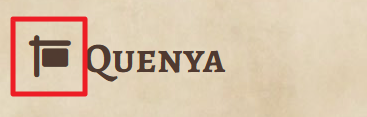
But you can change this icon for one that better fits the article—and even remove it! Here's how.
Looking to insert icons within the contents of your articles? Check How to use icons in your articles instead!
How to change the icon
To change the icon into someone else:
- Open the article for editing.
- Click on the icon next to the title and use the pop-up search bar to find the icon you want:
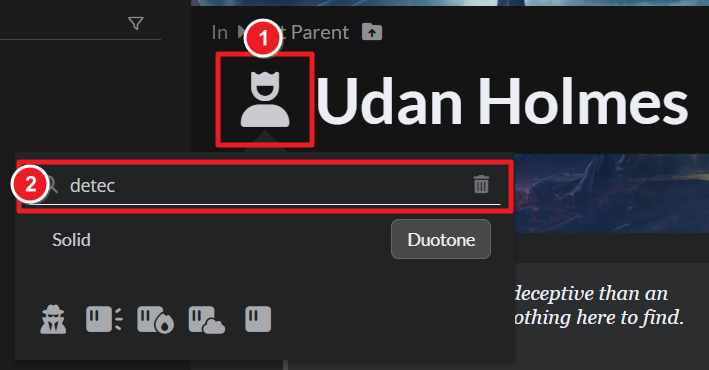
- You can optionally pick a different style of icon (like thin, duotone, etc). When you have the icon you want, click on it to set it!
Icons are sourced from FontAwesome and RPG-Awesome, so, while you can find them through the search bar, you can also refer to their web site to see a list of all icons you can choose from.
How to remove the icon
Removing the icon is just as easy!
- Open the article for editing and click on the icon, as if you wanted to change it.
- In the pop-up search field, click the bin icon on the right:

To add an icon back, just follow the steps in the previous section.
For more information and help with articles, check the Guide to articles.



