Available to all Guild subscription tiers. Upgrade here.
Global content fields let you display text, images, and other content in all (or most) pages in your world. For example, if you add content to the "global header block", that content will appear at the very top of every single page of your world.
How to edit content blocks
Follow these steps to edit the global content blocks:
- On the left sidebar, click the gear icon, and then the double gear icon to access your world's settings.
- Click on the "Display" tab, and then the "Global Content" sub-tab.
- Edit the global context fields you need, and then save changes.
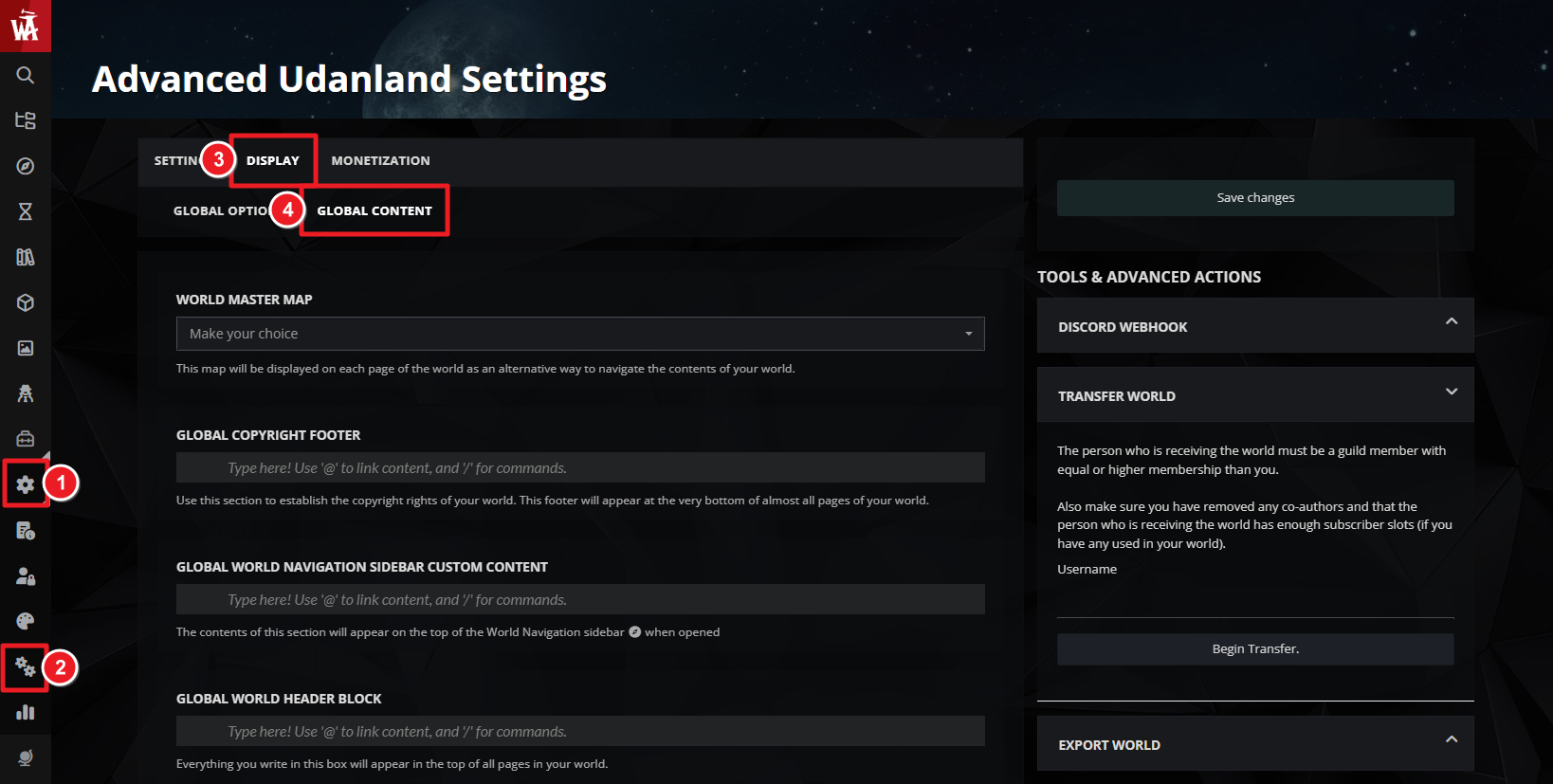
For more information and help with world settings, check the guide to world configuration.
Content block descriptions
Here's a brief explanation of each content block:
- Global Copyright Footer: This will appear at the bottom of every page in a smaller font. It's designed for copyright and license statements, but you can use it for anything else you want to have at the bottom of all pages.
- Global World Navigation Sidebar: In view mode, the navigation sidebar appears when you click the list tab on the left of any page. This global field will appear at the very top of this panel so you can add your own custom content in there!
- Global World Header: This will appear at the very top of every page, outside the boundaries of the regular page container. This was designed to be used in combination with CSS (and even custom containers) to give it a unique style that fits your world. For example, some Anvilites use this space to create a header bar with important navigation links.
- Global Article Introduction: This will appear in every single article, under the article's title but before any of the specific content of the article.
- Global Article Announcements: Similarly, this appears in every article at the top of the sidebar, before any of the article-specific content.
- Global Article Additional: This will appear in the sidebar, after all of the article-specific content.
- Global Article Footer: Finally, this appears at the bottom of every article; after the article-specific content but within the boundaries of the article container.



