If you'd like to keep a local copy of your work, you can export your world. To do that, follow these steps:
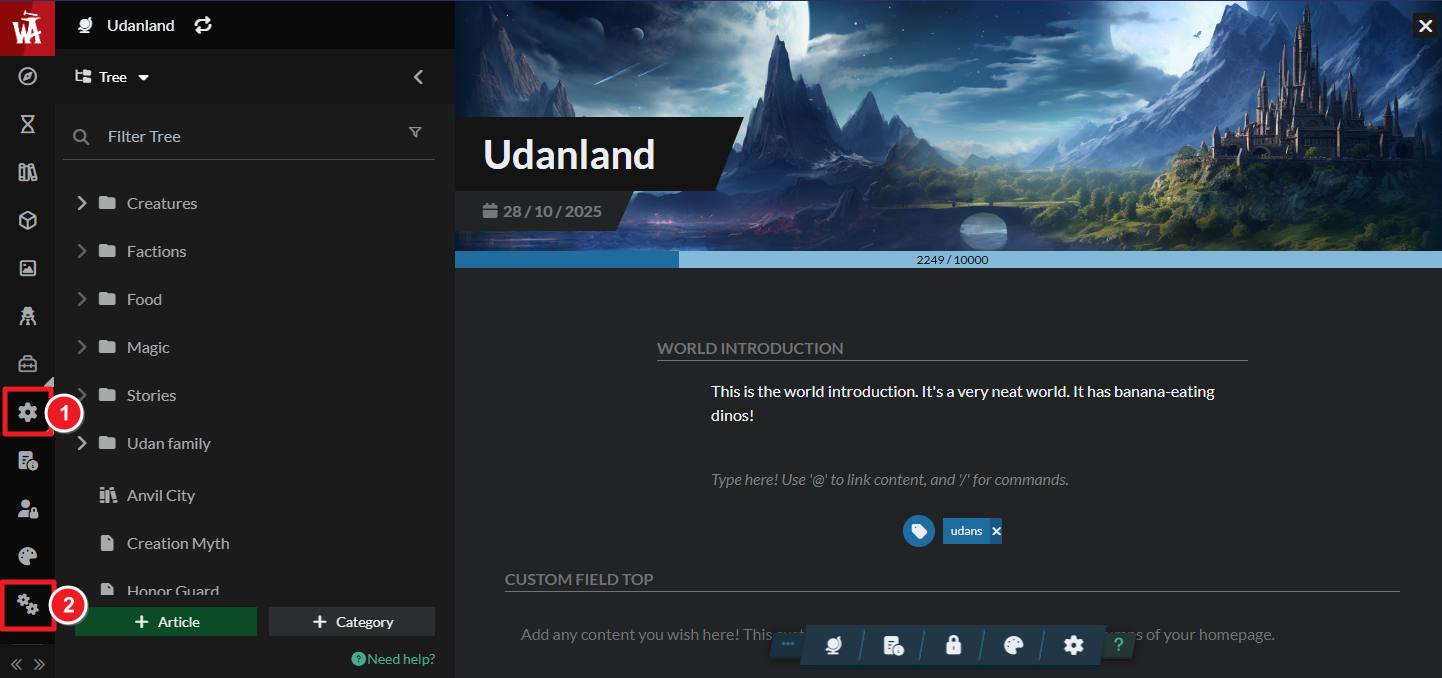
- Click on Settings in the left sidebar menu.
- After that click on the double gear icon to head to your world's configuration page.
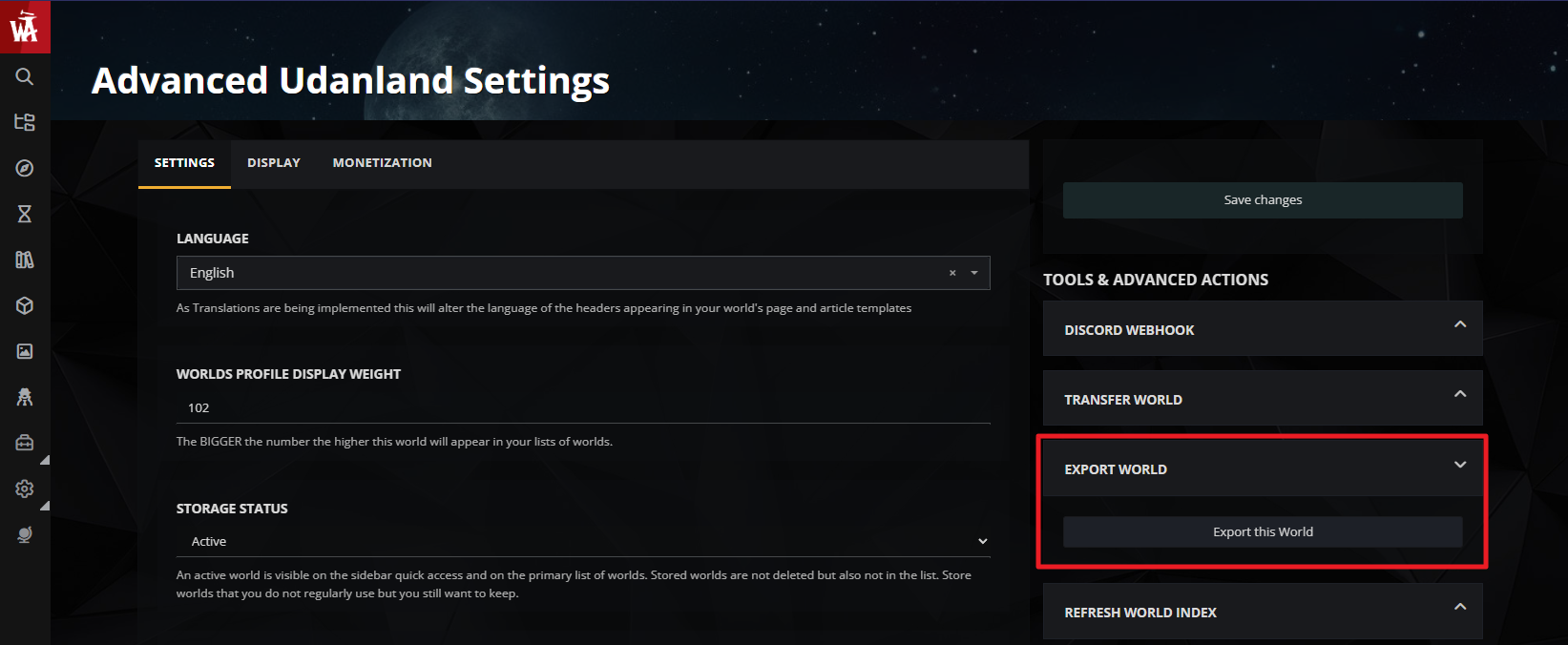
- On the right area of the settings, click on the Export World section.
- Click on the "Export This World" button.
- Save the page once it's open to keep a local copy. Use Ctrl+P or Cmd+P (Mac) to print the page on your printer or PDF.
Advanced world exporting
Available to all Guild subscription tiers. Upgrade here.
As a guild member you can export any world from World Anvil as a structured zip archive. This archive contains all the metadata and contents of the world serialized in JSON format, as well as in a basic HTML format (which is human-readable). Follow these steps:
- Click on Settings in the left sidebar menu.
- After that, click on the double gear icon to head to your world's configuration page.
- On the right area of the settings, click on the Export World section.
- Click on the "Export This World" button.
- You will see a field where you need to paste your User API Token.
- After that you will see the advanced world export page. Follow the instructions on that page and click Start! when you're ready to start exporting.
For more information and help with world settings, check the guide to world configuration.



