Available to the Sage subscription tier and above. Upgrade here.
If you own a web domain, you can set up your world to use it. After the set-up is complete, your world's URL will contain your custom domain instead of starting with worldanvil.com. Here's how to do it:
- Acquire a domain. World Anvil isn't a domain name provider, so you'll need to use another site.
- Ensure the domain is properly protected by Cloudflare—see below for details.
- Fill out the world domain name request form and follow the instructions there.
- Set up the DNS records for the domain. See below for details.
- Wait until we process your request. We do so in batches, so it might take a little time. Once the process is complete, you'll be able to access your world from your own domain!
It is possible that, once we process your domain, it will load an error page instead of your world. This will happen if we have processed your request before you set up the DNS records. Once the DNS records are set up and propagated (which may take some time), we'll be able to do the last step and your world will load properly
Notes
- Important: Because of security restrictions, Custom Domains aren't compatible with logged-in features like Access as part of the Sage package. We can offer this package as part of an Enterprise service; if you would like to learn more, please contact us at [email protected].
- The default worldanvil.com URL will keep pointing to your world as always, so you can use it as a fallback if there are temporary technical issues with the custom domain.
- The domain set-up process is manual, so it may take some time. If multiple days have passed and your custom domain still doesn't work, please email us at contact[at]worldanvil.com
- We will obtain and maintain an SSL certificate for your domain for as long as your domain points to World Anvil, so connections to your world through your domain will be secure.
Cloudflare set-up
For a domain to be approved, it must be protected by Cloudflare in order to be enabled; all required steps are available for free on Cloudflare. If you are using a different DNS service than Cloudflare, follow these instructions:
- Go to Cloudflare and select the relevant site (if you don't have a Cloudflare account, create one here.
If you want to fully migrate your domain to Cloudflare, follow these additional steps here: - Add your base domain to Cloudflare.
- Transfer your DNS from your registrar to Cloudflare by putting the Cloudflare nameserver to the relevant field in your registrar (refer to their documentation, as each registrar might have a different way to handle this).
- In the sidebar, select "SSL/TLS", and then "Overview". Click the "Configure" button.
- In the "Custom SSL/TLS" banner, ensure the "Full" option is selected and click "Save" (if you created a new account for this, this will probably be marked as "Full" already).
Important: Do not select the "Full (Strict)" option, as that won't work with World Anvil! Select "Full" only. - Go to the DNS section of Cloudflare and enable proxy both for your domain (and your www. if you're using it).
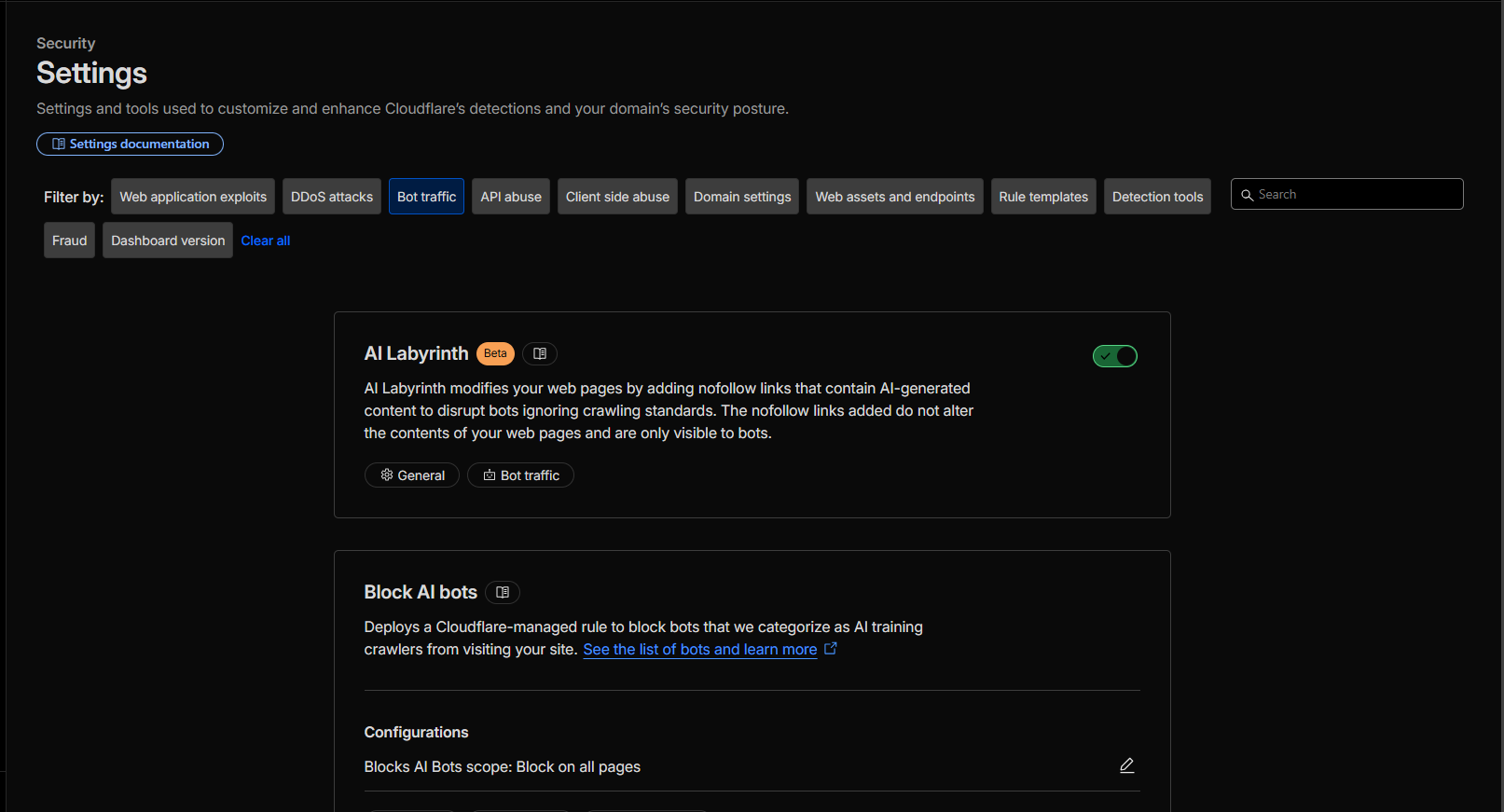
- On Cloudflare, in the left sidebar, select "Security" and then "Settings". Then, at the top of the page, select "Bot traffic":

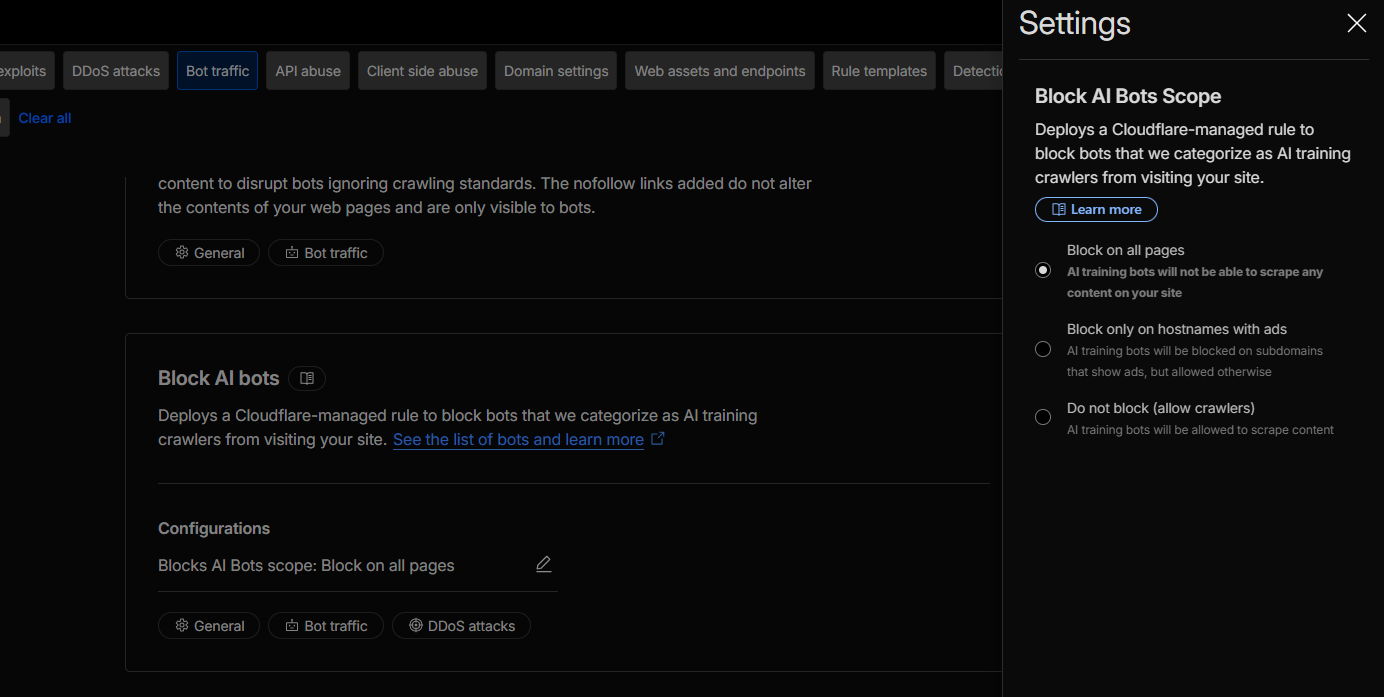
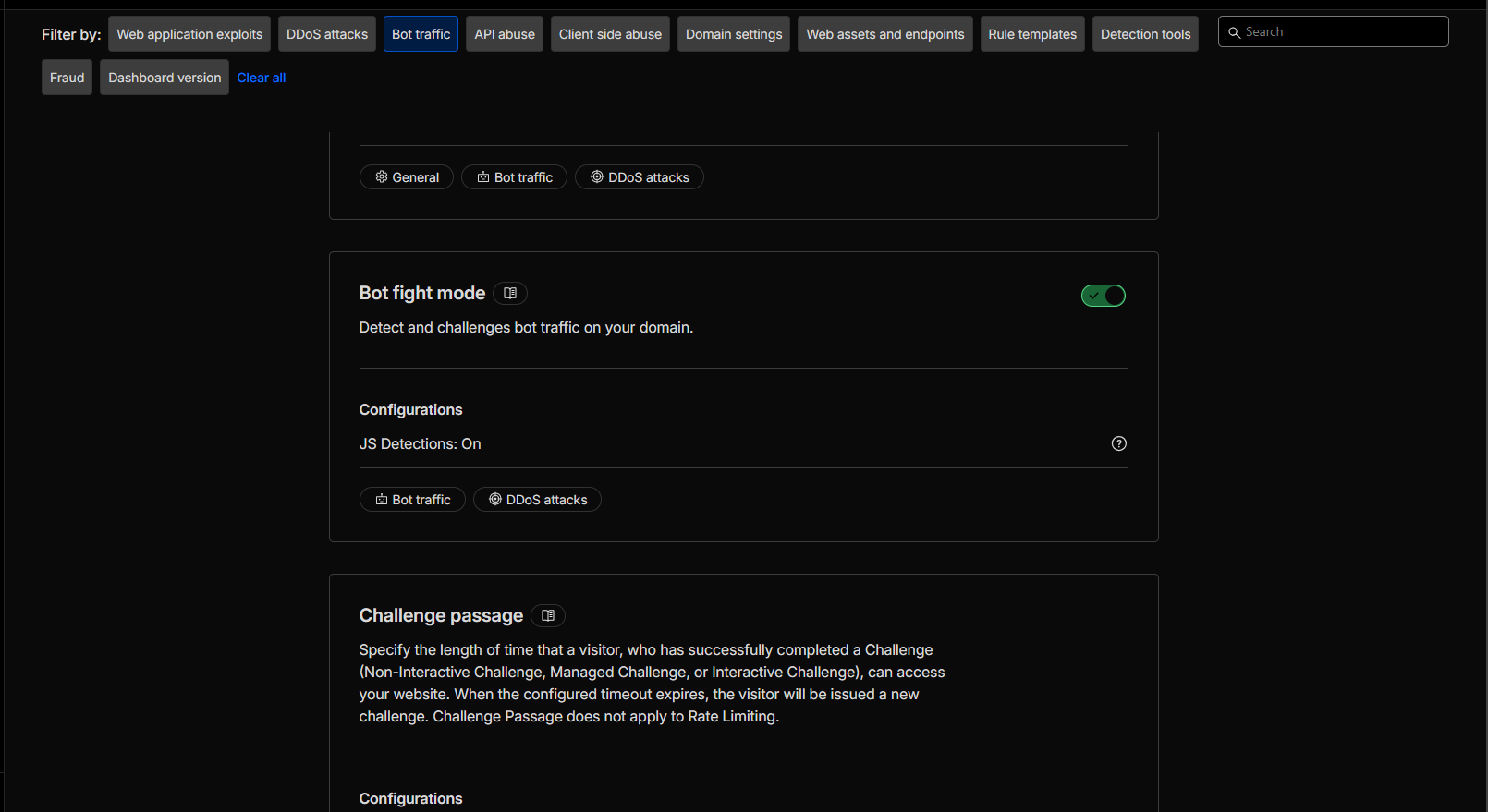
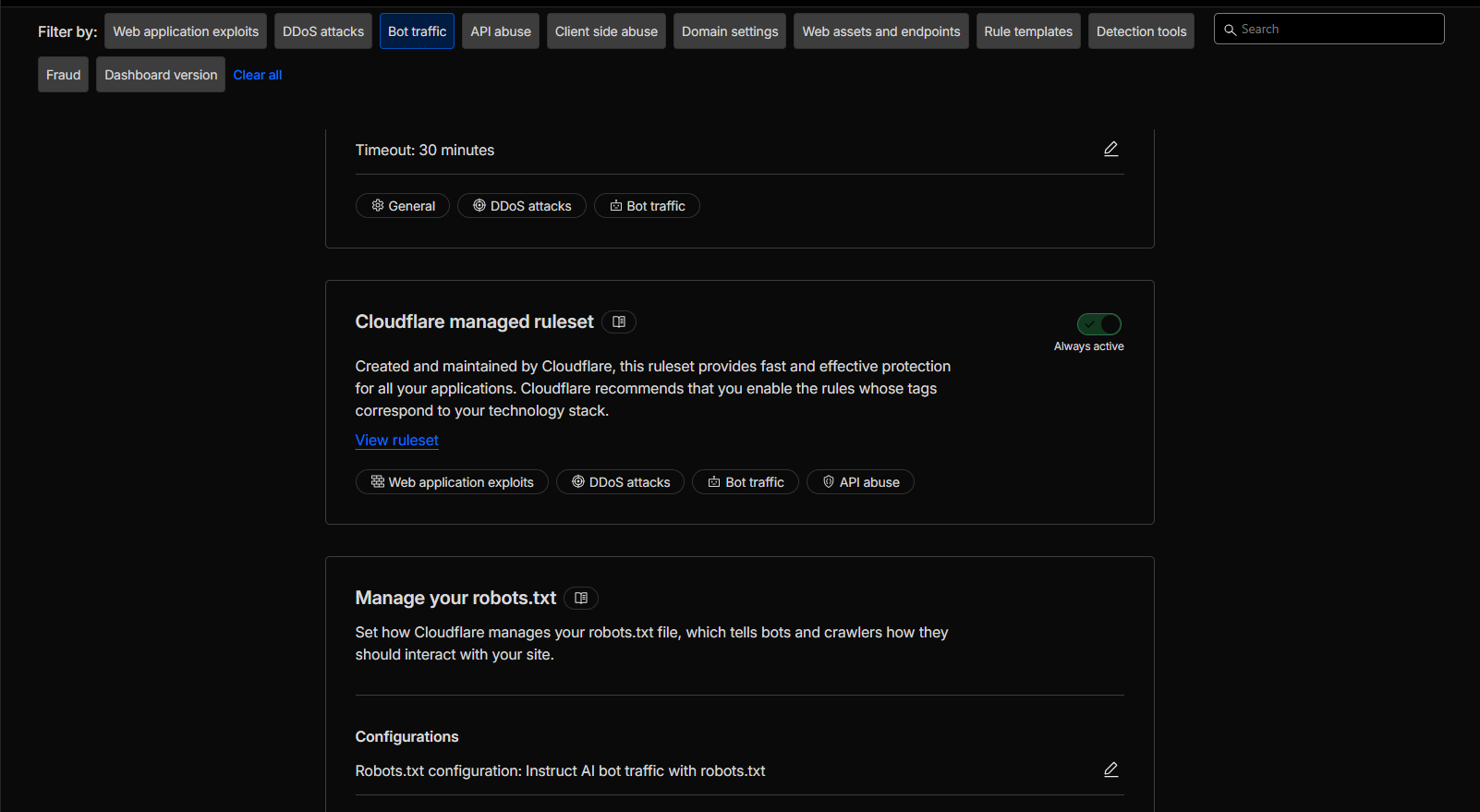
- Ensure the following settings are configured as follows:
- AI Labyrinth: Enabled
- Block AI Bots: Set to "Block on all pages"
- Bot fight mode: Enabled
- Cloudflare managed ruleset: Enabled
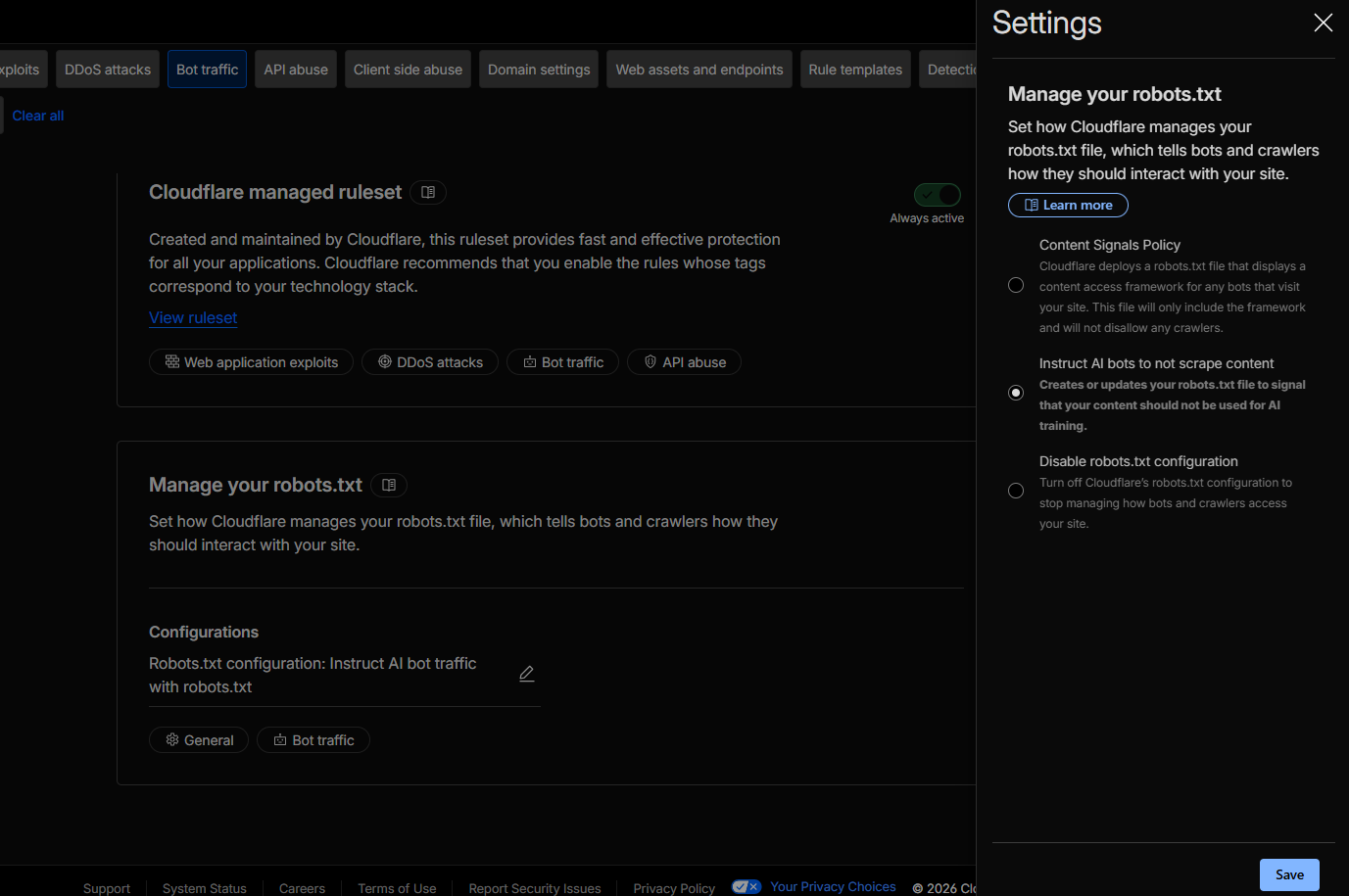
- Manage your robots.txt: Set to "Instruct AI bots to not scrape content"
Refer to the following screenshots to double-check your settings look exactly the same (click on the screenshots to enlarge them).
DNS record set-up
On Cloudflare, you'll have to configure the DNS records for the domain. If you want to use the main domain for your world, follow the following steps. If you want your world to be in a subdomain (e.g. world.example.com instead of just example.com), follow the steps below.
- Record Type: A
- Name: @ — This is a special character that refers to the top level domain on Cloudflare.
- Path/Target IP Address: 167.71.140.33
- TTL: automatic (default)
Additionally, if you want your domain's www to also work (e.g. www.example.com instead of just example.com), add a new DNS record:
- Record Type: CNAME
- Name: www
- Target/Content: @ — This will redirect www.example.com to example.com.
- TTL: automatic (default)
DNS subdomain set-up
If you only want to have a subdomain point to your world, rather than the top level domain, set up the DNS record as such:
- Record type: A
- Name: type in only your subdomain. For example, if you want "world.example.com" to point here, just type in "world".
- Target/Content/IP Address: 167.71.140.33
- TTL: automatic (default)
For more information and help with world settings, check the guide to world configuration.