Available to the Master subscription tier and above. Upgrade here.
Whiteboards are a graphical canvas for your imagination, where you can create visual outlines, diagrams, and more! Here's how to embed a whiteboard into an article—note that you will need the Advanced Editor enabled in the article for this.
- Click on Advanced Tools in the left sidebar.
- Open the Whiteboards side menu to find the list of whiteboards.
- Click the ellipsis button next to the whiteboard you want to embed, and then the Copy Block button.
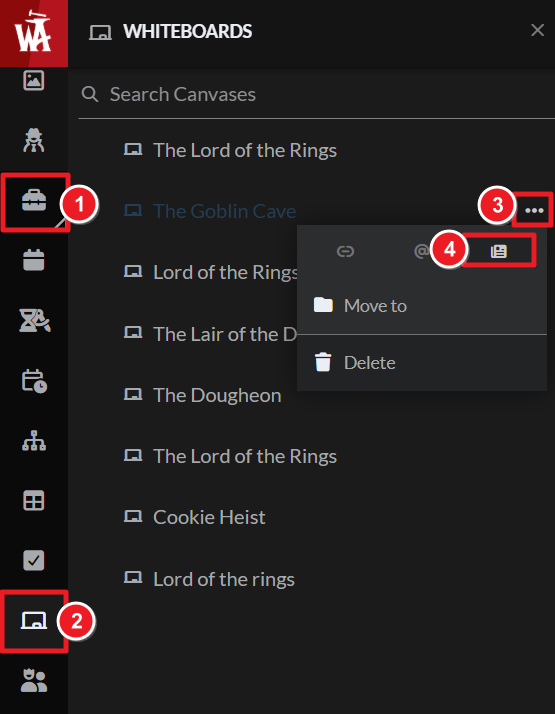
- Paste the copied embed code into an article (using the Advanced Editor).
Alternatively, while editing a Whiteboard, click on the top left menu and click on the "Copy to clipboard" option.
An embedded whiteboard will appear smaller than on the edit side because the size of an article's content area is smaller than the full edit interface. Still, the embed is scrollable in all directions, so all elements will be visible. For more information and help with whiteboards, check the guide to whiteboards.



