Available to all Guild subscription tiers. Upgrade here.
With note templates, you can re-use a note's configuration to stay consistent across related notes. If you expect to create many notes on the same topic, templates might be useful to you!
What's part of a template?
Notebook templates include the following elements:
- Tags: used for search and filtering
- Icon: appears next to the note's title
- Background image: the graphic displayed in the note's header
- Metadata fields: used for search and filtering, but also to display quick data about the note
How to create a template
Before setting up a template, create a regular note and set it up with all the elements you want to template to have (tags, icon, image, metadata). Once you're happy with that, follow these steps:
- Editing the note, click on the ellipsis button at the top right and select Manage Templates:

- In the template manager, click on Save As New Template:
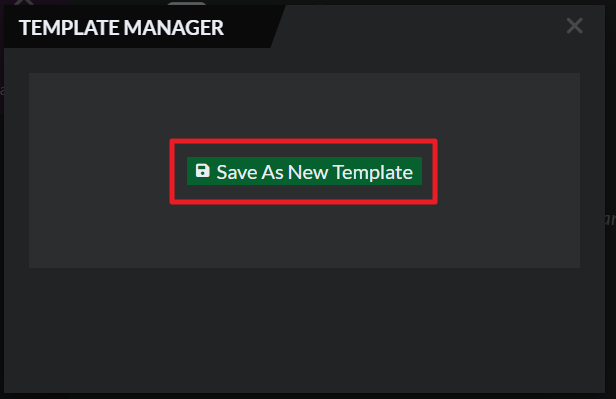
- Give the template a name, and click the "save as new template" button.
Once you have a template, you're ready to use it! Next to the + Note button, you'll find a little arrow: click it to select a template to create your note from!
For more information and help with the Notebook, check the guide!



