Available to the Grandmaster subscription tier and above. Upgrade here.
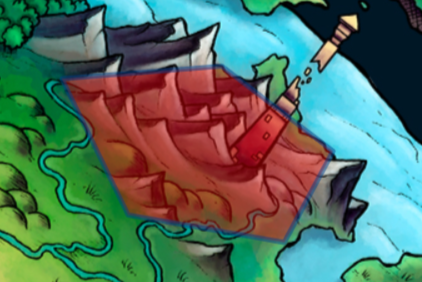
Polygon markers let you make entire areas of your map interactive, with a lot of precision regarding which areas should be included in the marker and which shouldn't. Here's how to create one:
- Click the polygon icon in the toolbar.
- Click anywhere on the map to set the polygon's starting point.
- Click again wherever you want to create more vertices (corners) for your polygon.
- When you create the shape you want, click on the initial point to close the polygon.
- A new panel will appear to choose the polygon's color for the outline, the color to fill the polygon, the opacity for each color and the line weight. You can also use the stroke dash size option if you want. Click Next when you're done.
- In the next panel screen, choose a title. You can also optionally choose a marker group to place it under and add a description.
- Click the green "Finish & Create" button.
To edit the polygon marker, click on it and then click the edit button. For more information and help with interactive maps, check the Guide to Maps.



