Available to the Master subscription tier and above. Upgrade here.
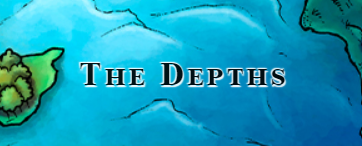
With map labels, you can display place names in an interactive way as part of your map. Here's how to add one:
- Click the label icon in the toolbar.
- Click anywhere on the map to set the label's location (you can change it later, don't worry if you misclick!)
- A new panel will appear to choose the label's title. You can also optionally choose a marker group to place it under. Click Next when you're done.
- In the next step, choose a label style.
- Click the green "Finish & Create" button.
- If you want to move it, simply drag and drop it anywhere you wish.
To edit the label, click on it and then click the edit button. For more information and help with interactive maps, check the Guide to Maps.



