Available to the Master subscription tier and above. Upgrade here.
With labels, you can color-code your Manuscript parts to easily see the status of each scene and chapter. Here's how to use them!
How to apply Manuscript labels
Here's how to label a scene or chapter:
- Click on the page or folder you want to label.
- On the right area, go to the information tab for a chapter, or the tag tab for a page.
- Find the "Label" section and click on it to select a label.

How to edit Manuscript labels
By default, the six labels are labeled with their own color. But you can change both the label's text and color!
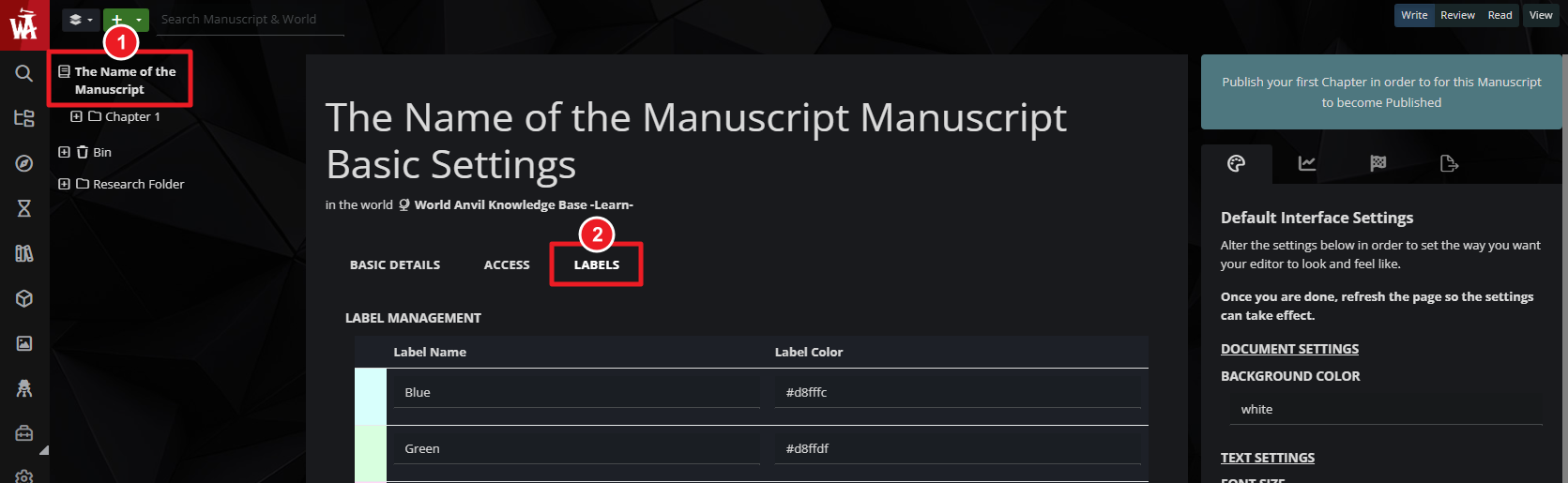
- On the left area, click on the name of your Manuscript at the top to access its settings.
- Find the "Labels" tab and click on it.
- In that section, change the labels' text and color according to your needs.
Why should you use labels?
Here's some ways you can use Manuscript labels to help you write and edit your stories!
- Writing stages: Create different labels for each stage in your writing process (draft 1, draft 2, beta readers, final version, etc) so you always know which parts need more work.
- Editing stages: If you're already using folders to organize draft versions, you can use labels for more detailed information, such as the type of revision a chapter is waiting on ("proofreading", "continuity edits", "needs rewrite", etc).
- Release stages: Especially relevant for serial fiction, you can have different labels for chapters that are publicly released, released to supporters, and unreleased. Check the workflow for serial fiction writers for more details on how to write serial fiction on World Anvil.
- Character POVs: While each Manuscript scene has a POV Character field that you can use, you can use labels for a very clear visual reference! Simply create a label for each character, give it a different color, and use it to highlight the main character of each scene or chapter.
- Managing timelines: If your novels has scenes in multiple time periods (i.e. flashbacks), you could use a different color for each time period! This will let you more easily see when each scene takes place at a glance.