Available to the Grandmaster subscription tier and above. Upgrade here.
With mass edit, you can make the same change to multiple images with a single button click. For example, you can move multiple images into a folder, update image descriptions, and much more. Here's how to use mass edit for images!
Using Mass Edit for Images
Follow these steps:
- Open the Image Manager from the left sidebar.
- At the top right, click the Multiselect button:

- Select the images you want to edit by clicking on them.
- Click the "Select changes" button at the bottom, which will open this interface:
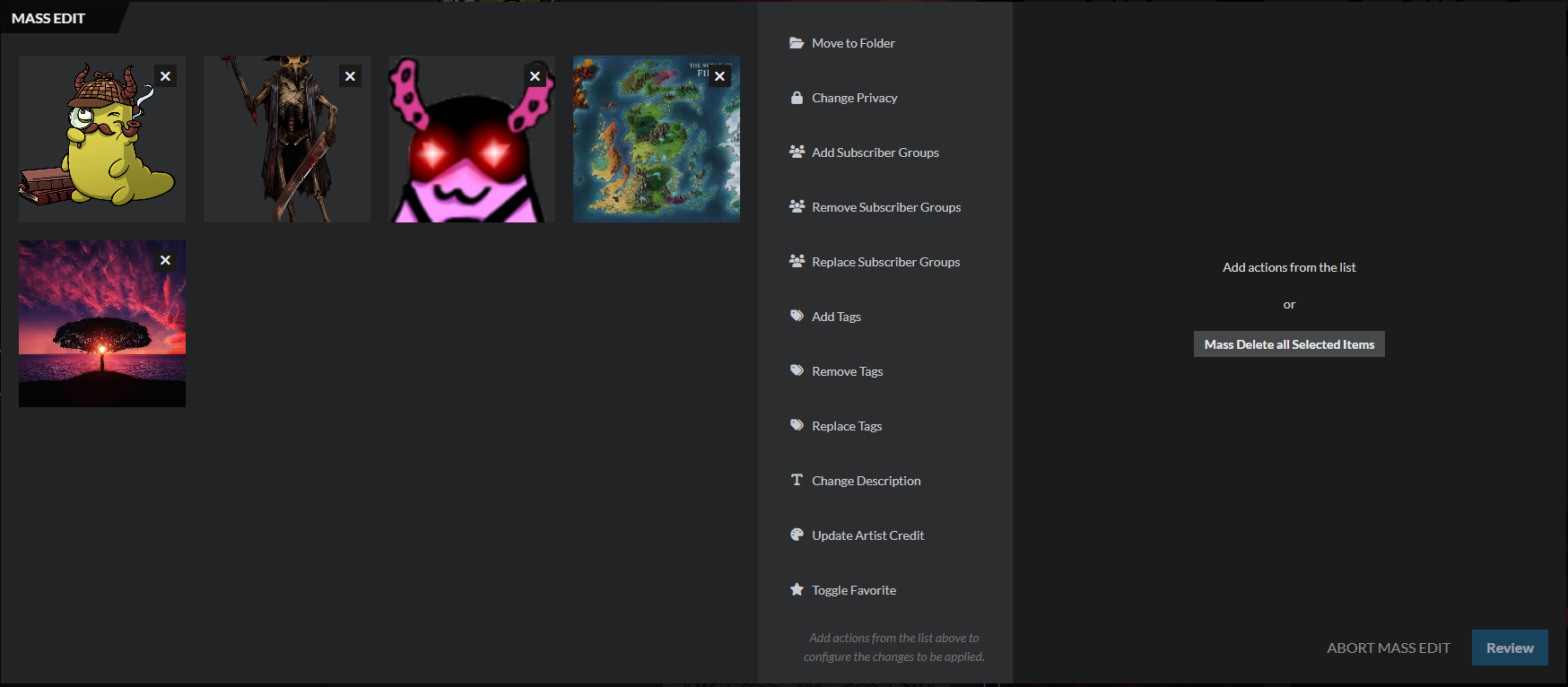
Here, you can select as many edit actions as you want from the middle, which will be applied to all of the images you selected, which are displayed on the left for convenience. When you click on an action, its options will be displayed on the right (for example, if you select "Move to Folder", you'll be able to select the folder on the right):
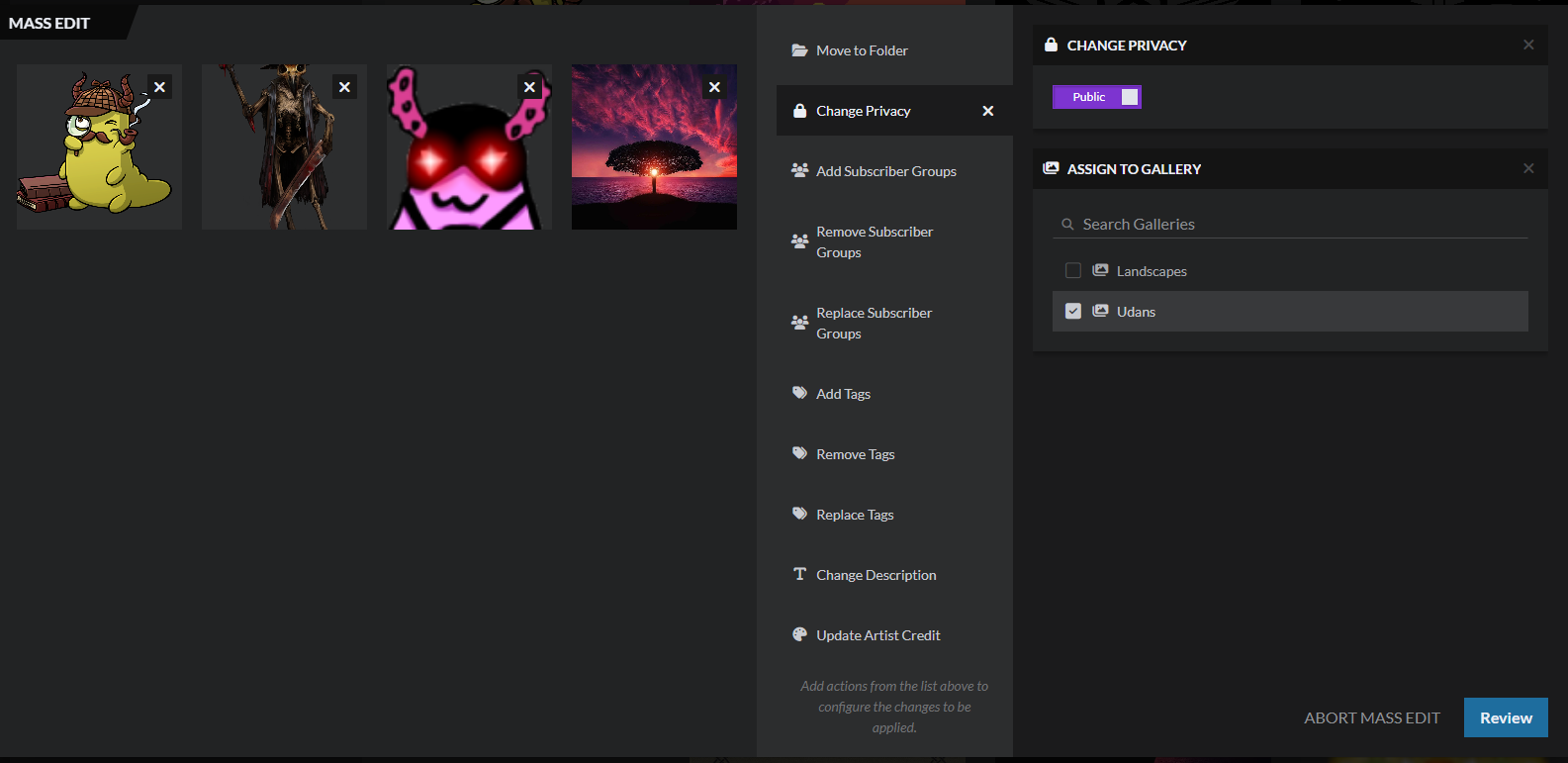
Once you've selected and configured all of the changes you want to make, click the "Review" button at the bottom right. This will summarize all of the changes before performing them, and warn you if there are any incompatible changes. If you're happy with it, click the "Proceed" button to apply the changes.
You can also click the "Abort mas edit" button at any point to exit the mass edit window without performing any changes.
For more information and help with images, check the guide to images.