Available to the Master subscription tier and above. Upgrade here.
If you have a Discord Server and you want the people on your server to get the good news when you update your articles, follow these steps:
Contents
How to create a Discord Webhook
- Go to your Discord's Server Settings and click on Integrations on the left side menu.
- Click on the ''Create Webhook'' button.
- Fill in a name for your Webhook and choose the channel you want your Webhook to send updates to.
- Copy the Webhook URL and click Save.
World Anvil world configuration
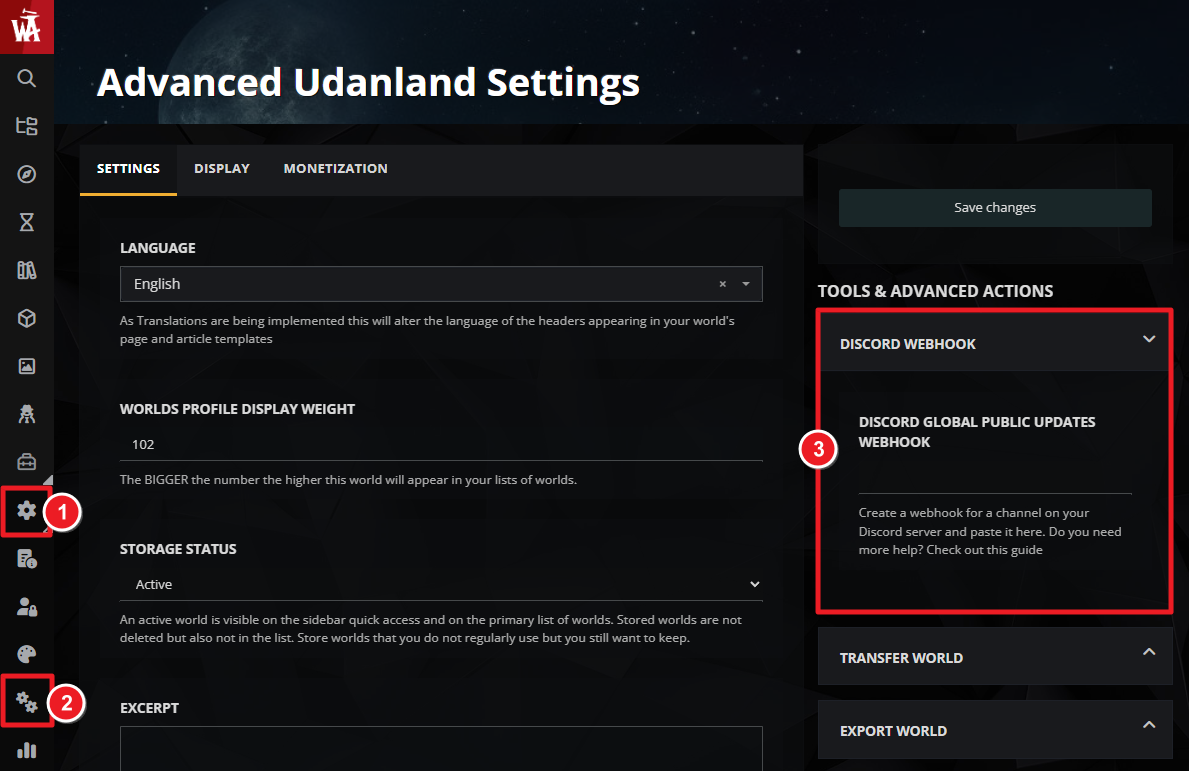
- Go to your World's Advanced Configuration page.
- On the right, click on "Discord Webhook".
- Copy the webhook into the ''Discord Global Updates Webhook'' text field.
- Save changes on the top right.
Sending Updates
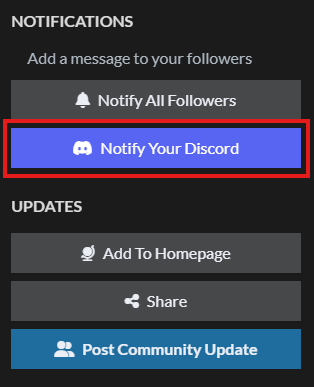
When updating an article you can send a Discord notification to the people in your server. To do that:
- While editing the article, click on the Socials button at the bottom.
- On the right, click on the Notify Discord button (the button will only appear if you have completed the previous section's set-up).
If you want to send updates for multiple articles quickly, then use the Articles & Categories page. The button appears on the right sidebar after selecting an article.
Subscriber groups
Subscriber groups have the ability to have a Discord Webhook URL assigned to them.
- Public articles. When sending a discord notification for a public article, it will be sent to the World's Discord Webhook URL (as set from the World's configuration page).
- Private articles. When sending a discord notification for a private article, the notification will only be sent to the Discord Webhook URLs of the subscriber groups assigned to that article and that currently have a webhook URL assigned to them.