Available to the Master subscription tier and above. Upgrade here.
With interactive tables, you can display structured information in a table your readers and players can interact with. If you have a table saved in CSV format (for example, exported from Google Sheets or Microsoft Excel), you can import it to World Anvil! here's how:
- In the left sidebar, click on Advanced Tools and then on Tables.
- Create a new table or edit an existing table.
- Important note: If you edit an existing table, the import process will replace the current content of the table!
- You need to prepare the table for the import process. Open the CSV table and count how many columns it has. Then, create an equal amount of columns in the interactive table and set them as "Text" type. If the columns don't match, the import process will fail!
- The original table cannot contain any commas in any cell, as commas are used to separate cells. If you use commas inside your table cells, remove them before importing.
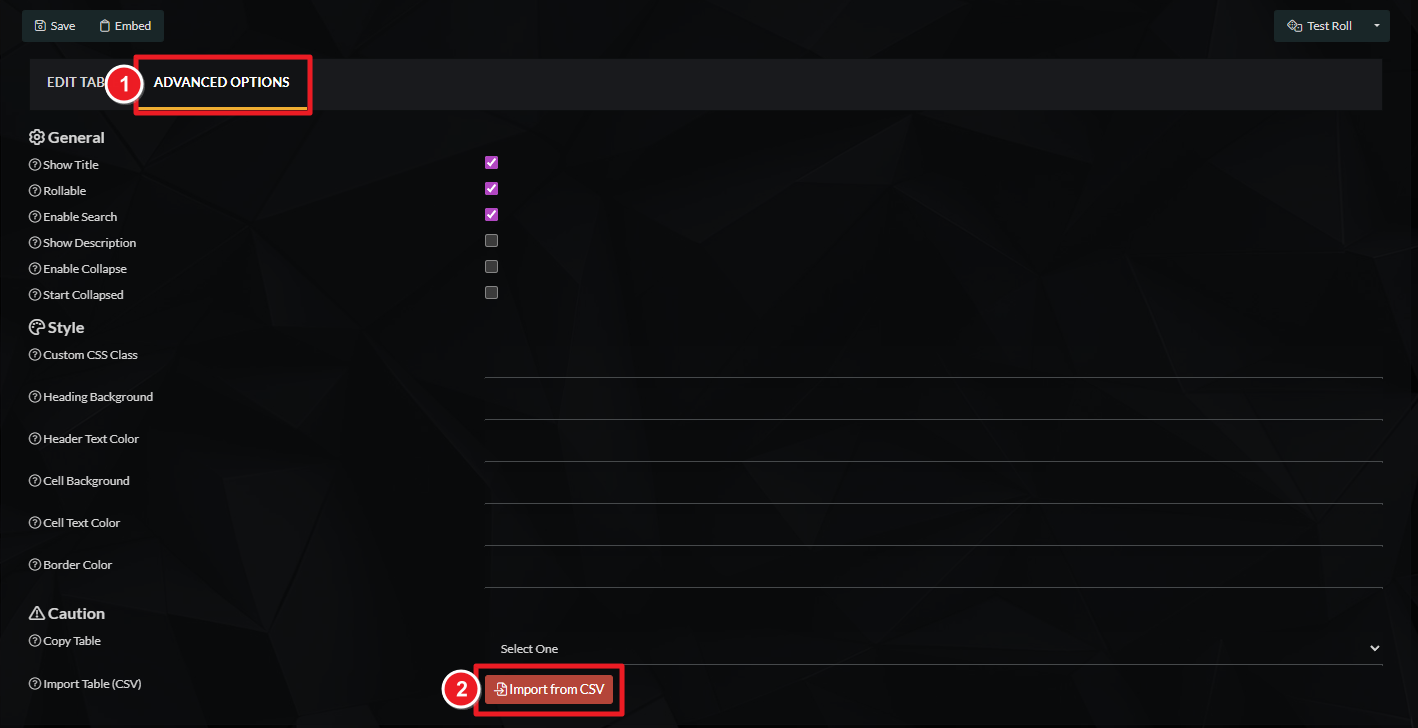
- Click on the Advanced Options tab, then scroll down and click the Import CSV button:
- A pop-up window will appear. Paste the contents of the CSV file in the text box.
Not used to CSV files? You can open them with a basic text editor like Notepad. - Click the "Import & Overwrite" button.
Once the process is done, the table will have the contents of the CSV file! You can now edit the table as normal. Remember to always save changes, as interactive tables don't have autosave!
For more information and help with interactive tables, check the guide to interactive tables.



