Available to the Master subscription tier and above. Upgrade here.
If you're worldbuilding history, the map of your world will probably change throughout history (whether it's wars that change borders, or a cataclysm that changes the physical shape of the world). On World Anvil, you can use Chronicles to show an interactive map that changes throughout time! Here's how:
Note: This assumes you have already created a Chronicle. Check the guide to Chronicles for details.
- Set up the maps: On the right side of the interface, open the Map Manager and create as many maps as you need.
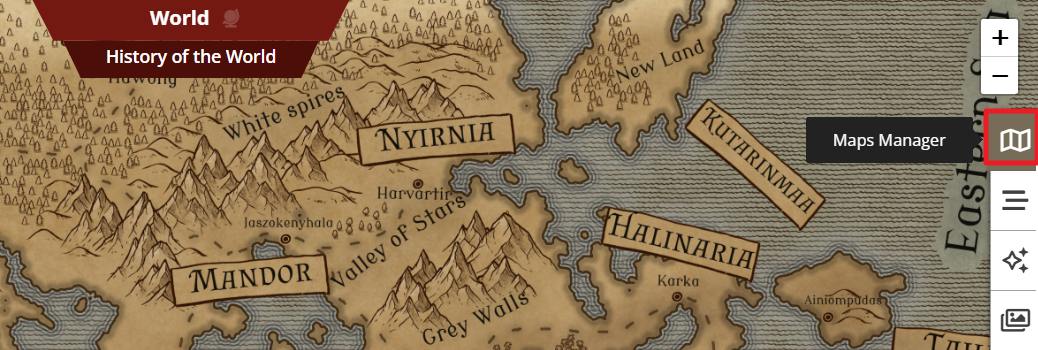
- Set up markers: For this to work, each map needs at least one marker. So, for each map you have:
- Go to the Map Manager and click the crosshairs button to activate it.
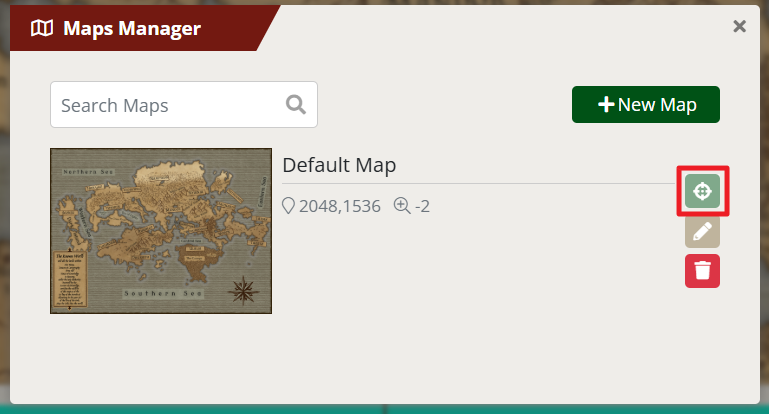
- Right-click anywhere on the map and select "Create Marker".
- Fill in the marker creation form.
- Set up the triggering events: On Chronicles, map changes are triggered by specific events. Think about which events caused the world to change, and for each event:
- Right-click on the timeline and select "Create new event".
- Fill out the new event form as usual.
- In the "Map Marker", select a marker in the map you want that event to trigger.
- Save the new marker.
Now, clicking on the events you set up as triggers will change the map on screen and focus the camera on the selected marker. For more information and help with chronicles, check the guide to chronicles.



