Categories are primarily an organization feature, but they can also hold content, just like articles! They also include several "widgets", such as the table of contents and the recent articles, which you can move around or even remove. Here's how to use the category customization tools!
1. Edit the category
First, you'll have to open the category for editing. Here's how:
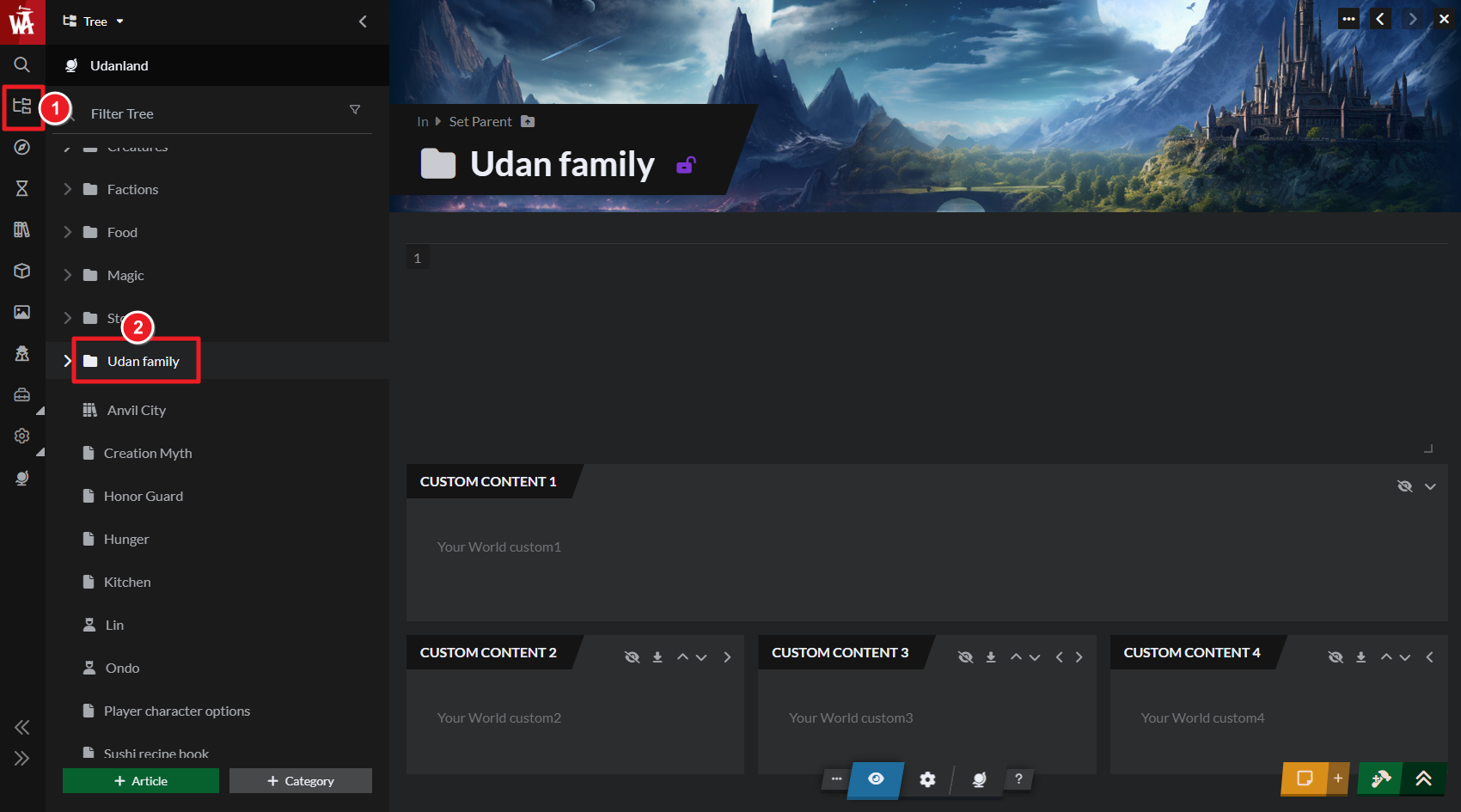
- Open the Articles & World Manager in the left sidebar.
- In the left panel, click on the category you want to edit.
- The category will open for editing on the main area of the interface!
At the bottom there's also a toolbar that includes a gear icon to access the category's configuration options.
2. Add content to the category
Categories include a text box at the top that accepts all formatting options, just like in any article. If you're using the Advanced Editor, you also have access to all BBCode options.
Grandmaster Additionally, Grandmasters of the Guild can use the custom content panels. These panels have a text box and can be moved around the page, including a three-column section. This is a great way to combine your custom content with the pre-defined widgets (like the table of contents).
3. Customize the layout
Each panel has this row of buttons at the top:
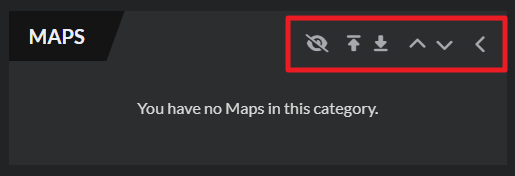
Use them to change the location of the panel. Here's what each button does:
- and move the panel to the left or right column.
- and move the panel to the next row of panel.
- and move the panel up and down within the same row.
Finally, the crossed eye will hide that panel from the category page. You can bring it back using the configuration button at the bottom.
For more information and help with categories, check the guide to categories.



